 Gardion
Parental controls on WhatsApp: parent-managed accounts and time limits
In March 2026 WhatsApp introduced a separate account type for children under 13. A parent sets it up on the child's phone, links it to their own WhatsApp and decides who can message their son or daughter. We read the Help Center section on these accounts and walk through how to create one, what a parent can see and what the account leaves out. For older kids there are five privacy settings worth changing together, and at the end we show how to give the messenger a daily limit and a night pause.
What a parent-managed account is
WhatsApp calls it a parent-managed account. It is meant for children under 13, or under the minimum age in countries where that age is higher. The account is set up by a parent or guardian aged 18 or older, and the parent needs a WhatsApp account of their own.
You notice the difference right after setup. Only people saved in the child's contacts can message or call them, and only those contacts see the profile photo, the About text and when the child is online. A parent adds the child to groups; the child cannot create one.
Some features are switched off entirely: Meta AI, Channels, Status, location sharing, view once media and disappearing messages in one-to-one chats. WhatsApp does not show ads to these accounts. What remains is messaging and calling.
WhatsApp is rolling the feature out gradually, and every page of the Help Center warns that it may not be available in your region yet. If the option to create a parent-managed account is missing from the menu during registration, it has not reached you.
How to set one up on your child's phone
You need two phones, yours and your child's, both running the latest version of WhatsApp. The steps from the WhatsApp Help Center:
1. Install WhatsApp on your child's phone, choose a language and tap Agree and continue.
2. Tap More options and select Create a parent-managed account.
3. Register and verify your child's phone number.
4. Enter your child's birthday and tap Continue.
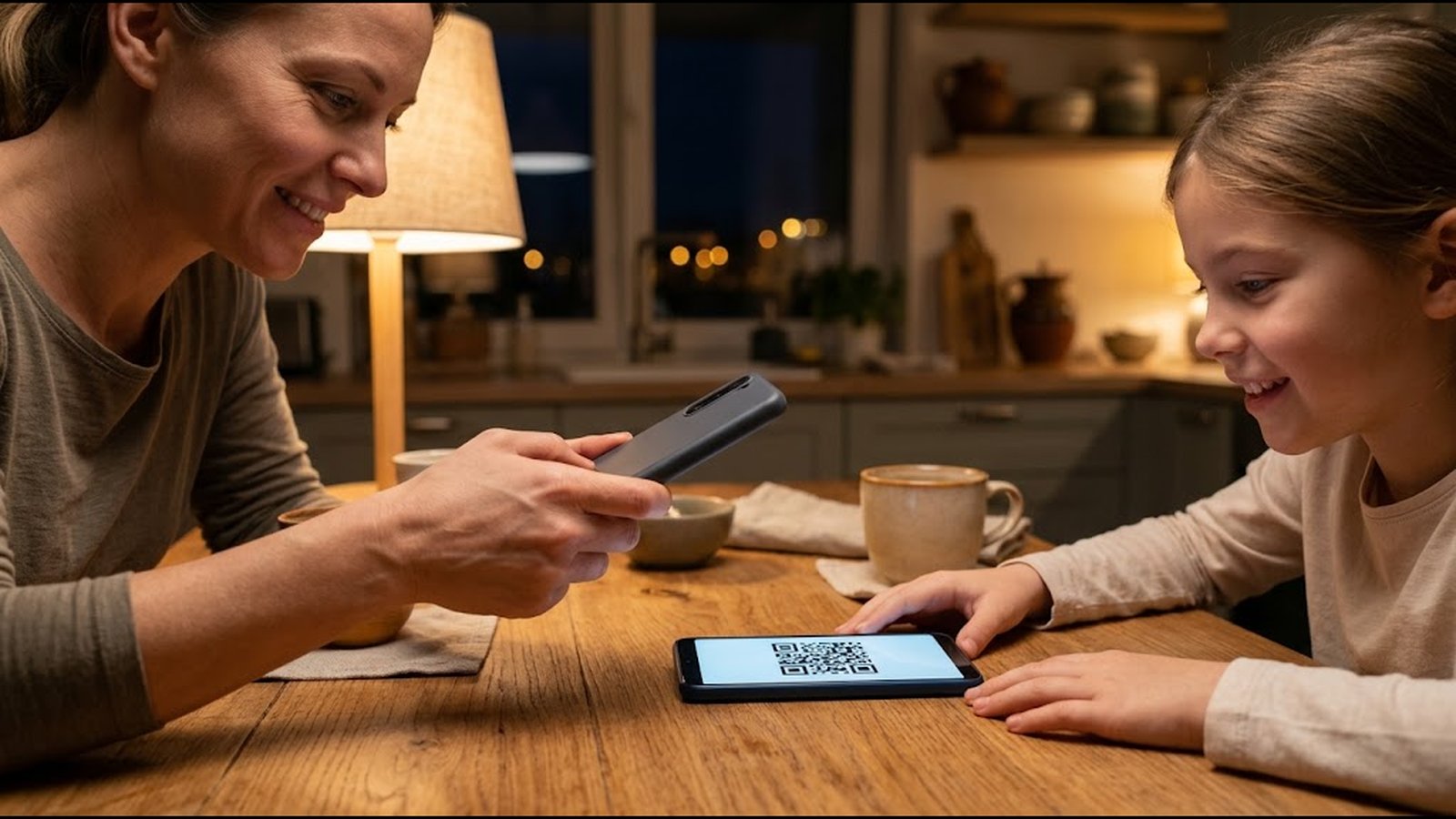
5. A QR code appears on the child's screen. Scan it with your phone's camera and follow the link into WhatsApp.
6. Confirm you are an adult and create a 6-digit parent PIN.
7. Go back to your child's phone, enter the PIN and tap Continue.
Your child then adds a name and a profile photo. Keep the PIN to yourself: it unlocks every parental setting, and WhatsApp asks parents not to share it with the child.
What a parent can see, and what stays private
A message from someone who is not in the child's contacts goes to a Requests folder. You open it on your child's phone under Settings > Parental controls, enter the PIN, and tap Approve or Decline. Group invites work the same way: the child cannot join without your PIN.
Your own phone gets activity alerts. Three of them cannot be turned off: the child added a contact, blocked someone or reported someone. The rest are yours to choose in Settings > Parental controls: a new message request, a deleted chat, joining or leaving a group, disappearing messages turned on in a group, a new name or profile photo. WhatsApp also tells you when a group your child is already in gets bigger.
The messages themselves stay private. Personal messages are end-to-end encrypted, and the Help Center says plainly that no one can read them, not the parent and not WhatsApp. If your child reports someone, the last five messages from that chat go to WhatsApp, not to you.
Groups need a second look. If you let your child into a group with people they have not saved, they will see those people's messages in full. A class chat with parents and teachers is exactly that kind of group.
When your child turns 13, you get a notification to move the account to a standard one. After the switch the child gets Channels, Status and Meta AI, manages their own settings, and your alerts stop.
Five privacy settings for kids 13 and older
From 13, WhatsApp lets people use the app on their own, and a standard account has no parental settings. It does have privacy settings, and they are worth going through with your teen. Everything is under Settings > Privacy.
1. Groups. By default anyone who has your teen's number can add them to a group. Choose My contacts. One caveat from the Help Center: this setting does not stop invite links, and your teen can still join a group through a link if they want to.
2. Calls. Turn on Silence unknown callers. A call from an unknown number shows up in the Calls tab, but the phone does not ring.
3. Last seen and online. Choose My contacts, so only people in your teen's address book see when they are active.
4. Profile photo and About. Also My contacts, so a stranger does not see their face or their About text.
5. Block and report. Show your teen where these are: inside the chat, in the menu.
One more thing: there is no way to hide a phone number on WhatsApp, and the Help Center says so directly. Everyone in a shared group can see it.
What WhatsApp does not control: time
WhatsApp's parental controls cover three areas: contacts, privacy and activity alerts. There is no time limit, no schedule and no night mode, either for a managed account or a standard one.
Picture an ordinary school night. Strangers are not getting through, and the contact list is under watch. Then at 11:40 p.m. someone from class asks about tomorrow's test, and the chat comes back to life for another hour. Nobody in it is a stranger. It is classmates and a late hour.
So the time limit has to come from the phone itself.

How to limit WhatsApp with Gardion
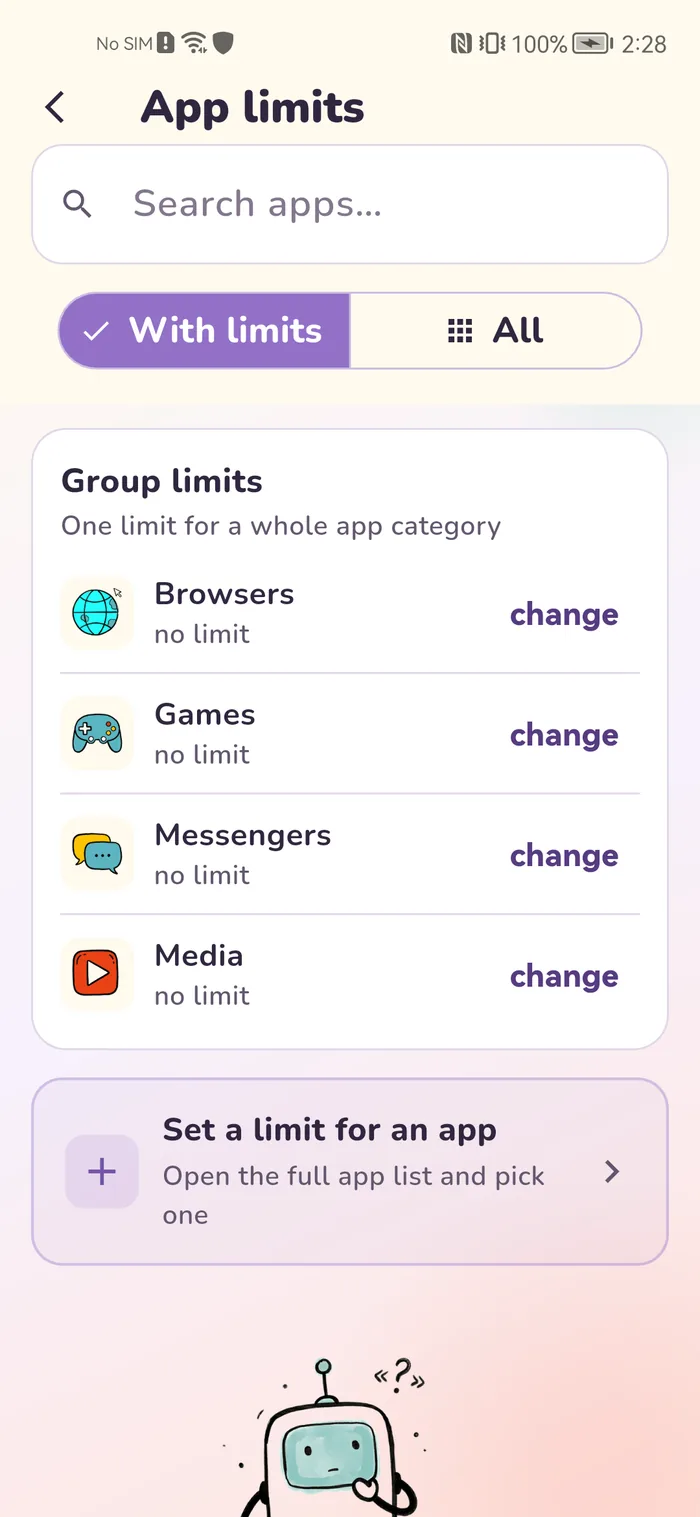
Gardion gives the messenger three settings. You can turn on one or all of them, depending on what gets in the way in your family: evenings, the total minutes, or the night.
A daily limit for the app. You set how many minutes a day your child can spend in WhatsApp. When the minutes run out, Gardion closes the messenger. Your child sees Daily limit reached, and WhatsApp will not open again until tomorrow unless your child asks for more time and you agree.
One limit for all messengers. Gardion puts WhatsApp, Telegram and other messengers into a Messengers group on its own, and a single limit for the whole group helps when your child jumps from chat to chat and counting minutes per app no longer makes sense. WhatsApp Business and WhatsApp for Windows land in the same group.
Bedtime. This is a schedule for the whole phone. At night, during school hours or at dinner the phone locks completely. Calls, texts and contacts keep working, so you can always reach your child. WhatsApp opens again when bedtime ends.
If your child installs another copy of the messenger to get around the limit, new app approval stops it: anything new on the phone stays blocked until you allow it.
We do not read messages. The report shows how many minutes went to WhatsApp today and on previous days, and the app does not collect message text. Per-app limits are part of the paid plan, and the first 14 days give you the full set for free.
In short
Yes, since 2026, for children under 13: a parent-managed account. A parent decides who can message the child, approves groups and receives activity alerts. The feature is rolling out gradually and may not be available in your region.
To use it on your own, at least 13, or older if local law requires it. Younger children need a parent-managed account.
No. Personal messages are end-to-end encrypted, and according to the WhatsApp Help Center no one can read them, the parent included. A parent sees events: a new contact, a message request, a group.
The parent gets a notification to move it to a standard account. After that, parental controls end, the child manages their own settings, and the parent no longer receives alerts.
WhatsApp itself has no such setting. Time is limited at the phone level: in Gardion that means a daily limit for WhatsApp or for all messengers together, plus bedtime, during which calls and texts still work.
Set limits in 3 minutes
Limits, schedule and anti-bypass protection on Windows and Android. 14 days of full access.
Try GardionOr install the parent app now.
Read next
- Microsoft Family Group on Windows 11: Parental Controls Step by StepSet up parental controls on Windows 11 with a Microsoft family group: the child’s account, screen time, app and game limits, the Edge web filter and activity reports. Menu names match Microsoft Support.
- Microsoft Family Safety Not Working on a PC: Limits, Reports, Browsers and LocationScreen time limits are ignored, the activity report is empty, or your child browses in Chrome or signs in with a local account. Each case with Microsoft’s own fix, plus what happened to location sharing.
- Parental controls on Android: built-in settings, Family Link, and appsWhat Digital Wellbeing can do, how the Parental controls section in Android 17 differs from it, where Family Link lets limits slip, and what to check before you pick a separate app.