 Gardion
Blocking apps on your child’s phone: what it covers and what it can’t

Parents usually arrive with one sentence: I want his games gone. But there are four ways to make an app go away, and they solve four different problems. One caps the minutes inside a single game, one caps a whole category, one closes a single app completely, and one shuts the device down. Here is which setting does what, and where blocking runs out.
Four ways to say no
A limit on one app. The game opens, but it lives exactly as many minutes as you allow. Your child sees the remaining time.
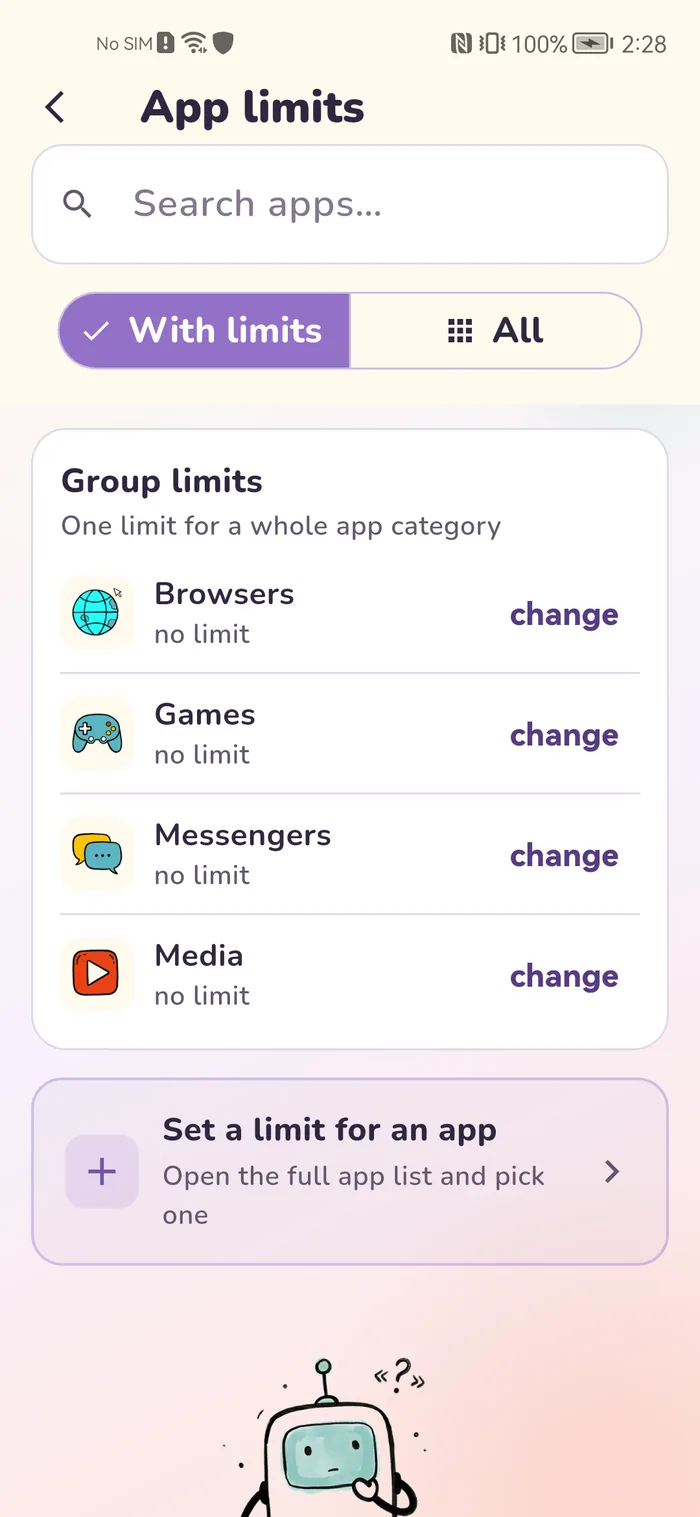
A limit on a category. One number for a whole group: browsers, games, media, messengers. Useful once there are twenty games and per-app limits stop making sense.
Blocking one app. The app stays on the phone but will not open until you lift the block.
A full device lock. The screen closes behind a PIN prompt. This one is a manual action, not a schedule.
Mixing them up is expensive. A limit on one game does not stop a second one being installed next to it, and blocking one game leaves the others alone.
Per-app limits and category limits
Limits are set in minutes: there are ready buttons for one hour, ninety minutes, two hours and three, plus a field for your own number. The list shows what has been spent today against the allowance: 40 / 60 min.
A category limit works like a shared wallet: one number for every browser, or every game. Your child decides whether to burn the hour in one game or spread it across three.
One switch deserves its own paragraph: exclude from total device time. It exists for schoolwork — Word, Anki, Zoom and the like — so time spent there does not eat the daily phone allowance. Homework stops competing with cartoons, and the argument about it ends on its own.
New programs without a category
If your child installs a program that does not land in any category, the home screen of the parent app shows a New programs without a category card. Each program there shows the minutes used today and a Choose a category button.
Until a program has a category, limits for games, browsers and other groups do not apply to it. A program that is wrong for your child can be blocked in the app list.
Check this card the same day. Otherwise you are playing catch-up: you close one game, another one gets installed, and its minutes fall outside every group limit.
The catalog: making the app list usable
A fresh app list shows everything the phone has, including system services with names like com.android.providers. Nobody can work with that, so there is a catalog: give an app a readable name, put it in a category, or hide it from the normal list.
System apps carry a separate category of their own. That is the first honest boundary here: a phone cannot be blocked from itself, so settings, the dialer and the app store stay out of reach of app blocking.
What app blocking cannot do
We promise exactly what we deliver, so the boundaries go here in plain words.
Accessibility access is required. Gardion Kids has to be enabled in the phone settings under Accessibility. Without it app blocking does not work at all. That is Android’s rule, not our choice.
Battery optimisation has to be off. Otherwise Android unloads the background service, and blocking and location go with it.
Android 8 and newer only. On iPhone, app blocking lives inside Apple’s own Screen Time. See the guide to parental controls on iPhone.
Your child will try to remove it. What they actually try, and which of it works, is covered in the piece on how kids bypass parental controls.
What the event feed shows
Every trigger lands in the feed: app blocked, app unblocked, blocked process killed, lock lifted by parent. It answers not only what happened but when, which tells you the hour of the day your child keeps hitting the wall.
When one app is genuinely needed after a lock, there is an urgent unlock: only the named app opens, only until the hour you set, and everything else stays closed.
In short
A limit lets the app open for a set time: 60 minutes a day, then it closes. Blocking never lets it open. Games usually only need a limit; blocking is for apps that are wrong for the age, not merely time-consuming.
Set a limit on the group. Gardion sorts apps into categories (games, browsers, media, messengers and others), and the limit applies to the whole category. Your child then splits that time between games.
Check the New programs without a category card on the home screen of the parent app: it shows how many minutes each new program used today. Give a program a category and the group limit starts to apply; block the ones that are wrong for your child.
Yes. Each app has an exclude from total device time switch, meant for Word, Anki, Zoom and similar tools: time spent there does not consume the daily phone allowance.
Two usual causes, both in the phone’s own settings. Gardion Kids is not enabled under Accessibility, or battery optimisation is still on and the system unloads the background service. Check both on your child’s device.
Set limits in 3 minutes
Limits, schedule and anti-bypass protection on Windows and Android. 14 days of full access, no card needed.
Try GardionOr install the parent app now.
Read next
- Child turns off parental controls on Xiaomi: what alerts you get and what to lockOn Xiaomi and Redmi, protection goes away either because MIUI saves battery or because someone acts on the phone. What each alert means, which sections to lock with App lock, and what no app can lock down.
- Kaspersky Safe Kids review: where to download it and why it doesn't blockWhere to download Kaspersky Safe Kids without Google Play, what it costs, what parents say in reviews, and why it doesn't lock the child's phone.
- Chore app for kids: how your child earns screen time with starsA chore app for kids that ties chores to screen time. You set a chore worth stars and check it by photo. Your child trades the stars for minutes or a reward.