 Gardion
Standoff 2 parental controls: age rating, gold, chat and screen time

Standoff 2 is a free online shooter with no parental settings of its own. Every decision a parent makes about it happens somewhere else: in the app store, in Family Link or Screen Time, or in a parental control app. We read what Google Play, the App Store and the studio behind the game, Axlebolt, publish about it. Below is what each of them tells you about age, money and chat, and how to put a time limit on the game.
Three ratings for one game
Standoff 2 is a first-person team shooter with pistols, rifles and sniper rifles. Which age it suits depends on who you ask, because the two stores and the studio each give a different answer.
Google Play in the US rates it Teen, with notes for violence, users interacting, and in-game purchases that include random items. The App Store lists it as 13+ and adds details: frequent guns or other weapons, loot boxes, advertising, and messaging and chat.
Axlebolt gives a third answer. Its privacy policy says the game "is rated as having content suitable for those aged 16 years and older." The same section tells parents of younger players they can ask the studio to delete their child's personal data. The policy doesn't explain why the stores rate it lower, and we haven't found an explanation anywhere else.
So the call is yours. If 16 feels right for your family, hold off and tell your child why. If Teen or 13+ is fine with you, read the sections on money and chat before you say yes. They cover the things a store label squeezes into two words.
Why the game won't install or update
On Android, the usual reason is the Google Play content filter. If you set the apps and games filter below Teen in Family Link, Standoff 2 won't download. Games already on the phone behave differently. According to Google's help page, when a new version of an app gets a higher rating than your filter allows, "you won't be prompted to update the app." From your child's side it looks like the game is simply stuck, and the next step for many kids is to search for a way around the block. We cover the most common workarounds in a separate guide.
If you decide to allow the game, open Family Link, pick your child, go to Controls, then Google Play, and raise the apps and games filter to Teen. If you don't, leave the filter where it is and say plainly that the decision is yours and it comes down to the game's rating. The filter doesn't remove anything that was installed earlier. Family Link lets you block those apps separately on your child's Android device.
On an iPhone, the same choice lives in Screen Time: under Content & Privacy Restrictions, open Content Restrictions and pick an age rating for apps.
Money: gold, cases and third-party sellers
Standoff 2 costs nothing to download. Spending happens through gold, the in-game currency. Players use it on the in-game marketplace for skins and for cases and boxes that drop a random item. Both stores flag this: Google Play mentions random items, and the App Store lists loot boxes.
Turn on purchase approval in Family Link. Gold bought inside the game on Android then needs your OK. Keep in mind the limit Google spells out on its purchase approval page: these settings "only apply to purchases made through Google Play's billing system." Anything paid for another way never reaches you as a request. We'd also keep saved cards off a child's phone altogether, in the browser and in other apps.
Getting money back is hard. Axlebolt's Terms of Service call in-game features "final, non-refundable, and non-exchangeable," and payments aren't refunded except where the law requires it. The same document says parents or legal guardians "are legally and financially responsible" for what their minor child does in the game. That clause is written for you, and it's worth showing to your child as well.
Gold and skins are also sold on outside websites. The game's help center says buying them anywhere except through the game breaks its rules, and warns that players who do it risk losing their account and their money. Items lost that way "cannot be returned."
On an iPhone, Ask to Buy sends you a request for in-app purchases too, regardless of the app's age rating.
Chat and fake developers
Standoff 2 is played in teams, with game chat, private messages and clans. A parent has no view into who writes to their child. What Axlebolt does publish is a detailed description of the people who write with bad intentions.
According to the studio's scam guide, most scammers find players right inside the game. They pose as developers, Axlebolt staff, tech support, moderators or bots. Some offer help banning a cheater, others claim the account is under review or show a fake ban timer. The goal is always the same: move the conversation to a messenger or social media and get the login.
Give your child a simple rule from the same guide. Axlebolt staff never write to players first, and they never ask for a login or password. A message from a "developer" asking for either is a scam. The guide suggests recording a video of the chat and sending it to Axlebolt support.
If another player insults or threatens your child, the report goes through Axlebolt support too. Attach a screenshot or a video, because the help center says reports without proof won't be considered.

Screen time: a limit for Standoff 2 in Gardion
Standoff 2 has no time settings, and its help center has no section for parents. Time is managed on the phone itself, and for us at Gardion, Standoff 2 is just another app.
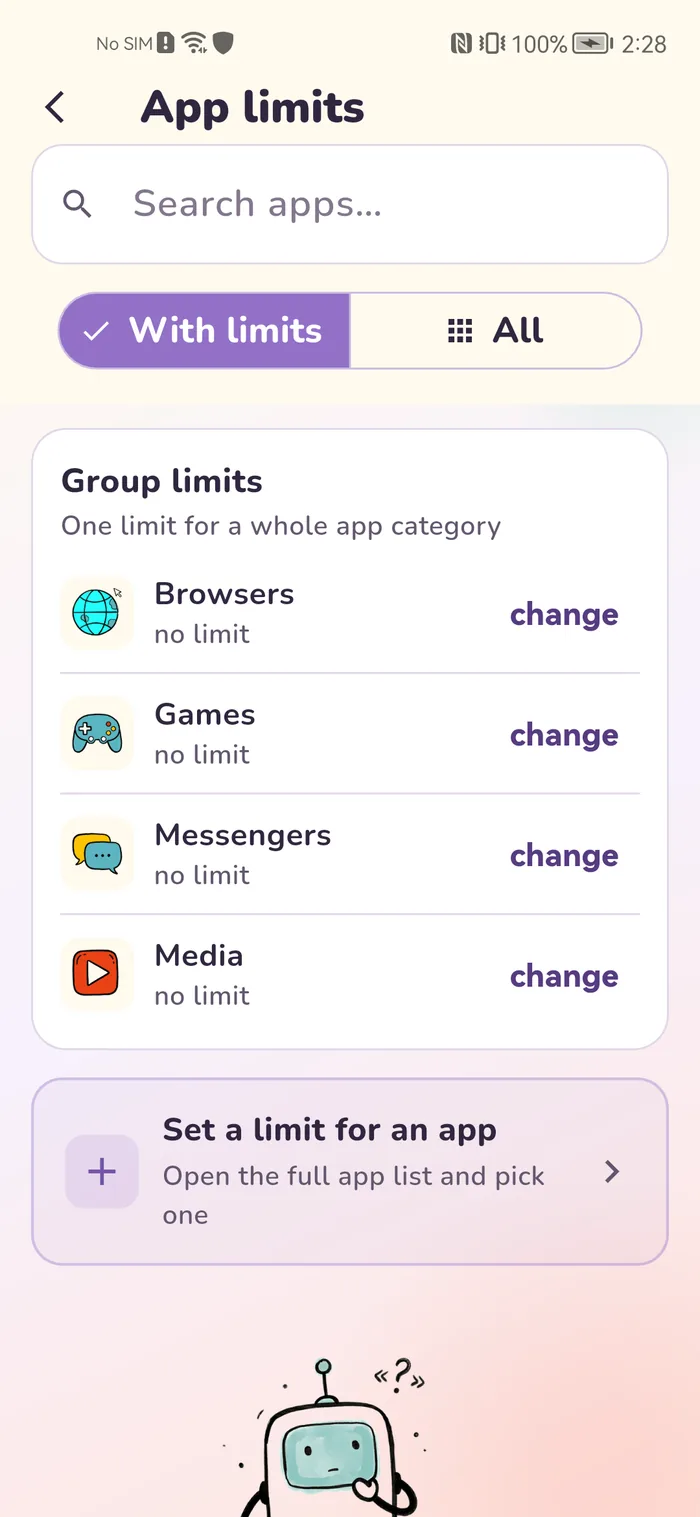
We'd start with a daily limit for the game. You choose how many minutes a day your child can play. When the minutes run out, the game stops opening and your child sees Daily limit reached. If a match is still going, your child taps Ask for time, and the request shows up on your phone under Time requests, where you add minutes or say no.
For nights and school hours there is Bedtime, a schedule for the whole phone. During those hours only calls, contacts and texts work, so you can always reach your child.
If you've decided Standoff 2 can wait, use Block this app. The game stays installed but won't open.
The Google Play filter only sees what comes from Google Play. With Require approval for new apps turned on, Gardion checks the phone itself: any new app stays blocked until you approve it, wherever it was installed from.
Per-app limits, blocking and bedtime are part of our Family plan. The first 14 days are free with every feature, no card needed.
In short
Google Play in the US rates it Teen, and the App Store rates it 13+. Axlebolt's own privacy policy describes the game as suitable for ages 16 and older. Which threshold to use is a family decision.
No. The game has no parent settings, and its help center has no section for parents. Age, purchases and screen time are managed on the device, through Family Link, Screen Time on iPhone or Gardion.
Most likely a parent set an age filter below the game's rating in Family Link or Google Play. Only the parent can raise it or turn it off.
Axlebolt's Terms of Service say payments are non-refundable except where the law requires otherwise. It's easier to prevent the charge: turn on purchase approval and keep saved cards off your child's phone.
The game can't do it, so the limit goes on the phone. In Gardion, Standoff 2 can have its own daily limit, and bedtime covers nights and school hours.
Set limits in 3 minutes
Limits, schedule and anti-bypass protection on Windows and Android. 14 days of full access, no card needed.
Try GardionOr install the parent app now.
Read next
- Parental controls on VK: the VK Video kids profile and app time limitsVK has a kids profile only in VK Video. How to set it up on a phone and a TV, which privacy settings to change for a teen on VKontakte, and how to limit time in both apps.
- Google Play parental controls: content ratings, purchases and what the store leaves outWhere Google Play parental controls live, how to set content ratings with a PIN or Family Link, what purchase approvals cover and how to add time limits.
- Parental controls on WhatsApp: parent-managed accounts and time limitsSince 2026 WhatsApp has offered parent-managed accounts for kids under 13. How to set one up, what a parent sees, five privacy settings for teens and how to limit time.