 Gardion
Xbox parental controls: screen time, age ratings, purchases and your PIN
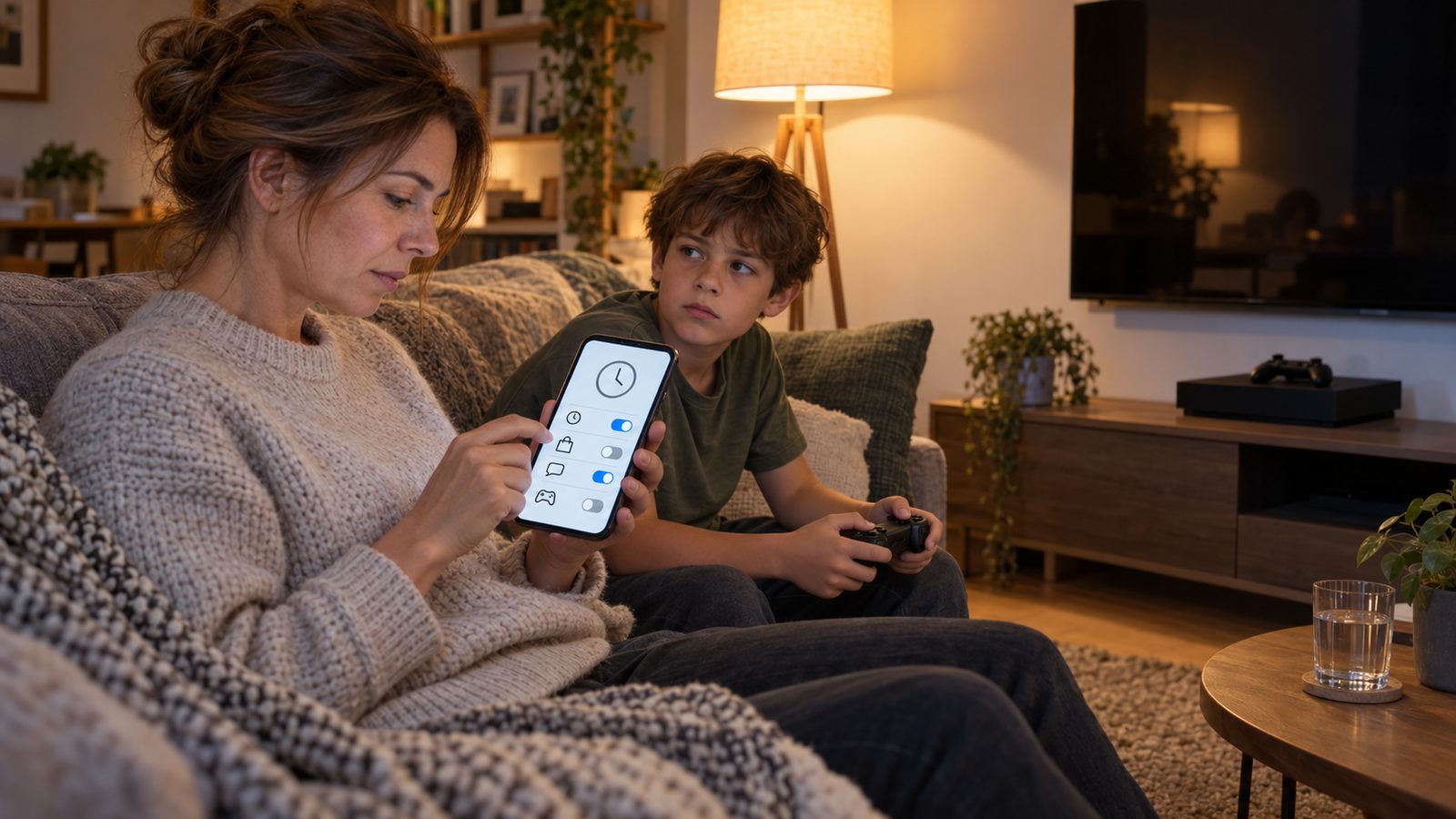
You can't set a screen time limit on the Xbox console itself. Microsoft's support page says so directly: screen time is managed from the web or from the Xbox Family Settings app on your phone. A few rules still live on the console, though, and if you leave them alone, a child can get around the rest without hacking anything. We went through Xbox Support and sorted out where each setting lives and what the console can't see.
Where the settings live
There are three places. The Xbox Family Settings app runs on a parent's Android phone or iPhone. The family website is account.microsoft.com/family. The console itself handles everything tied to profiles: who signs in, with which PIN, and what anyone can open while nobody is signed in.
All of this depends on one thing: your child has their own Microsoft account in your family group. If your child plays on your profile, none of the child settings apply. We walked through creating a child account and a family group in our guide to the Microsoft family group in Windows 11. The same group covers the PC and the console.
The app manages Xbox Series X|S and Xbox One. Microsoft adds that some features may not be available in all locales, so if an option is missing for you, your account's region may be the reason.
Screen time
Console screen time is set in Xbox Family Settings or on the family website. You'll also find a weekly schedule there, a button that pauses game time, and your child's requests for more console time. Limits on individual games come from Microsoft Family Safety, and they apply across the child's Xbox, Windows PC and Android phone once those are connected to the family.
One detail ruins limits more often than anything else. Time counts down whenever your child is signed in, and Microsoft tells families to sign out after playing. A console left on with a profile signed in can burn through the evening's limit while nobody plays. For how PlayStation and Switch handle time, see our comparison of time limits for games.
Age ratings and exceptions
The age filter is in the same app. You choose which games and apps your child can open based on their rating, and anything rated higher stays locked until an adult approves it.
An approval comes in two kinds. "Always" lifts the block on that game for good. "Just this once" lasts until your child signs out. To grant "Always," you need your own account on the console; otherwise the console offers only the one-time option.
There's also a rule most parents discover by accident. When you and your child are signed in at the same time, the console enforces the child's limits, so a mature-rated movie won't play for you either. Microsoft lists three ways out: grant your child an exception, sign the child out, or close the permission request.
Purchases
You can make every Microsoft Store purchase on the console wait for your approval. Sign in on the console with the family organizer's account, press the Xbox button, and go to Profile & system > Settings > Account > Family settings > Manage family members. Pick your child, then Privacy & online safety > Xbox Live privacy > View details & customize > Buy & download, and turn on Ask a parent. Choosing Child defaults or Teen defaults under Xbox Live privacy turns it on as well.
The family website also shows order history and lets you add money to your child's account. We'd start with approvals and add an allowance later, when your child is older. Anything above their age limit, or above what's left in their account, still comes to you for approval.
Chat, friends and multiplayer
Xbox Family Settings controls who your child can talk to by voice and text, whether they can play online, join clubs, and play with friends on other networks. Friend requests can go through you too: turn on "Ask a parent," and each new friend waits for your answer.
The same switches are at account.xbox.com/settings. Keep in mind that each setting covers every game on the account. Open chat for one game and it's open in all of them. We showed what that looks like in practice in our Minecraft parental controls guide.
Lock your own profile with a PIN
Every child setting is attached to the child's profile. If your own profile on the console opens without a password, your child only has to sign in as you. Microsoft recommends securing both your account and the phone that runs the app. On the console, go to Profile & system > Settings > Account > Sign-in, security & PIN > Change my sign-in & security preferences, and choose Ask for my PIN or Lock it down. After that, signing in as you takes your PIN or password.
The second gap is the console with nobody signed in. In that state, guests can still watch TV content and use some apps, but games and apps that need an Xbox profile stay closed. An adult account changes these restrictions on the console. If you set up an access PIN for guests, keep it to yourself: Microsoft notes that anyone with the PIN can change the access restrictions.
What Xbox doesn't see
Xbox Family Settings covers the console, and through the Microsoft family, the PC. Phones are a separate story. Microsoft says the app's settings don't extend to mobile gaming. The console gets switched off for the night, and the phone stays on the nightstand.
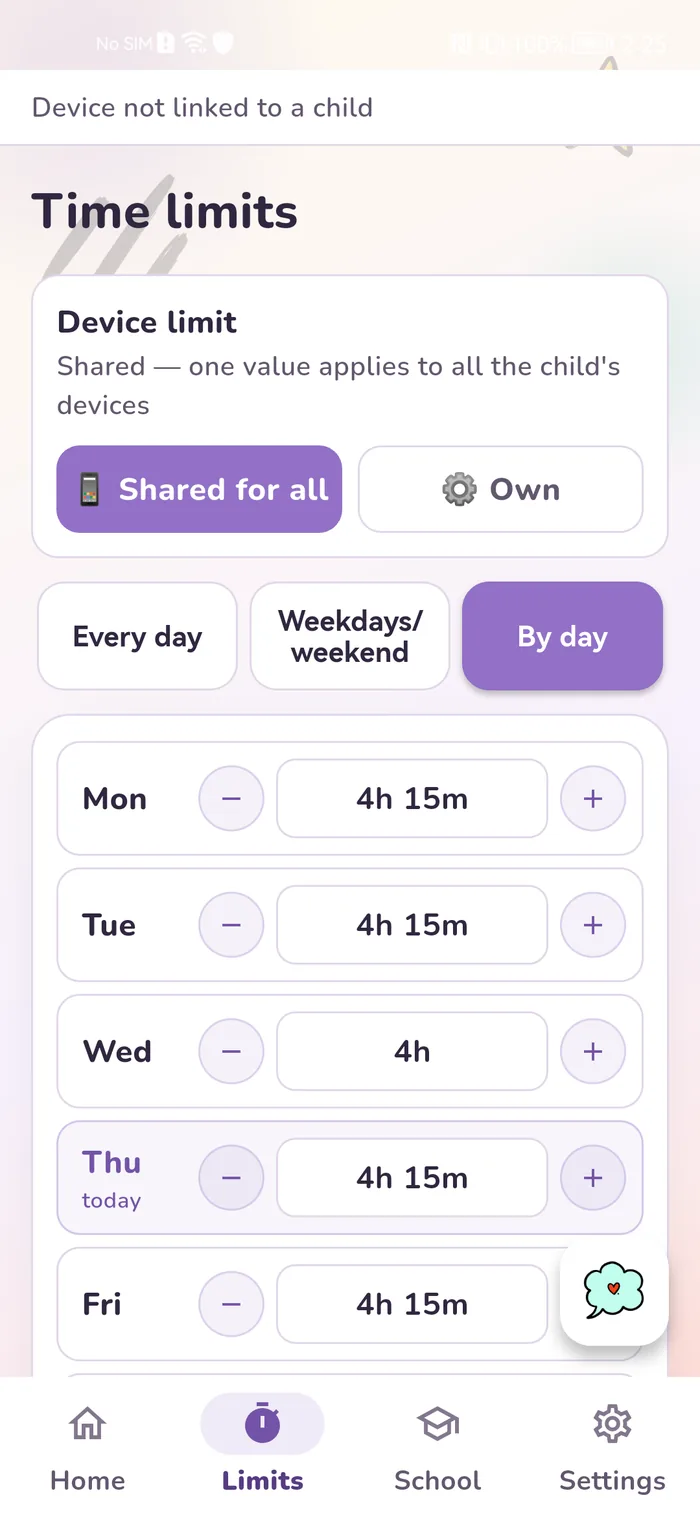
Gardion doesn't run on Xbox, so the console stays with Microsoft's settings. We work on Android phones and Windows PCs. On the phone, you can set a daily limit for one game or for the whole device, plus a bedtime and school hours. Turn on Require approval for new apps, and a newly installed game stays blocked until you approve it. If time runs out mid-match, your child taps Ask for time, and you answer from your own phone. On the PC, a daily limit and a schedule lock Windows when time is up.
In Gardion, a single daily limit on one Windows PC costs nothing. Per-app limits, bedtime and app approval come with the Family plan, which you can try with every feature unlocked for 14 days, free and with no card needed.
In short
No. Microsoft says screen time can't be managed from the console. Set it in the Xbox Family Settings app on your phone or at account.microsoft.com/family.
Time counts down whenever your child is signed in, even with no game running. Have them sign out when they're done.
On the console, signed in as the family organizer, open your child's settings, go to Xbox Live privacy > Buy & download, and turn on Ask a parent. Every purchase then waits for your approval.
Add a PIN or password to your profile: Sign-in, security & PIN > Change my sign-in & security preferences > Ask for my PIN.
No. The app runs on a parent's phone and manages the console. Its settings don't extend to games on your child's phone, so the phone needs its own setup, for example with Gardion.
No. Gardion runs on Android and Windows. Use Microsoft's settings for the console and Gardion for your child's phone and PC.
Set limits in 3 minutes
Limits, schedule and anti-bypass protection on Windows and Android. 14 days of full access, no card needed.
Try GardionOr install the parent app now.
Read next
- Can a child delete a parental control app on Android?Yes, a child can remove any parental control app installed from a store. Why Android works this way, what root and Device Owner change, and what to do next.
- Child account on Windows: why it should be a standard userWhy a child with administrator rights can remove any parental control app on Windows, and how to switch them to a standard account using Microsoft's steps.
- Parental controls on VK: the VK Video kids profile and app time limitsVK has a kids profile only in VK Video. How to set it up on a phone and a TV, which privacy settings to change for a teen on VKontakte, and how to limit time in both apps.