 Gardion
Windows 10 and 11
A Windows warning does not have to be scary
Gardion runs on 64-bit Windows 10 and 11. To install it, add a computer in Gardion Family or the web dashboard to get a code. On your child’s PC, open gardion.io/pc in a browser, run the downloaded installer, and enter that code. While the installer is still new, the browser and Windows may warn you about it. This guide shows each warning on a real screen and explains when you should stop.
First, check the source
Continue only when all three facts match
- 1You started the installation yourself from Gardion Family.
- 2The link opens on gardion.ru or gardion.io, and its path begins with /winsysmon/.
- 3The downloaded file has not been renamed or forwarded to someone else.
The name of a personal installer may carry its activation data. Do not change it and do not share the link or file.
The first Edge warning
Edge may hold the file in Downloads

Edge comes with Windows, so most people download the installer in it. Few people have downloaded Gardion so far, so Edge won’t open the file on its own and asks you to confirm that you trust it. If you checked the source above, keep the file:
- 1In Edge downloads, point at the file with the warning and click “…” to the right of it.
- 2Choose “Keep”.
- 3In the window that asks you to make sure you trust the file, click the arrow next to “Delete” and choose “Keep anyway”.
If you click “Delete” in that window by mistake, the file is erased, so download the installer again from the same link.
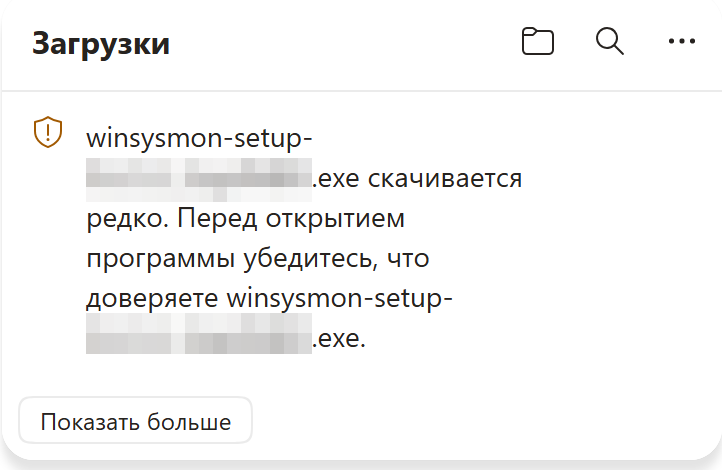
Edge downloads: the file “isn’t commonly downloaded”. 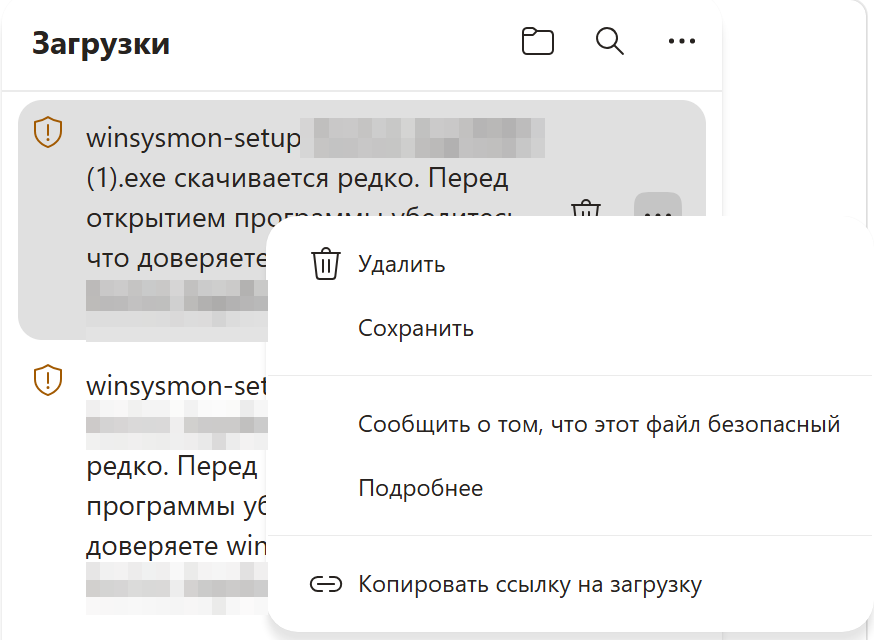
Open the “…” menu next to the file and choose “Keep”. 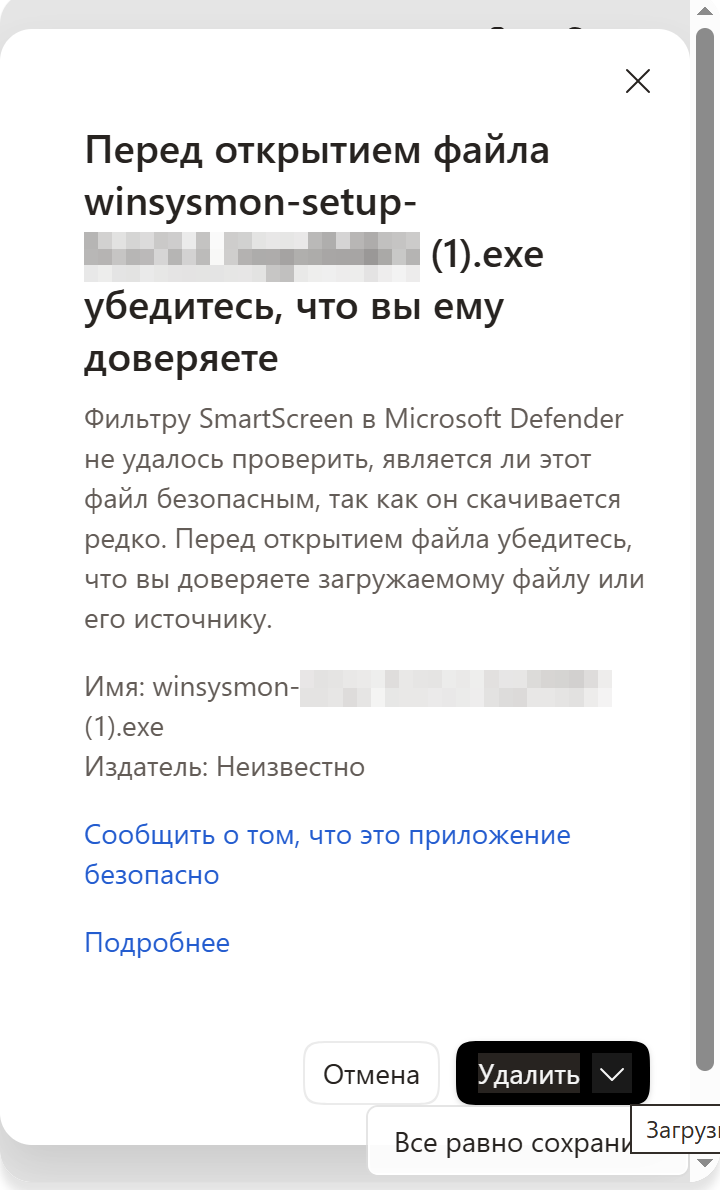
“Keep anyway” is hidden under the arrow next to “Delete”.
Screenshots from a test computer with Windows 10 and Edge 154 in Russian, October 2026. English Windows shows the same windows with English labels. Part of the file name is hidden because it carries activation data.
Chrome and Yandex Browser
Chrome may stop the download before Windows starts
This can happen with a new Windows installer that people do not download often yet. If you checked the source above, keep the file through the Chrome menu:
- 1Open Chrome downloads with Ctrl+J and find the file whose name starts with gardion-setup.
- 2Click the three dots next to the file.
- 3Choose “Download suspicious file”. In another Chrome version, this can read “Keep”, then “Keep anyway”.
Yandex Browser may warn about a rarely downloaded file too: open its downloads with Ctrl+J and confirm that you want to keep the file. Our test computer has only Edge, so there are no Chrome or Yandex screenshots here, and the button names in your version may differ. Do not turn off browser protection.
The usual installation path
What to do when Windows shows a warning
- 01
Download the installer from the Gardion Family link
Add the Windows computer in Gardion Family or in the web dashboard, and you get a link and a code. Open the link on your child’s computer, or, if the dashboard is already open there, click “Download Gardion to this computer”. Wait for the download to finish.
- 02
Open the downloaded installer
Open the file from your browser downloads. Windows checks the file’s reputation and can show one or two windows. The exact wording depends on your Windows version.
- 03
If you see “Windows protected your PC”, click “More info”, then “Run anyway”
This is the SmartScreen window. The run button appears only after “More info”. Click it only after you have checked the source above.
- 04
If “Open File – Security Warning” appears next, click “Run”
Windows says the publisher could not be verified. On our test computer, this window appeared after SmartScreen.
- 05
If the installer asks for a code, enter the code from Gardion Family
The field is called “Code from the phone”. The code is valid for 24 hours. If Gardion is already installed, click its icon next to the clock and choose “Link to family again”.

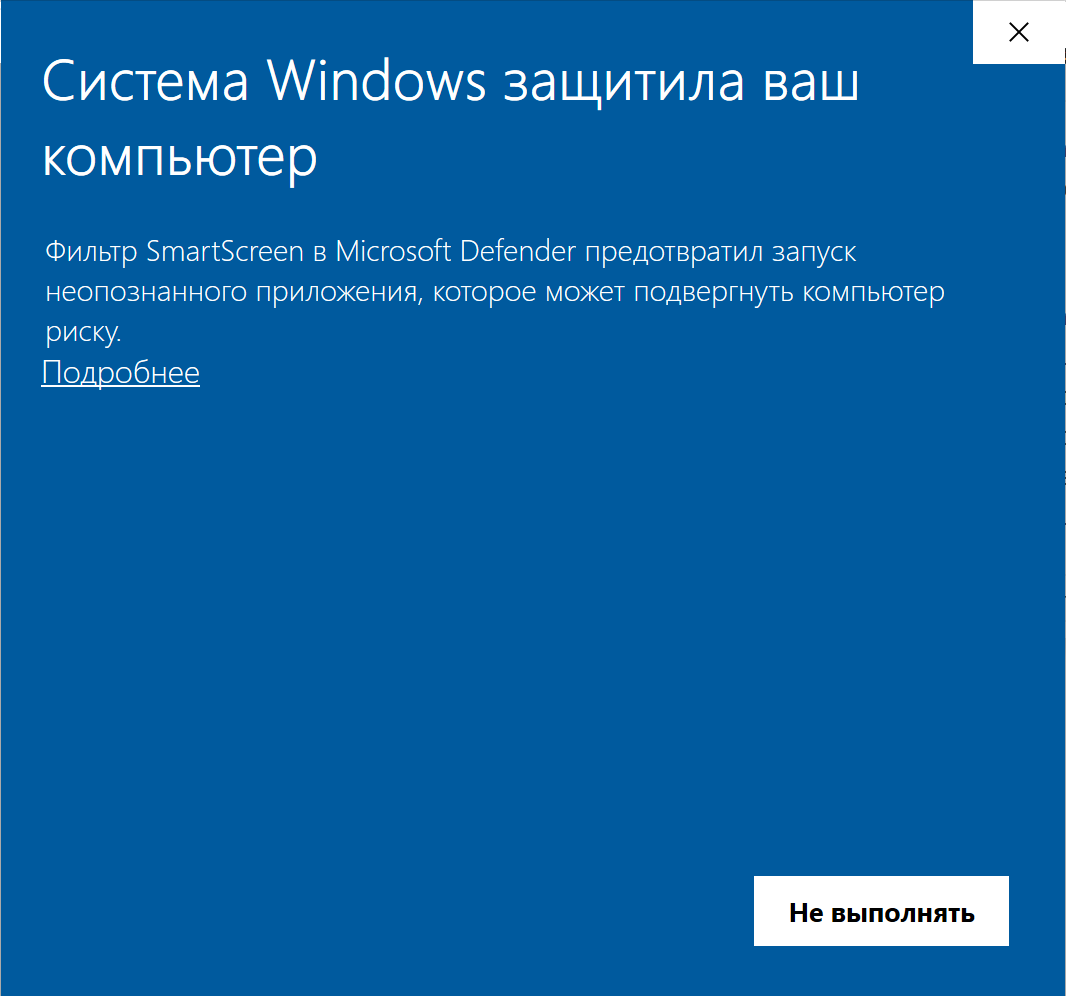
“Windows protected your PC” has no run button yet, so click “More info”. 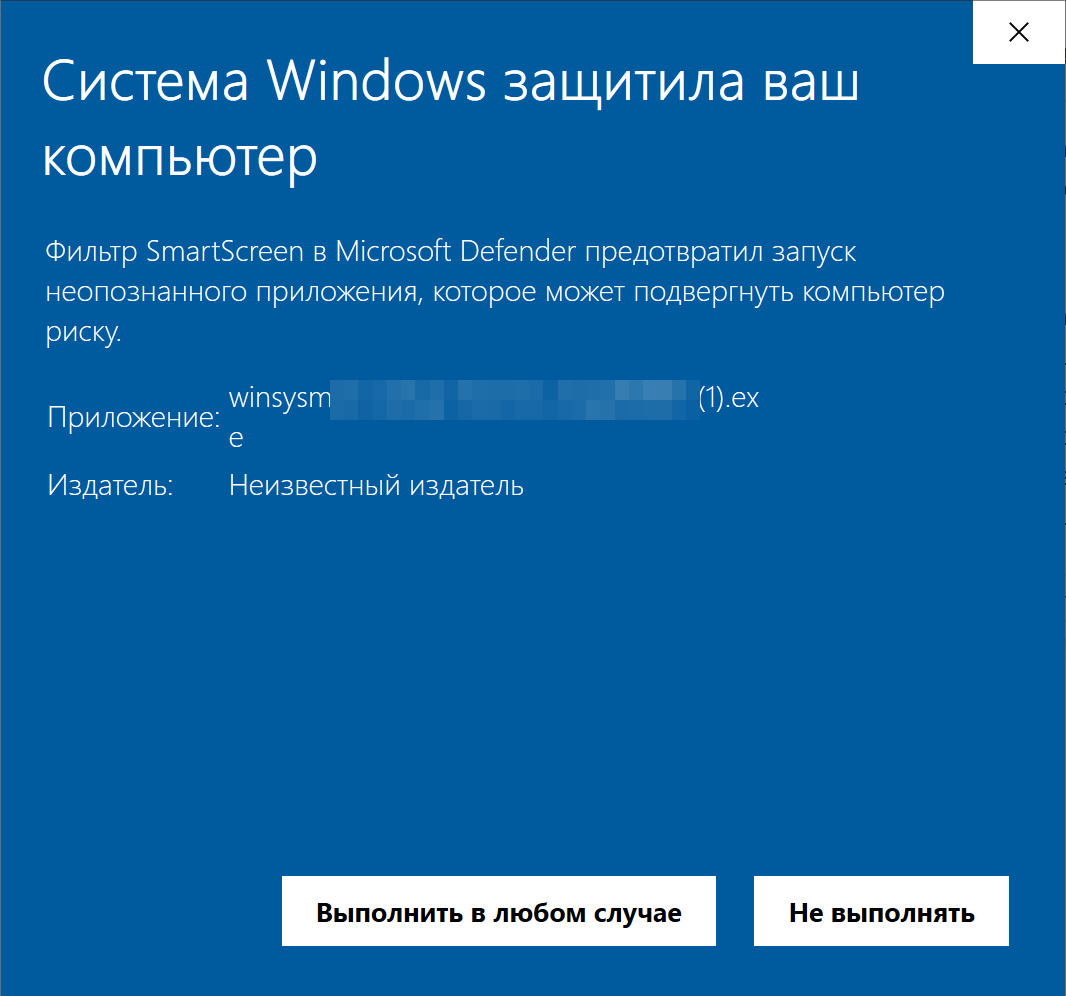
After “More info”, “Run anyway” appears. The publisher is unknown because the installer isn’t signed yet. 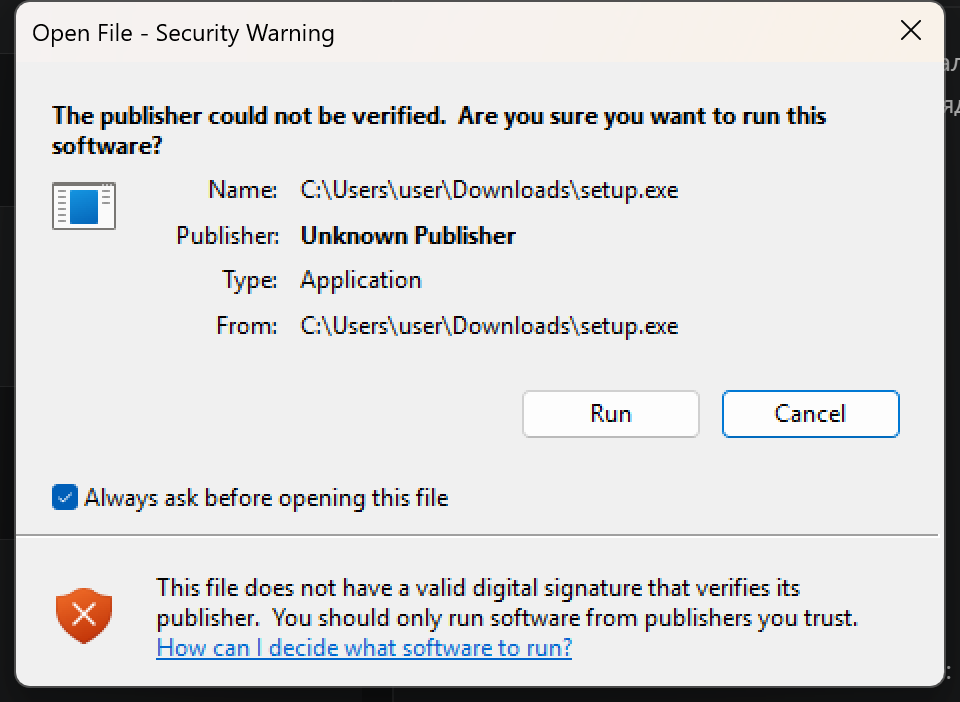
“Open File – Security Warning” on a test computer with English Windows.
Why the window appears
SmartScreen builds trust over time
Microsoft SmartScreen checks the reputation of the file and its publisher. A new installer can receive a warning while that reputation is still being built. The warning is not proof that the file is harmful, and it is not a request to turn off Windows protection. Microsoft Learn.
Stop and ask us
Do not continue in these situations
- You did not start the installation yourself, or received the file in a message.
- The page is not on gardion.ru or gardion.io, the path does not begin with /winsysmon/, or the file name does not start with gardion-setup.
- There is no “Run anyway” button. Your organisation’s policy or Smart App Control may block the installer.
- Microsoft Defender calls the file malware. Do not add an exclusion: send us a screenshot and the original link instead.
Questions that often come up
Should I disable SmartScreen or Microsoft Defender?
No. You don’t need to turn off Windows protection, and Gardion adds its own Microsoft Defender exclusions during installation.
The computer has Kaspersky, Dr.Web, ESET or Avast. What should I set up?
Installation works as usual. A third-party antivirus sometimes blocks Gardion updates. The panel then shows the card “Windows won’t let the update run” with the menu path for your antivirus: add C:\Program Files\WinSystemMonitor and C:\ProgramData\WinSystemMonitor to its exclusions.
Why is there no “Run anyway” button?
The computer may be managed by an organisation, or Smart App Control may be blocking the installation. Stop there and contact support with a screenshot.
Can I send the installer to another computer?
No. The link and code from Gardion Family connect one computer and stay valid for 24 hours. For the next computer, tap “Add device” again.
Send us a screenshot of the warning and the original link, and we will check the next step with you.
Contact Gardion supportSet limits in ten minutes
Limits, schedules and bypass protection on Windows and Android. 14 days of full access, no card needed.
Try GardionOr install the parent app now.