 Gardion
Android 8.0 and later
Parental controls on your child’s phone
You set the rules in the Gardion app on your own phone, and your child’s phone with Gardion Kids follows them. A game locks when its time is up. At bedtime the whole phone locks, except calls and the apps you chose to keep open. Setup usually takes about ten minutes.
What you see and what your child sees
On your phone
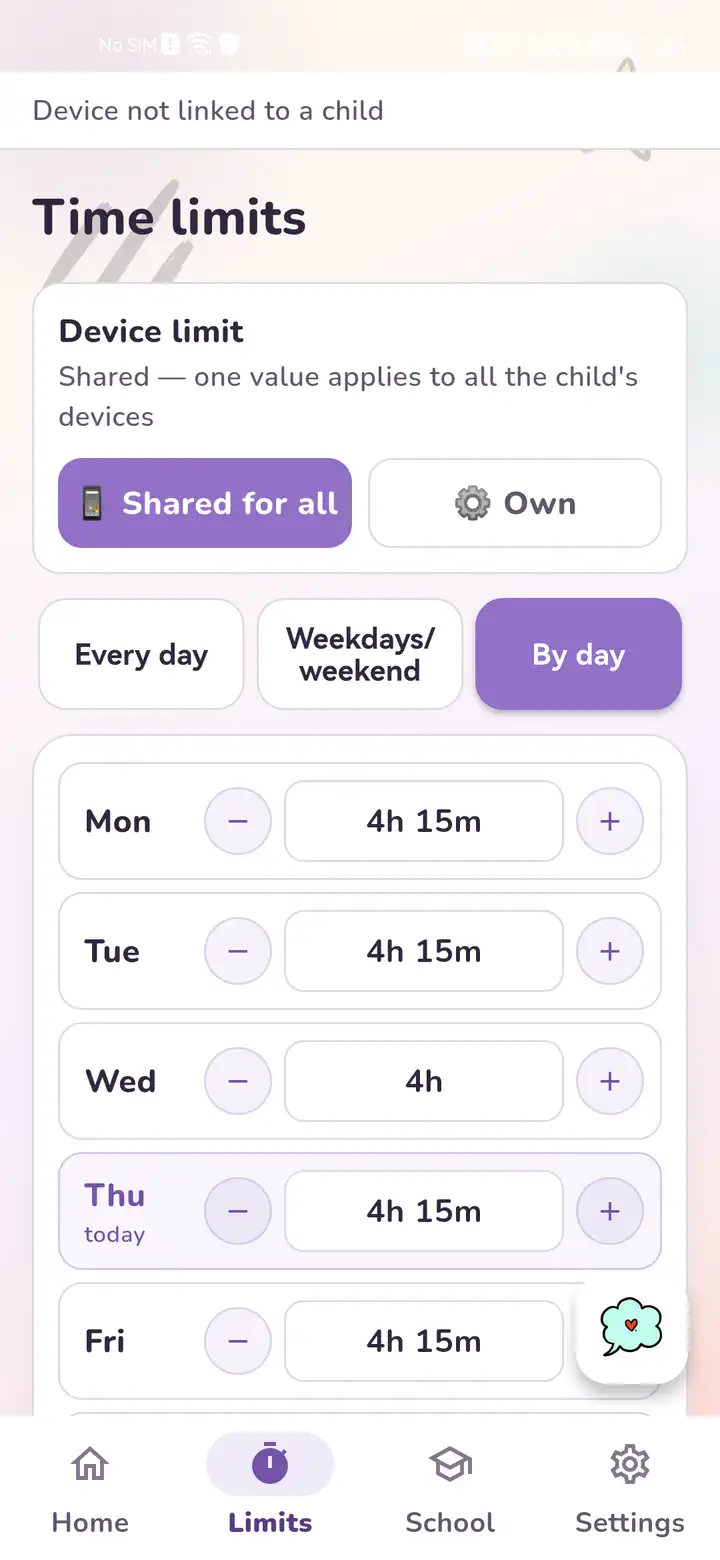
The Gardion app shows how many minutes your child has left today and what is open right now. Drag a slider to change the daily limit, or set a separate limit on one game or on all games at once.
On your child’s phone
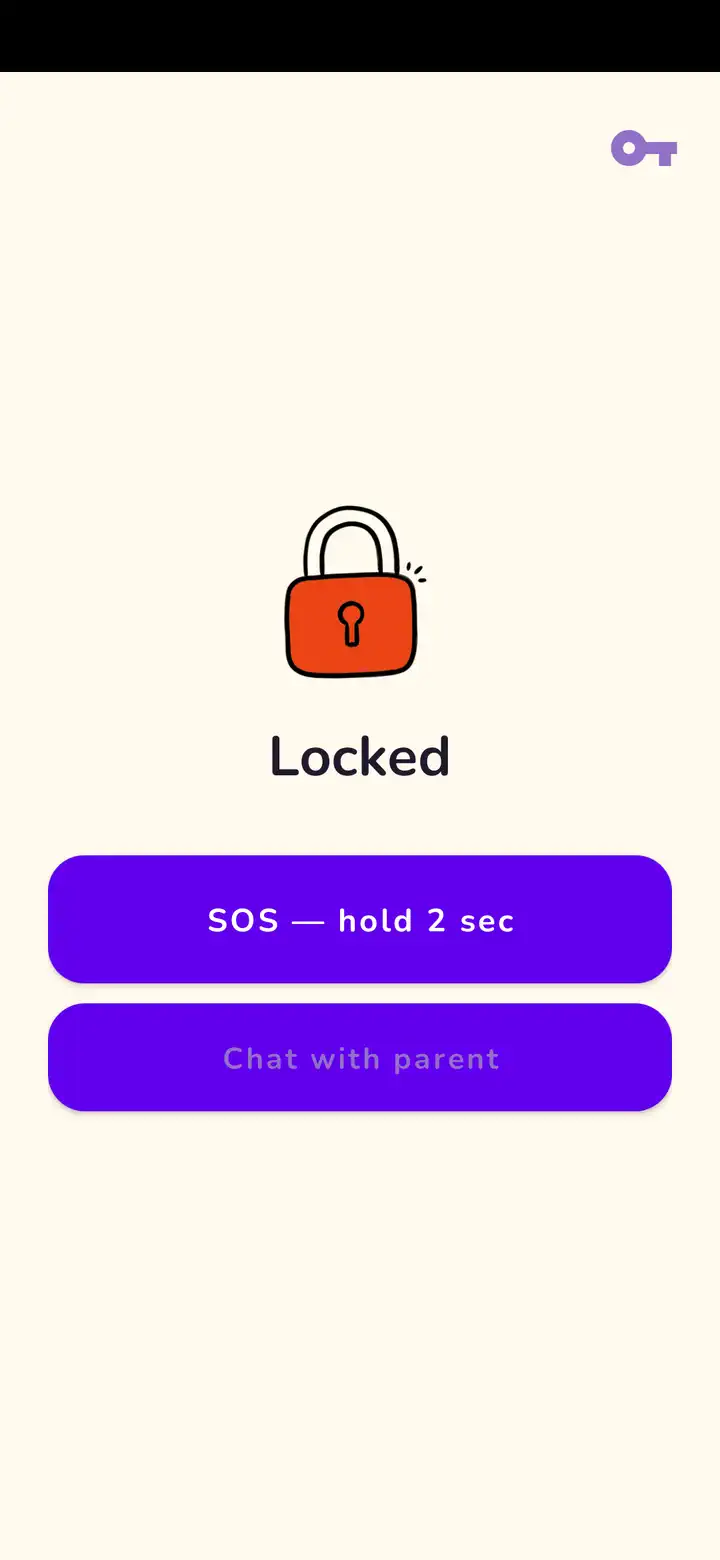
When time runs out, Gardion Kids shows a lock screen. Calls, contacts, a chat with you and the SOS button stay within reach. From the same screen your child can ask for more minutes, and the request comes to you.
How to set up controls on a child’s phone
Install Gardion on your phone. The parent app is on Google Play and AppGallery.
In the app, add your child and tap “Add device”. You get a personal link, a QR code and an 8-character code.
On your child’s phone, open the link and install Gardion Kids. If it installs from Google Play through that link, the phone connects on its own. Otherwise, enter the code.
Grant the permissions Gardion Kids asks for. Before each one, the app explains why it needs it. At the end, check the lock screen to confirm protection is on.


Which phones work
Gardion Kids runs on Android 8.0 and later. On Samsung, Honor and Huawei phones, battery saving can stop apps in the background, so we have separate guides for Samsung and Honor and Huawei. Gardion Kids doesn’t run on a child’s iPhone.
If your child also has a Windows PC, Gardion for Windows joins the same account, and the limit can be shared between the phone and the computer.
Questions parents ask
Will my child know the controls are there?
Yes. The phone shows that protection is on, and when a game is locked, the lock screen explains why. We don’t read messages.
Can my child delete Gardion Kids without me?
Not without you knowing. The app runs as a device administrator, interrupts any attempt to open the uninstall screen and alerts you right away.
My child needs the phone for school. What stays open?
You choose the apps for schoolwork and calls. They keep working after the limit runs out and during scheduled night hours.
How much does it cost?
The first 14 days are free, no card needed. After that, the Family plan is $25 a year, about $2 a month, for two children and two devices.
Connect your child’s phone today
Every feature is free for the first 14 days, no card needed.