 Gardion
Parental controls on VK: the VK Video kids profile and app time limits

If your family speaks Russian, your child may well use VK. VK is a Russian social network, VKontakte in full, and its video service, VK Video, is a separate app with Russian cartoons, films and bloggers. VK does have parental controls, but you will not find it in the social network's settings. It lives in VK Video and is called a kids profile. We read the VK ID Help Center and VK's privacy pages and explain what the kids profile does, how to set it up on a phone and on a TV, and which privacy settings to change for a teen. At the end we show how to give both apps a daily limit and a night pause.
Where VK keeps its parental controls
VK has two apps that children use: the VKontakte social network and VK Video. Only VK Video has a kids profile. The VK ID Help Center describes kids profiles as a way for children to use VK Video safely without adult content, and for parents to get information about the child's important actions in the service. VK says it plans to bring kids profiles to its other services later.
The social network itself has no child accounts. VK's rules allow registration from age 14, and a teen there has a regular account with the usual privacy settings. It is worth going through them together, and we cover them below.
VK's help pages are only in Russian, and the app your child uses is probably in Russian too. So we quote the Russian menu names and give a translation in brackets.
What the VK Video kids profile does
You choose one of four age levels for your child: up to 6, up to 12, up to 16 or up to 18. VK Video then filters videos by their age rating. The Help Center gives an example: a seven-year-old with a kids profile will not see videos rated 12+. Videos rated 18+ are blocked in every kids profile, whatever level you pick.
Your child cannot switch from the kids profile to your adult profile without a PIN. You set the PIN, and VK asks for it to confirm every action in the kids profile. The kids profile keeps its own watch history, separate from yours, and you can look through it. That is handy when you want to know what your child watched while you were cooking dinner. The kids profile shows no ads and has safe search.
To create the profile, VK asks for your child's name, date of birth and age level. The Help Center says this information is not shared with outside services.
How to set up a kids profile on a phone or a TV
On a phone or tablet, the steps from the VK ID Help Center are:
1. Open VK Video and sign in with your VK ID account.
2. Go to your profile, then Настройки (Settings).
3. Tap Детский профиль (Kids profile).
4. Fill in your child's details and set a PIN if you have not set one before.
The app switches to the kids profile on its own.
On a TV (Smart TV or Android TV), there is an extra QR code step:
1. Open VK Video on the TV and sign in with your VK ID account.
2. Go to your profile and select Детский профиль (Kids profile).
3. Scan the QR code shown on the TV screen.
4. Fill in your child's details and set a PIN.
The TV switches to the kids profile too. To get back to your own profile, choose Сменить профиль (Switch profile), pick the adult profile and enter the PIN. If you forget the PIN, the PIN screen has a Не помню PIN-код (I forgot my PIN) button. You can change the age level later in the kids profile settings or in the Семья (Family) section of your VK ID account.
The Help Center lists the apps for phones, tablets and TVs. It says nothing about the VK Video website in a browser, so we would not count on the kids profile there. For what the TV itself can restrict, see our guide to parental controls on a TV.
Three privacy settings for a teen on VKontakte
We did not find any parental settings in the VKontakte Help Center, but your teen's account has privacy settings. They are all under Настройки → Приватность (Settings → Privacy), and they are easiest to set up side by side.
1. Private profile. At the bottom of the Privacy section, under Прочее (Other), choose Закрытый профиль (Private profile). A stranger then sees only the name, a profile photo that cannot be enlarged and mutual friends, plus the status, city, age and workplace if your teen filled them in. One caveat from the VKontakte Help Center: the profile opens up to anyone your teen sends a friend request to.
2. Private messages. The same section controls who can send your teen private messages. This setting decides whether a message from a stranger reaches them at all.
3. Blocklist. Show your teen where it is: in the three-dot menu on a person's profile or in the chat menu. Once someone is on the blocklist, they can no longer view your teen's profile, message them or send a friend request.
What VK does not control: time
The VK ID help pages on kids profiles say nothing about time: no daily limit, no schedule, no night mode. VKontakte's privacy settings have none of these either.
Picture a school night. The kids profile is on, there are no ads, and the cartoons match your child's age. One episode follows another, and at 10:30 p.m. your younger child is still on the couch with a tablet. Your older one is scrolling the feed in bed, with a private profile and not a single stranger in their messages. Everything is set up correctly except the clock.
So the time limit has to come from the device itself.

How to limit VK and VK Video with Gardion
On a phone, VKontakte and VK Video are two separate apps, and Gardion counts the minutes in each one. You can turn on the settings below one at a time or all together, depending on what gets in the way in your family.
A daily limit for each app. You set how many minutes a day your child can spend in VKontakte and, separately, in VK Video. When the minutes run out, Gardion closes the app and your child sees Daily limit reached. The app stays closed until tomorrow unless your child asks for more time and you agree.
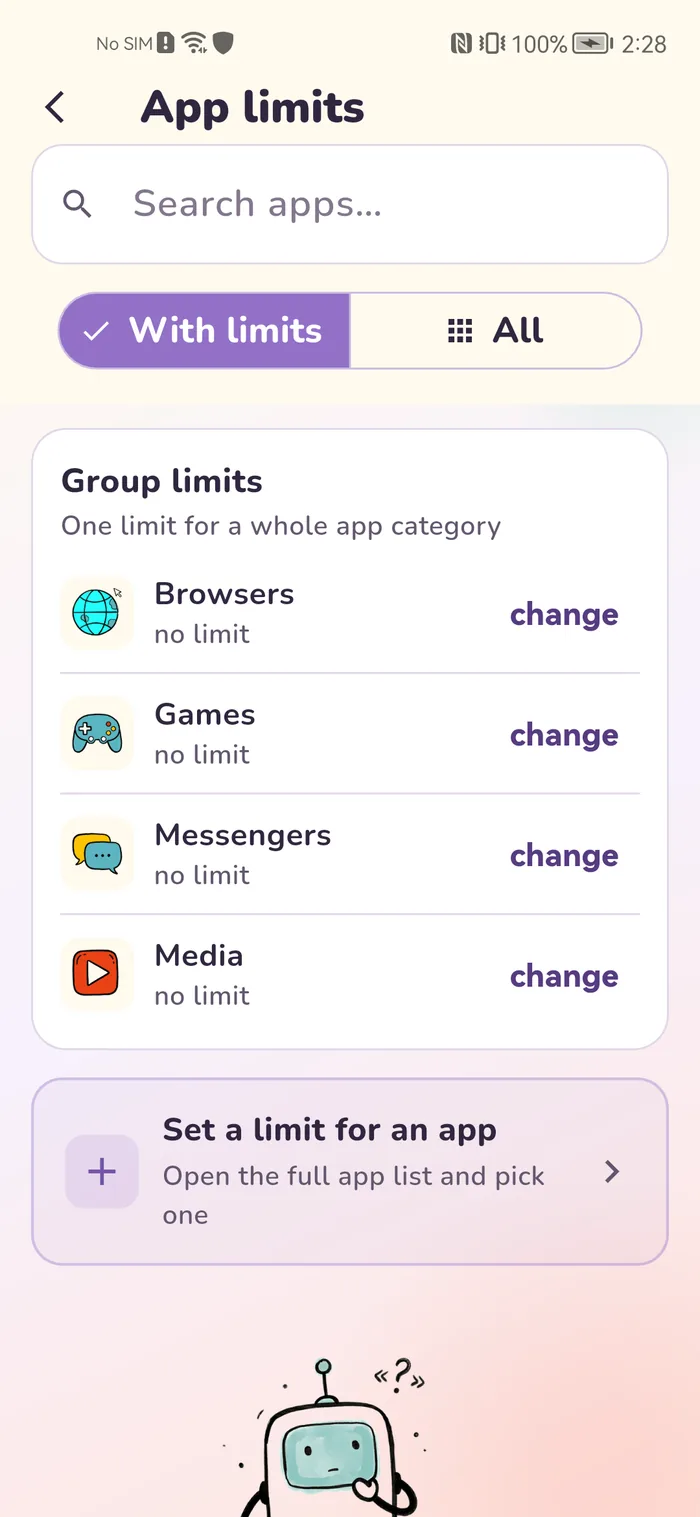
One limit for a group. If your child keeps jumping between VKontakte and VK Video, a single budget for both works better. In the app catalog, set both apps to the Media/Video category, then give the Media group a daily limit under Group limits. That limit covers every app in the group.
Bedtime. This is a schedule for the whole phone. At night, during school hours or at dinner, the phone locks completely. Calls, texts and contacts keep working, and VKontakte and VK Video open again when bedtime ends.
Websites in a browser. VKontakte also opens in a browser, where an app limit does not reach. The Gardion Web filter has a Social networks category, and vk.com is already in it. Add the VK Video site, vkvideo.ru, yourself under Block specific sites. The filter works in every browser on the phone.
If your child installs another video app, new app approval stops it: a new app stays blocked until you approve it.
The report shows how many minutes went to each app today and on previous days. Gardion does not collect the text of your child's VKontakte messages. App limits, bedtime and the web filter are part of the paid plan. The first 14 days give you the full set for free, and no card is needed.
In short
VK Video does: a VK ID kids profile with an age level and a PIN. The VKontakte social network has no child accounts, so a teen there relies on privacy settings.
In the VK Video app, open your profile, then **Настройки** (Settings) and **Детский профиль** (Kids profile). Enter your child's details, choose an age level and set a PIN. The app then switches to the kids profile.
Yes, on Smart TV and Android TV. Open VK Video on the TV, select **Детский профиль** (Kids profile) in your profile, scan the QR code and fill in your child's details.
VK's rules allow registration from age 14. A younger child can use VK Video with a kids profile instead.
VKontakte and VK Video have no such setting. Time is limited on the device: in Gardion that means a daily limit for each app or one for a group, plus bedtime, during which calls and texts still work.
Set limits in 3 minutes
Limits, schedule and anti-bypass protection on Windows and Android. 14 days of full access, no card needed.
Try GardionOr install the parent app now.
Read next
- Google Play parental controls: content ratings, purchases and what the store leaves outWhere Google Play parental controls live, how to set content ratings with a PIN or Family Link, what purchase approvals cover and how to add time limits.
- Standoff 2 parental controls: age rating, gold, chat and screen timeStandoff 2 carries three age ratings: Teen on Google Play, 13+ on the App Store and 16+ from the studio itself. What to decide about gold purchases and chat, and how to set a time limit for the game.
- Parental controls on WhatsApp: parent-managed accounts and time limitsSince 2026 WhatsApp has offered parent-managed accounts for kids under 13. How to set one up, what a parent sees, five privacy settings for teens and how to limit time.