 Gardion
step-by-step guide
Set up your first protection in one clear path
First install Gardion Family on the parent’s device. Then connect Gardion Kids on the child’s phone or tablet and enable only the permissions you need.
Where to get the parent app
The parent app is on Google Play, except in the EU and the UK, where the build from this site is the way to install it. Each store reviews every update for a few days, so we also keep a build on this site: it updates directly, and a fix reaches you on the day we release it.


The build on this site is signed with our own key. It will not install over the store version, because Android does not replace an install with a build signed by a different key. If Gardion is already on the phone from Google Play, uninstall it first — your plan, children and settings live on our server and come back when you sign in. The install can freeze on “Installing…”: that is Google Play checking the file and getting no answer. Open Google Play, tap your profile icon, go to Play Protect, open the gear icon, turn off app scanning, and try again.
The child app
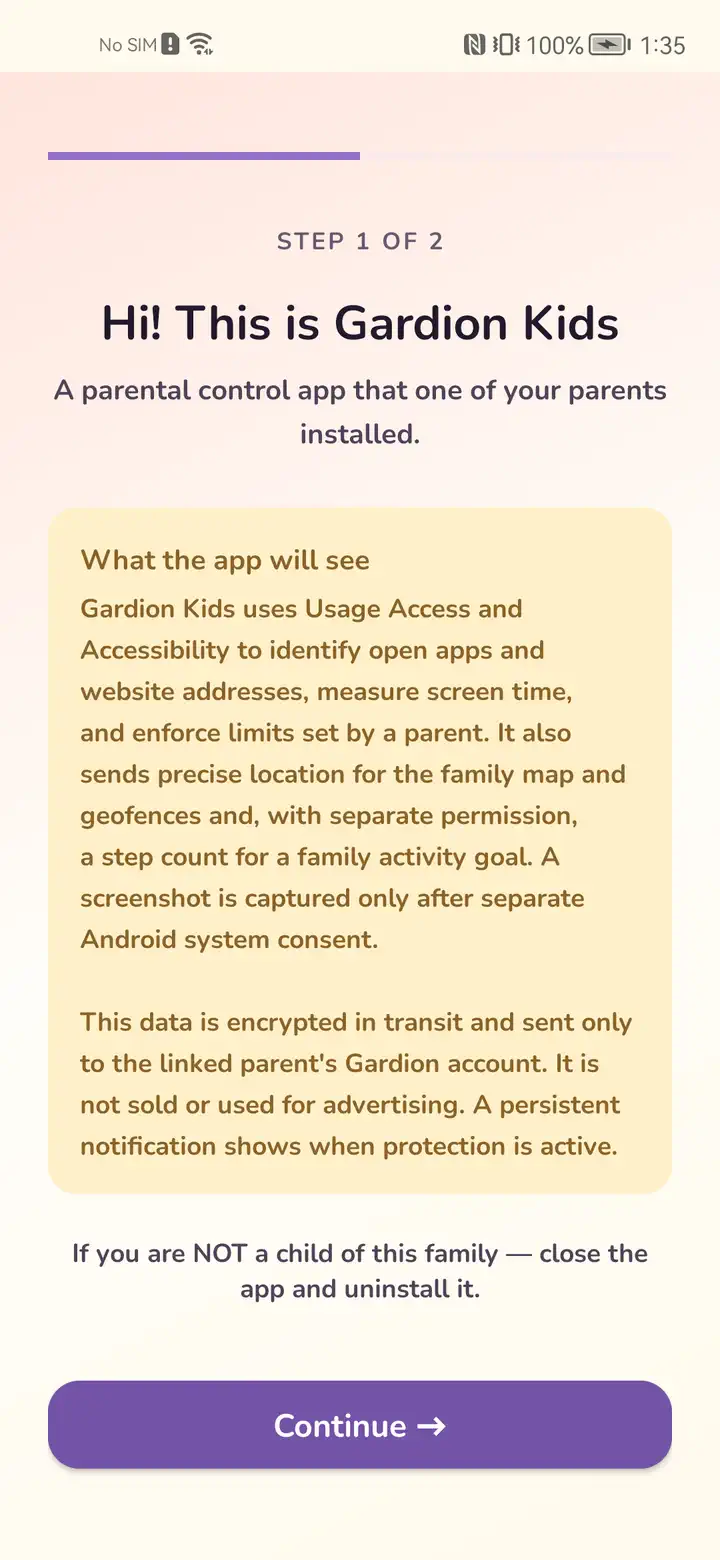
Gardion Kids goes on the child’s phone. The easiest way is to open the personal link from Gardion Family on that phone: the connection code comes with it. To install the app in advance, use the links below.
Switching to the build from this site
A store reviews every update for several days. The build from this site updates directly, so a fix reaches you on release day. Switch when something is broken right now: you will need the child’s phone in your hands and about ten minutes.
The parent app
Uninstall Gardion Family, install the file from this site and sign in. Children, devices, limits and your plan live on our server and come back with your account.
What Android will say along the way
The file does not come from a store, so the system asks three times: the browser warns about possible harm, Android asks you to allow installs from this source, and Play Protect offers to scan the app. Say yes to all three — this is the normal path for installing outside a store.
Next comes the place where people get stuck most often. On Android 13 and newer, the accessibility toggle is greyed out for an app installed outside a store, and the system says access is restricted for security. To lift it: Settings → Apps → Gardion Kids → the three dots in the top right → “Allow restricted settings”. After that the toggle works as usual. Gardion Kids takes you to that screen itself when it sees the attempt failed.
The child app
Gardion Kids protects itself from being removed, so wiping it from the phone will not work. Do it in this order:
- In Gardion Family open the device list, pick the child’s phone and tap “Remove device”. Gardion lifts the locks and opens the uninstall screen on that phone.
- Confirm the uninstall on the child’s phone. A phone that is switched off does this the next time it starts.
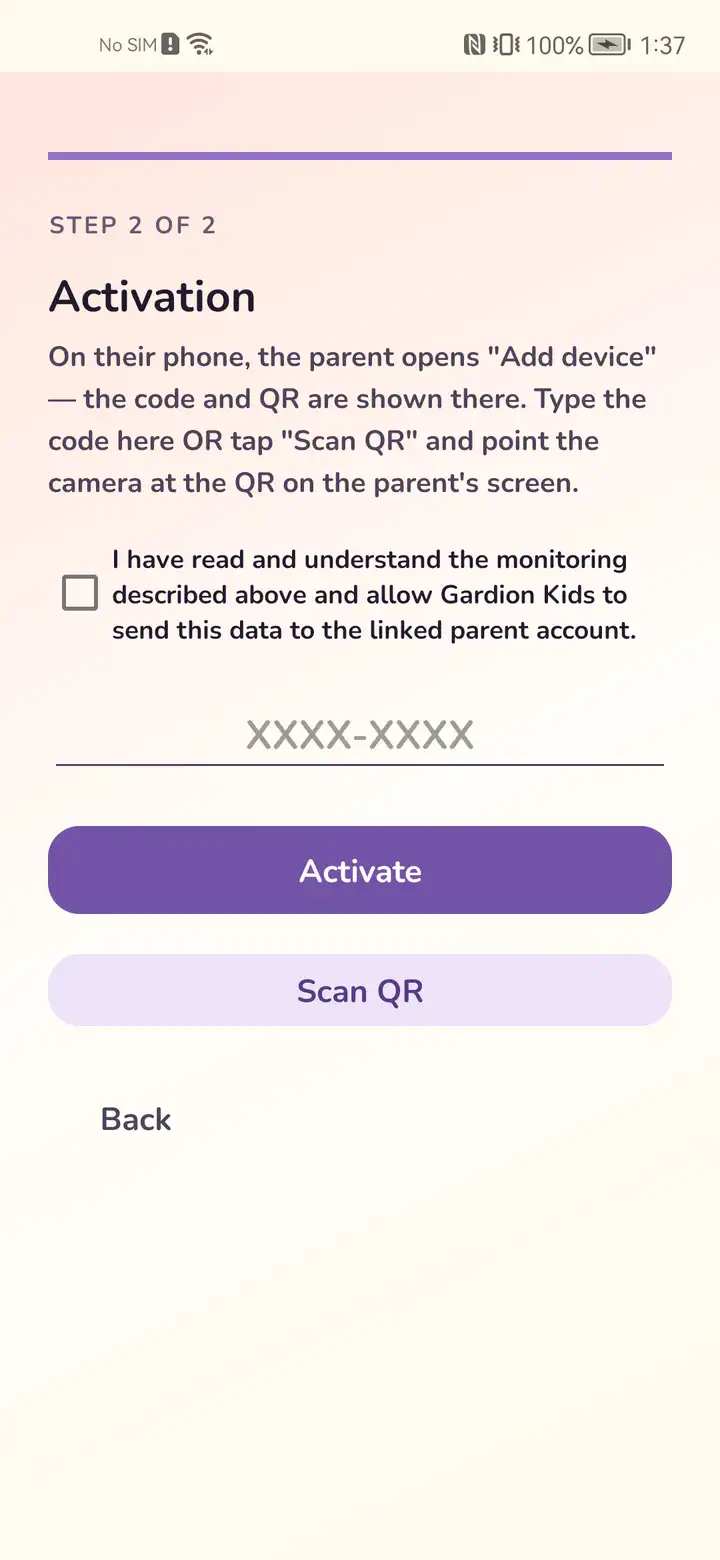
- Install the file from this site and enter the connection code. Gardion Family gives you the code under “Connect a device”.
- Grant the permissions again: Android ties them to a particular install.
Limits, schedules and app rules stay with the family and survive the reinstall, so you do not set them up again. The phone appears as a new row in the device list: Android treats a different signing key as a different install, and the old record closes together with its history.
What you need
- An Android phone for the parent, for Gardion Family. A browser on a computer works too.
- A separate Android phone or tablet for the child, for Gardion Kids.
- Access to the child’s phone: some Android permissions can only be granted on the device itself.
Install Gardion Family on the parent’s phone
Get the app on Google Play or download the APK linked above. In Gardion Family, create an account or sign in. If you would rather not install anything, open the parent dashboard in a browser.
Download Gardion Family for Android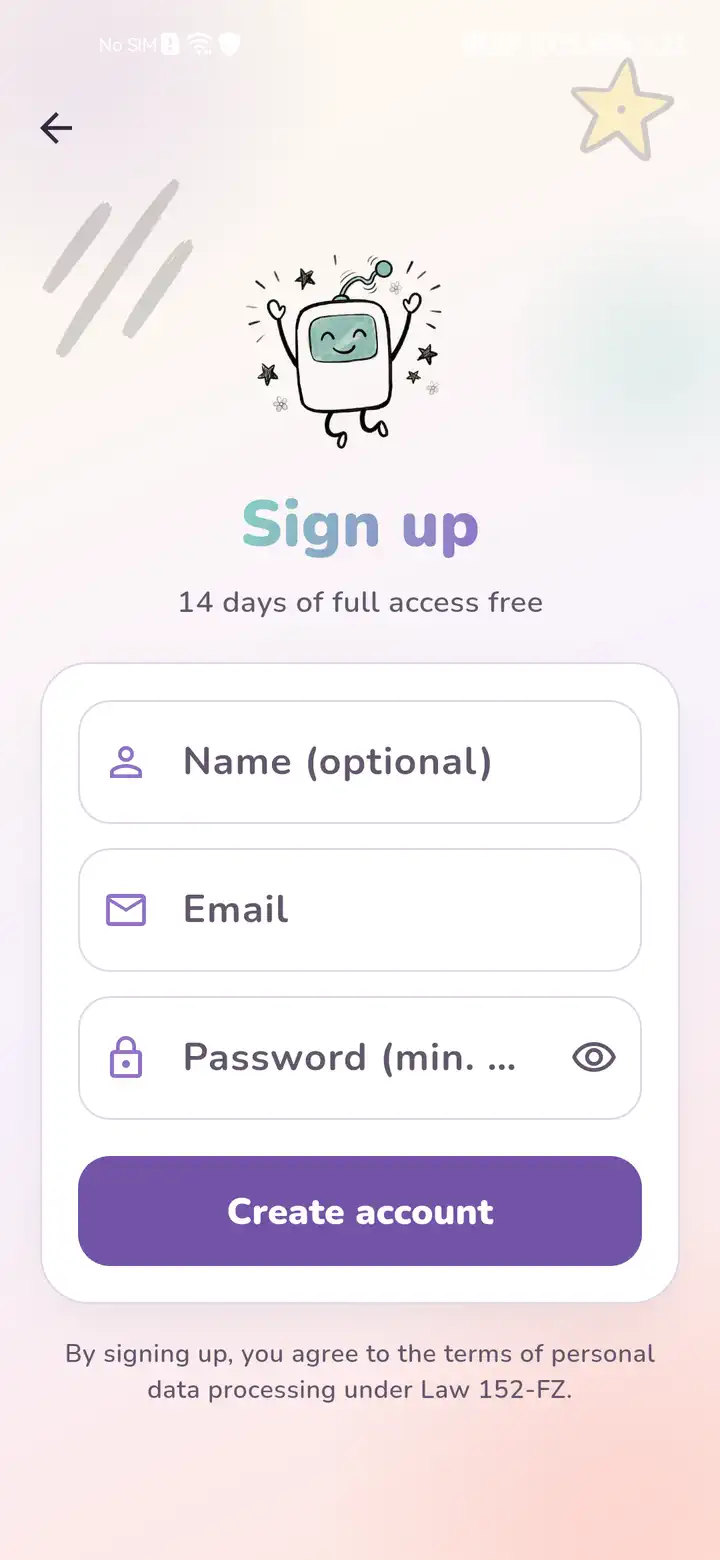
Connect the child’s device
In Family, add the child and choose “Connect a device”. The app gives you a personal link: open it on the child’s phone, install Gardion Kids and enter the connection code. The link is personal because the child app is tied to your account from the start. If Kids is installed from Google Play through this link, the device connects on its own. A QR code or the 8-character code works instead of the link.
Enable permissions one at a time, with a clear purpose
Gardion Kids explains every permission before opening Android settings and shows a short video of where to tap. The first limit needs background operation, display over other apps, usage access and accessibility. Location and the VPN filter are optional and should be enabled only if you need those features.
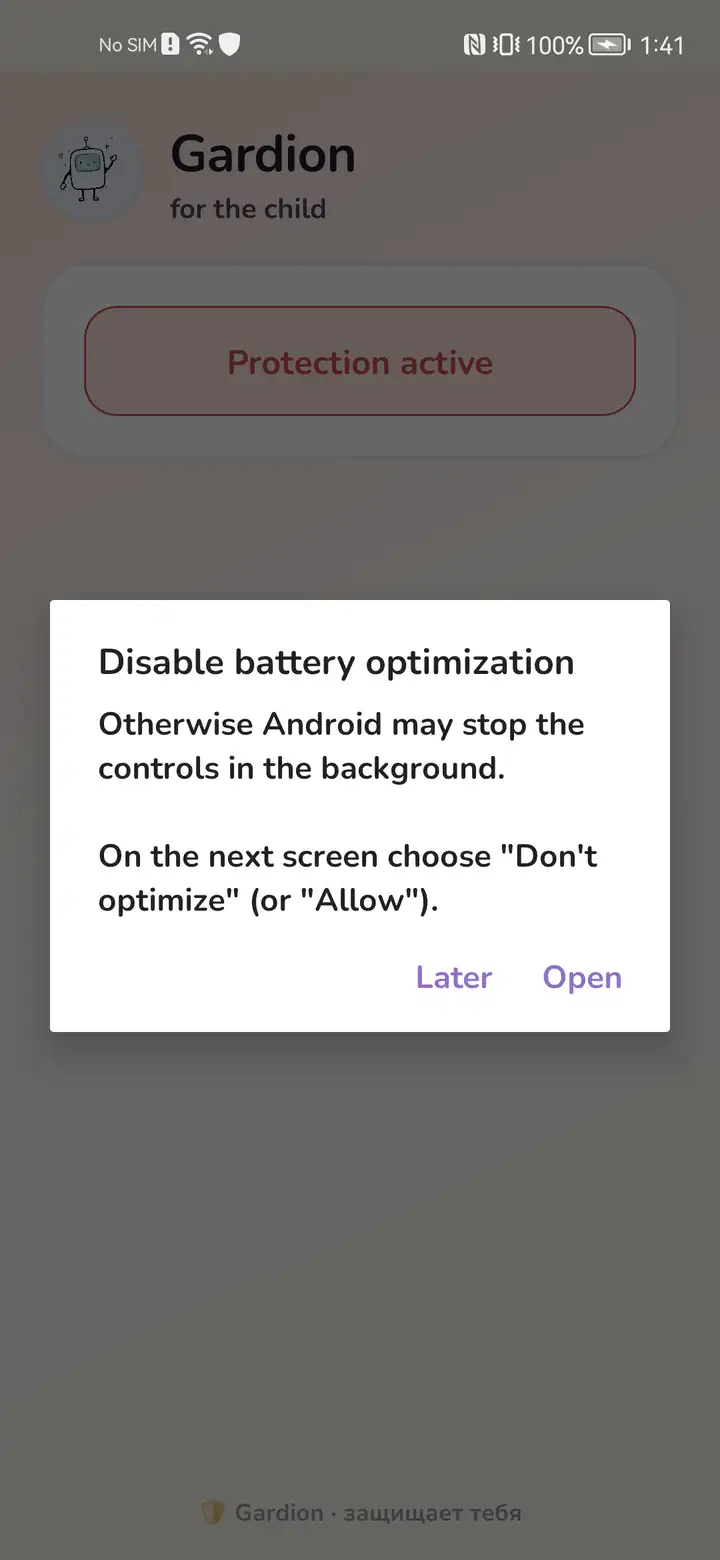
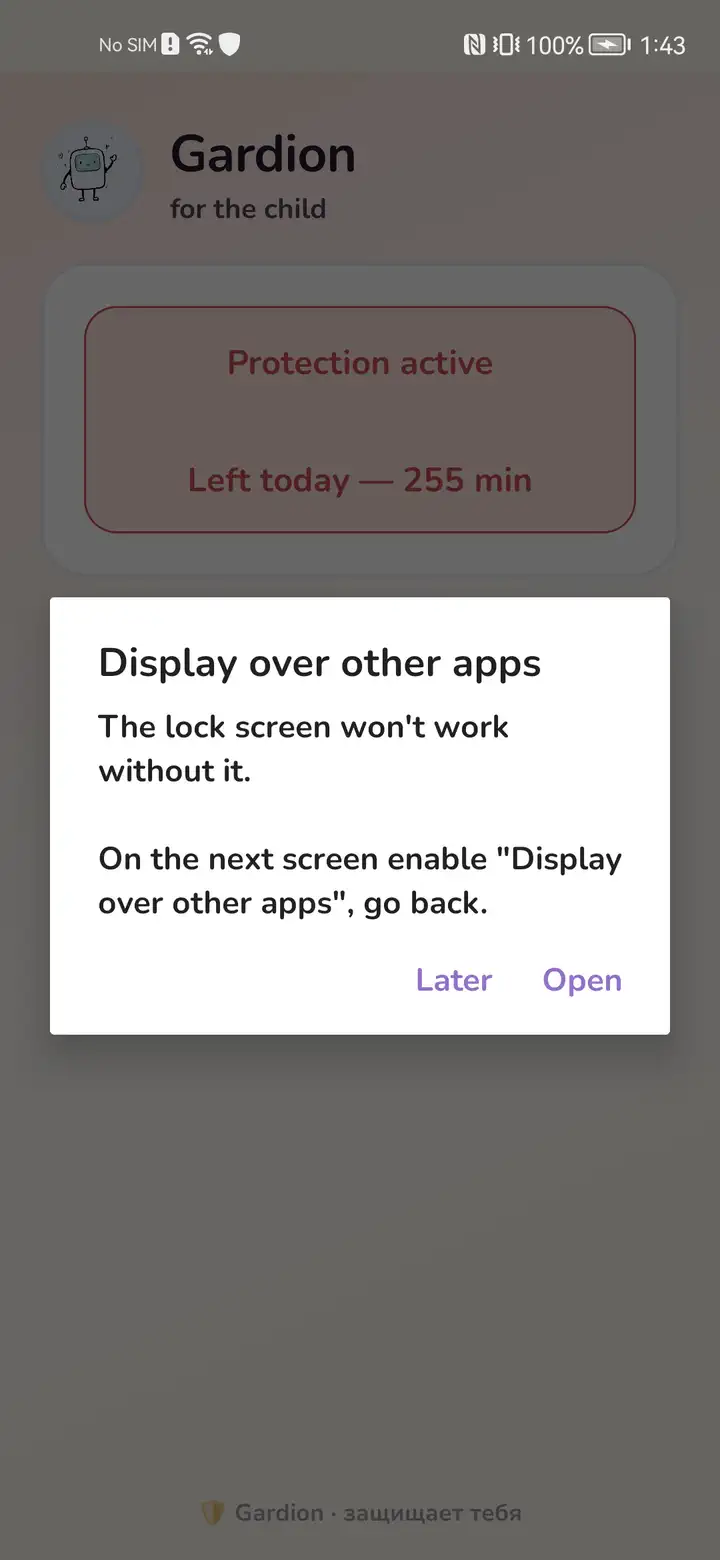
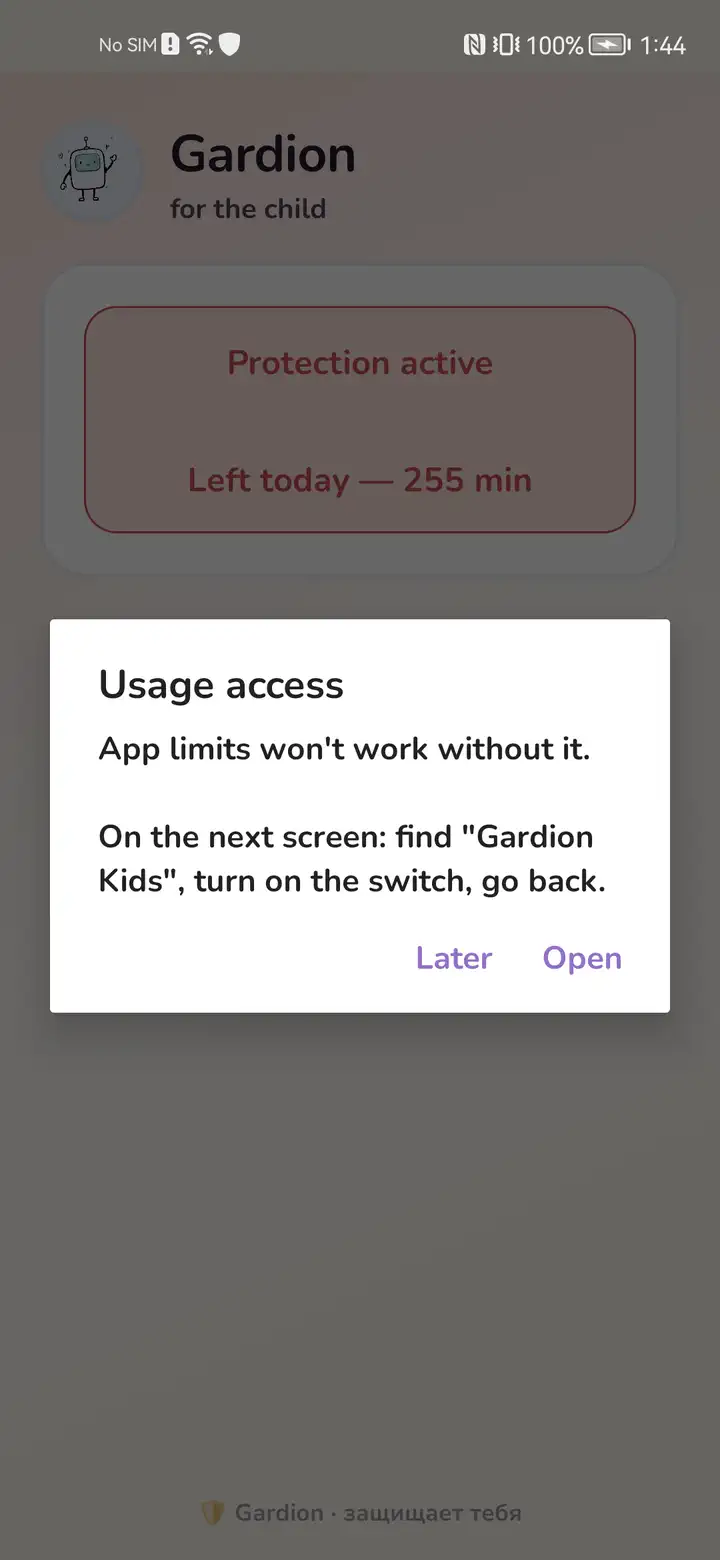
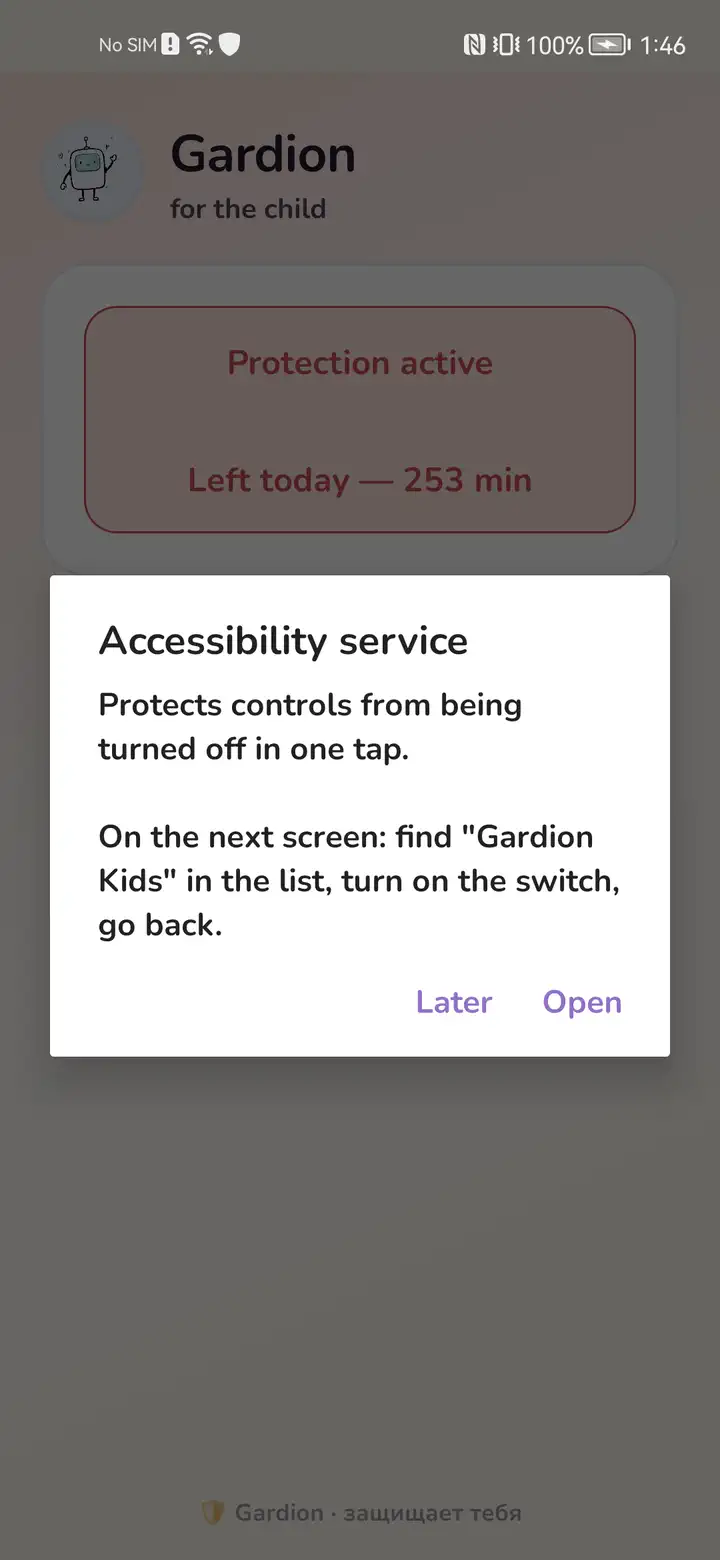
When should I enable location, VPN and device administrator?
Location is for the map, safe zones and SOS. The local VPN is for website-category filtering. Device administrator helps protect Kids from accidental removal. None of these permissions is required just to test the first screen-time limit.
Create the first rule and check the result
Return to Family, set a daily limit or schedule and make sure it appears on the child’s device. For a calm check, start with a short test limit, then set the value that works for your family.
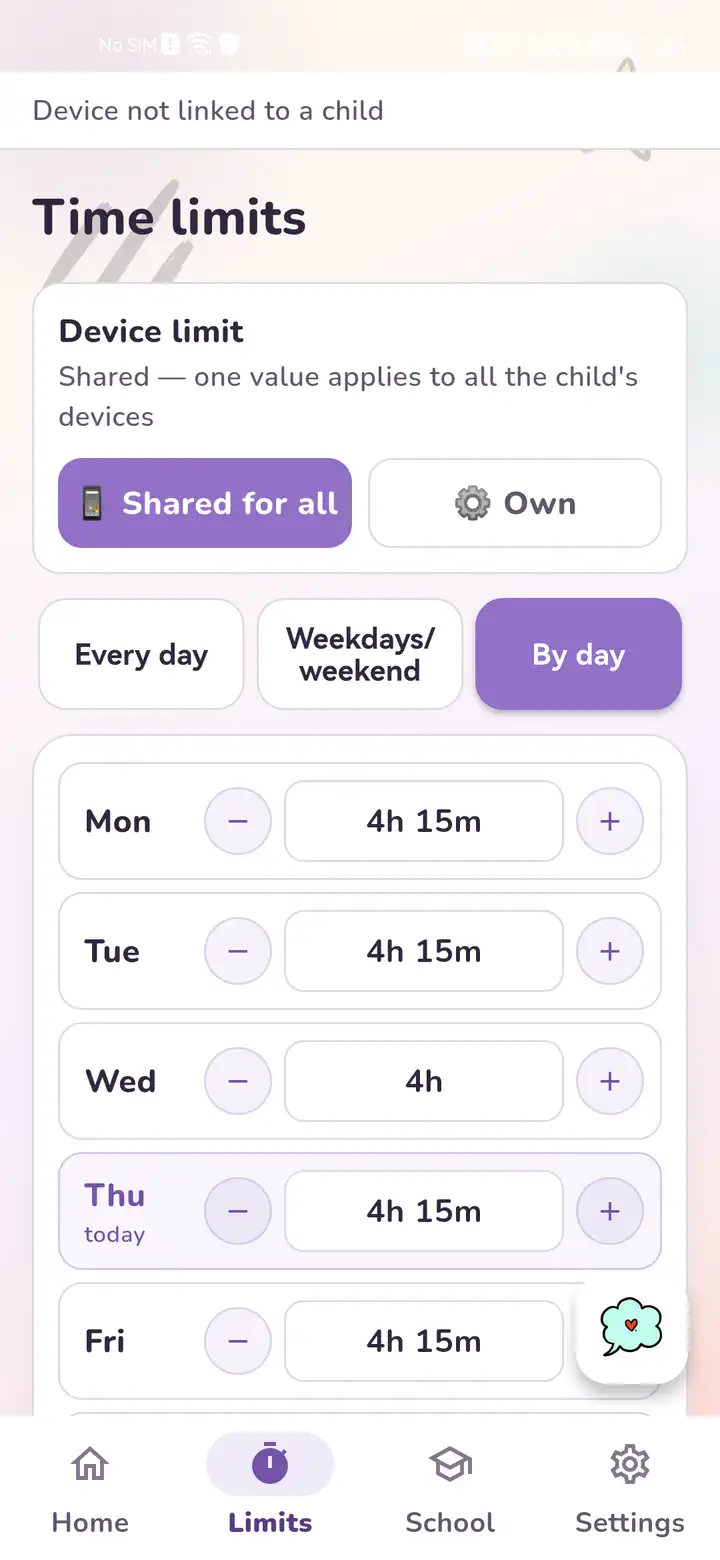
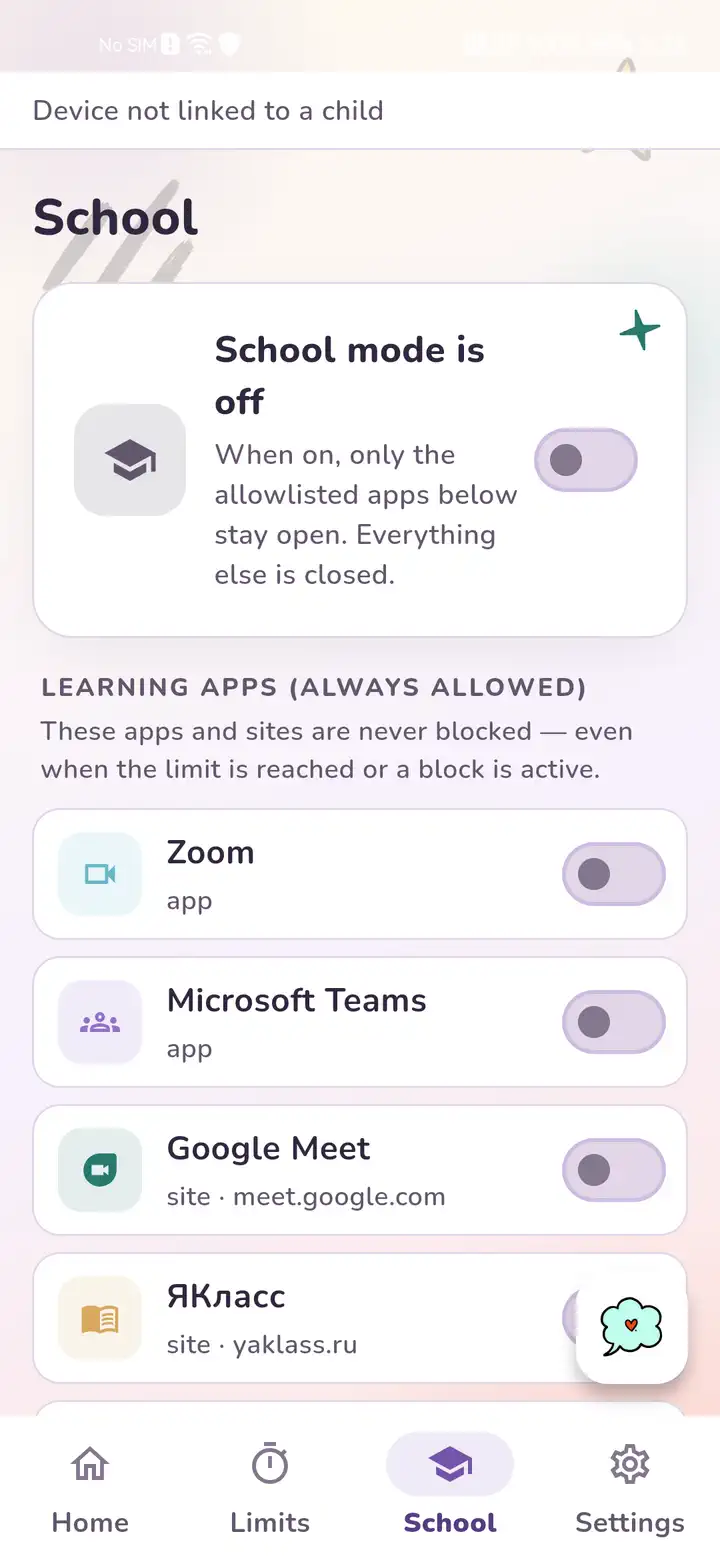
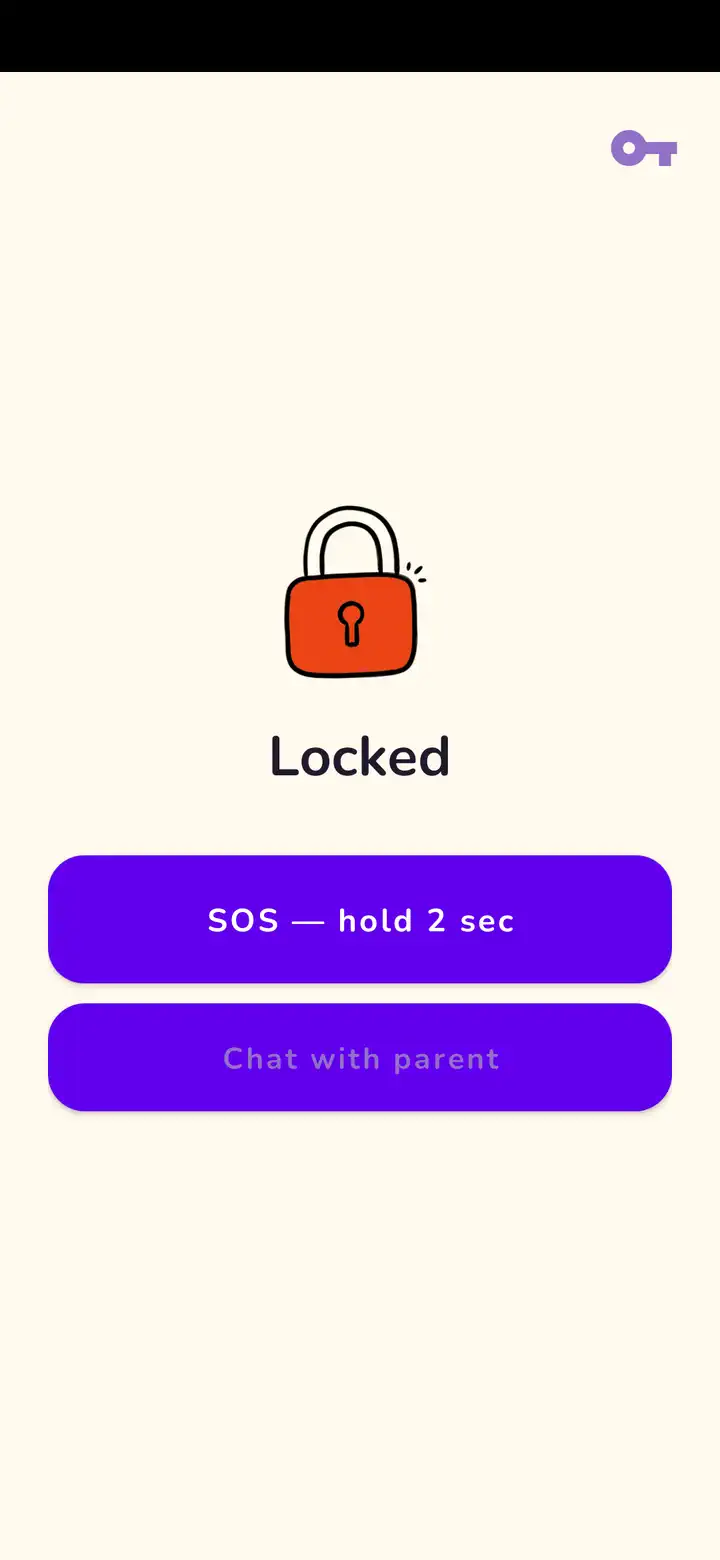
Then enable only the features your family needs
School mode in Premium — keep only the apps needed for school.
Breaks and warm-ups — remind your child to change position.
Web filter — enable categories of unwanted websites.
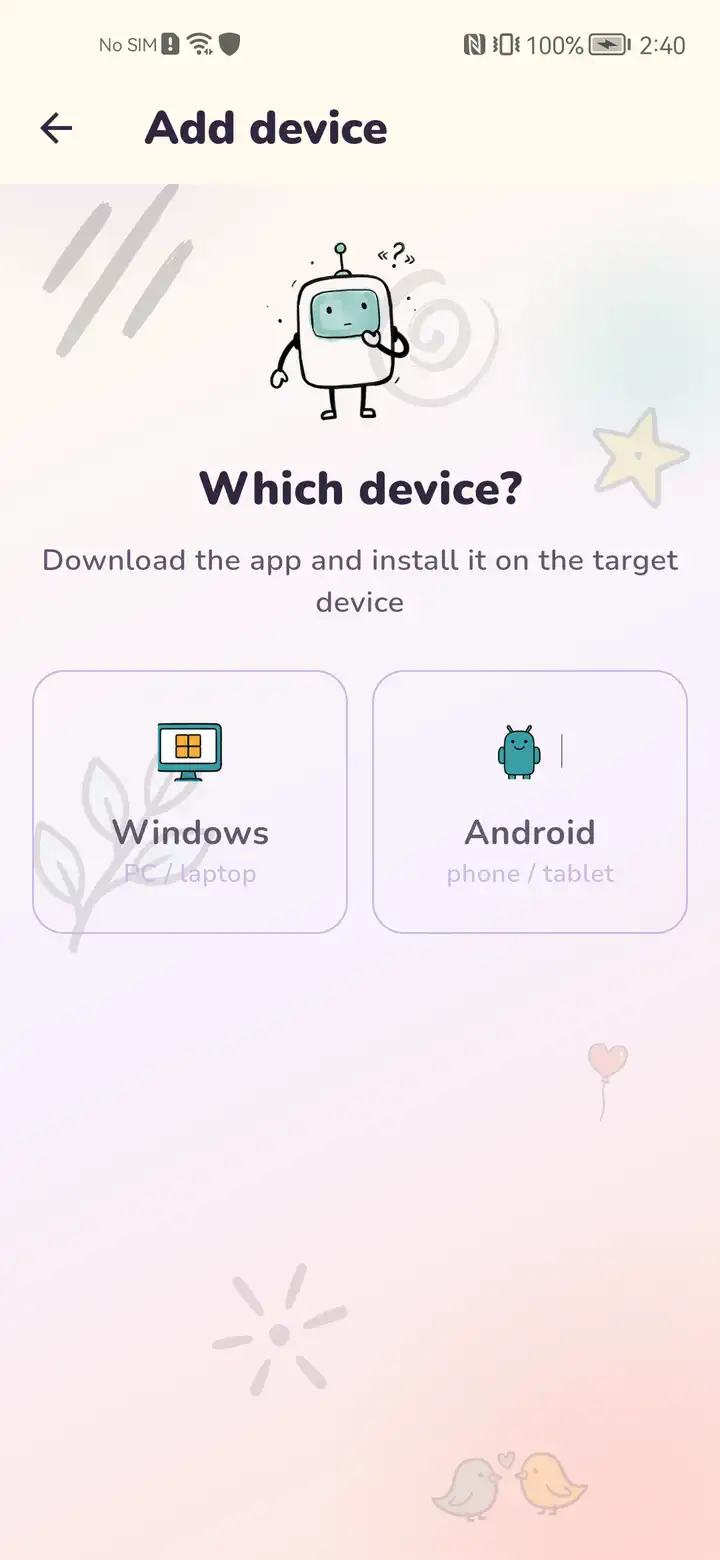
To connect Windows, add the computer in Gardion Family: the app will create a personal one-time installer link. The PC needs 64-bit Windows 10 or 11.
Need help?
Tell us which step you reached and attach a screenshot — the Gardion team will help you continue.
app@gardion.io