 Gardion
Honor and Huawei · EMUI
Honor and Huawei kill the app. Five switches stop it.
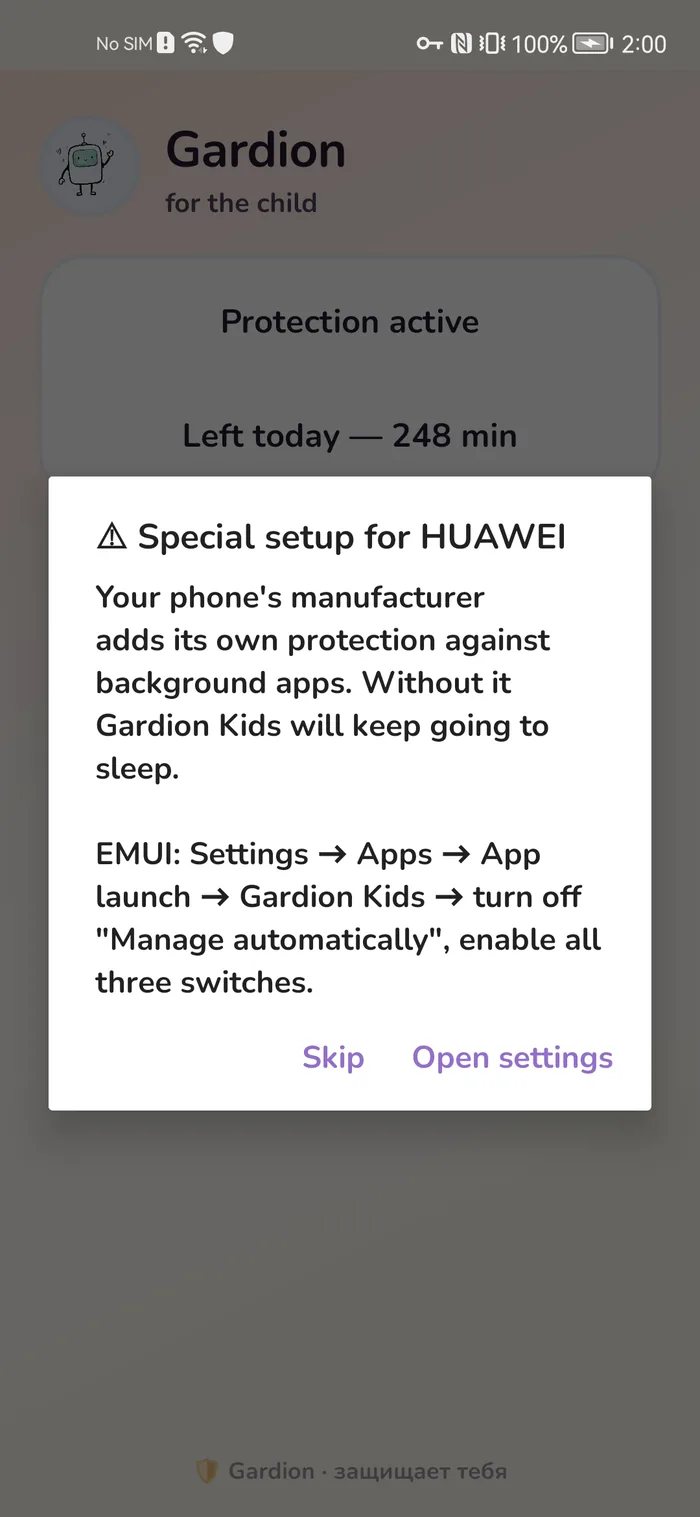
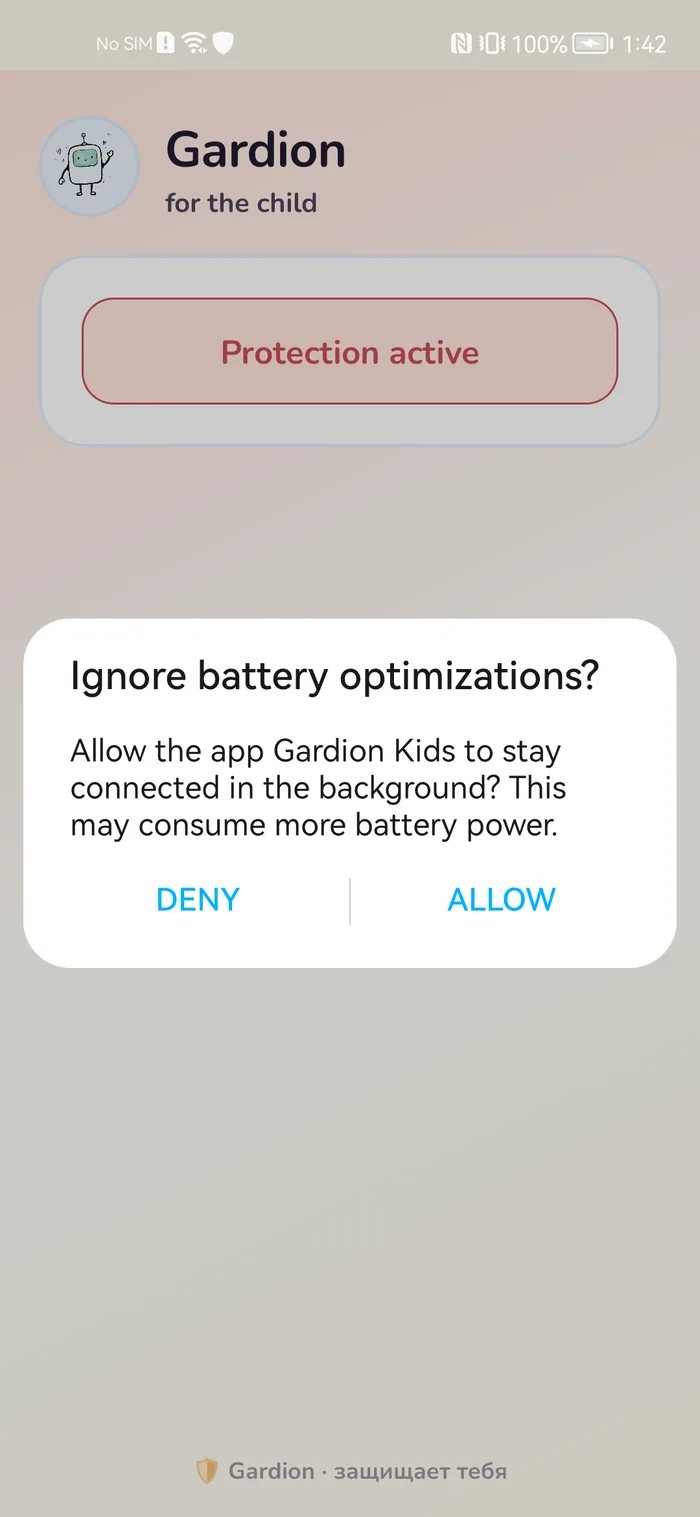
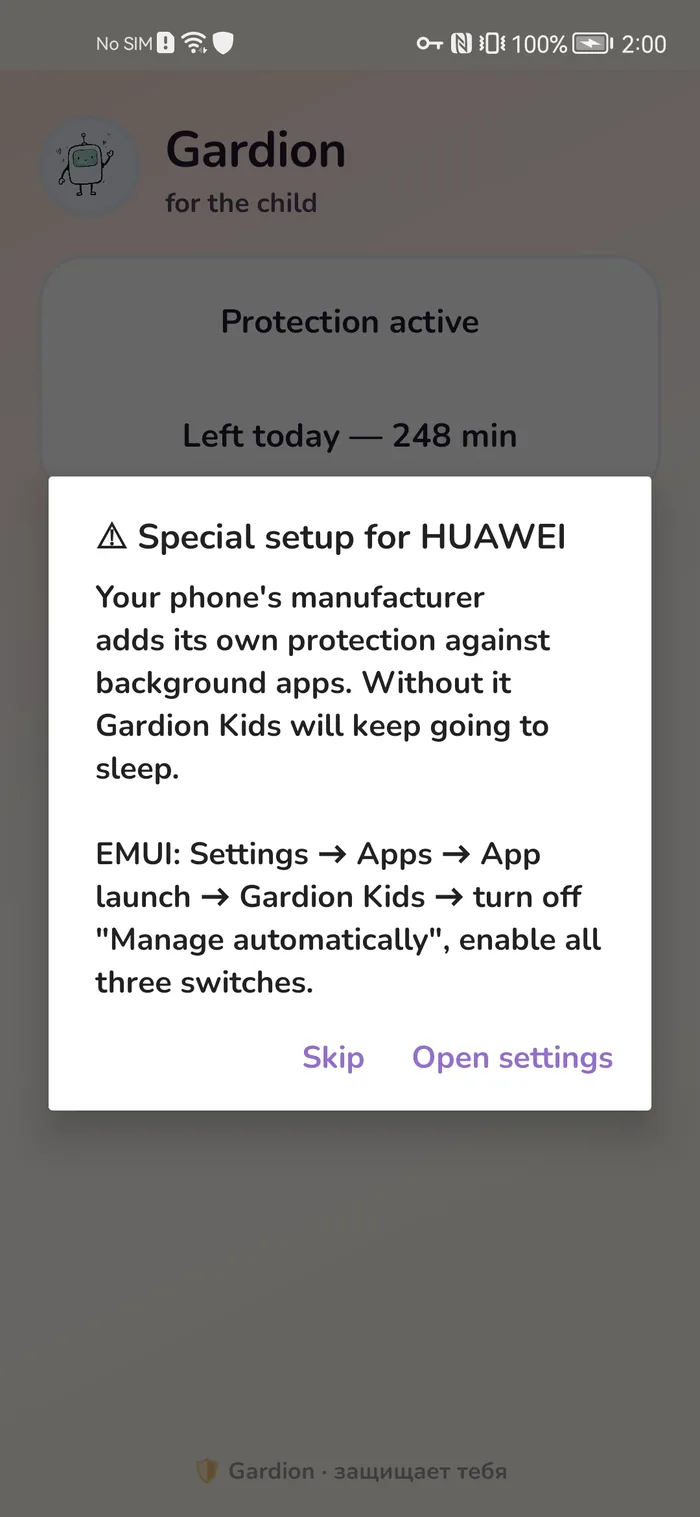
To save battery, EMUI unloads apps from memory — Gardion Kids among them. Limits stop counting, reports stop arriving, and on the child’s phone everything looks normal. Below are the five switches that undo it, in order, with screenshots from a real Honor 20 Pro on EMUI 12.

Is this your case?
- The parent dashboard shows the device offline while the child is holding the phone.
- Yesterday’s screen time is zero or a couple of minutes after a whole evening of use.
- Reports stopped arriving after a reboot and never came back.
Where the switches live
Settings → Apps → Apps → Gardion Kids → “Power consumption details” → “Launch settings”
Five switches, in order
- 1
Turn off “Automatic management”
The line under the switch reads: “Block unnecessary launches to save power”.
While it is on, the three switches below it are greyed out and cannot be tapped. This is where you start.
- 2
Turn on “Auto-launch”
Labelled “Launch on boot or in the background”.
It decides one thing — whether the app comes back on its own after the phone is switched off and on. Without it, a reboot is all a child needs for the limits to stop applying.
- 3
Turn on “Secondary launch”
Labelled “Launch by other apps”.
A block has to fire at the moment the child opens a game. Secondary launch is what gives the app that fraction of a second.
- 4
Turn on “Run in background”
The last switch in the same list.
The time counter runs while the app works in the background. Leave this off and the counter stops the moment the child swipes Gardion Kids away.
- 5
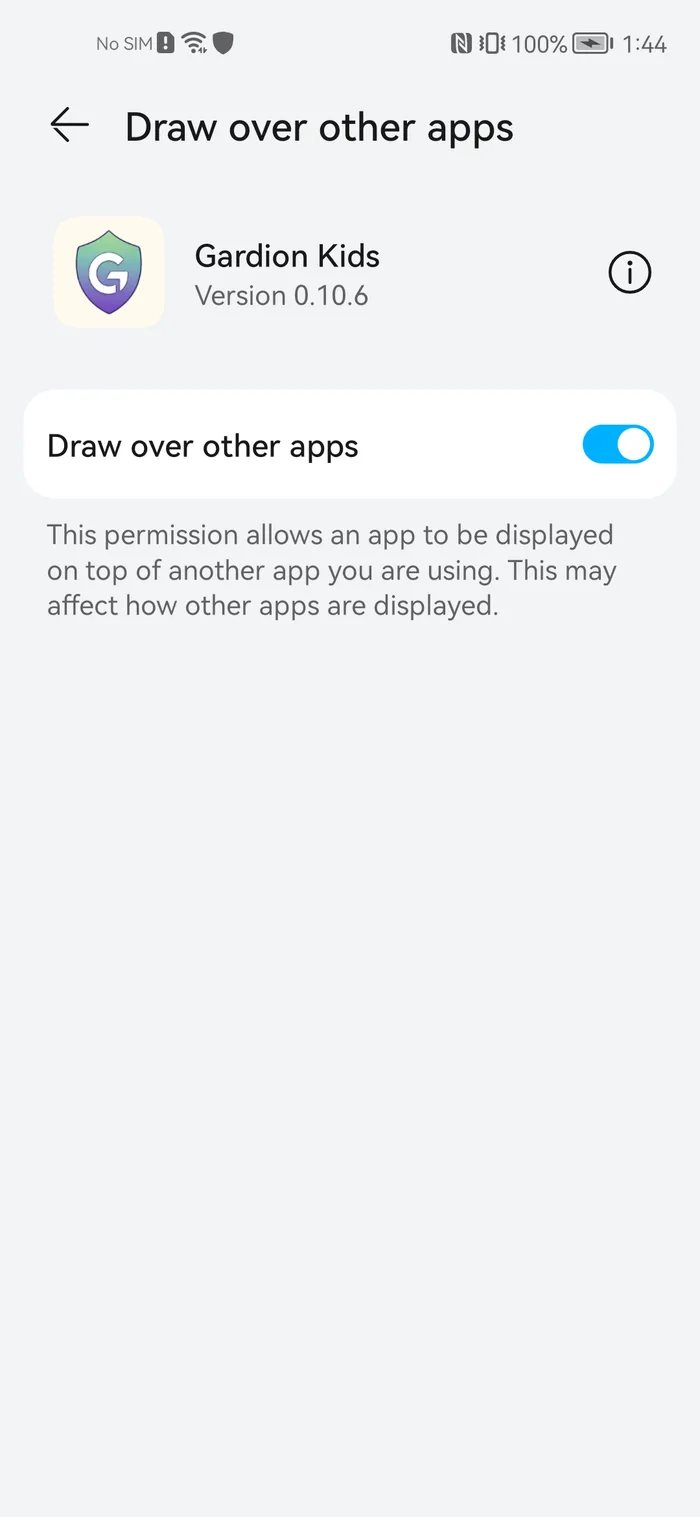
Allow display over other apps
Settings → Apps → Gardion Kids → “Additional settings” → “Display over other apps” → “Yes”.
The break screen is drawn on top of the game. Without this permission the time runs out, the game carries on and the child sees nothing.


How to tell it worked
- Reboot the child’s phone. Within a minute the device should go back online in the parent dashboard.
- Open a game that has a limit on it. The break screen should appear on top of the game, not behind it.
Questions parents ask
A major firmware update turns “Automatic management” back on, and that greys out the three switches under it. Walk through steps 1–4 again, it takes a minute.
Yes, if they know where to look. Gardion Kids settings themselves sit behind a parent PIN, but EMUI switches are part of Android and cannot be locked. If the child revokes a permission Gardion Kids needs, the phone screen stays covered until the permission is back, and you see a warning in the dashboard. Autostart switched off shows up as a device that stops reporting.
It does. Without Google services, Gardion Kids takes location from the phone itself. On Huawei, install it from RuStore or as an APK from the link in the parent dashboard; Gardion Kids is not in AppGallery. The Huawei menu carries the same names; on some models the path goes through “Phone Manager” → “App launch”.
On every Honor and Huawei, yes. Samsung has its own settings — there the problem is battery restriction and automatic permission removal, not autostart.
Set it up on your child’s Honor
14 days of full access, no card needed. Android and Windows.
Try Gardion