 Gardion
School mode on your child's phone: what stays open during lessons

The teacher posts a worksheet in Google Classroom. Your child opens it on their phone, and a minute later they are back in a game with one level left to beat. School mode on a phone handles this with a schedule: during lessons, school apps and contact with you keep working, and everything else waits for the bell. Android and iPhone each have a built-in version, Gardion has its own, and they differ in what stays open and what you hear about the lesson.
What school mode does
Rules on phones in class differ from school to school, and we covered them in our article on school phone bans. A rule on paper still leaves a twelve-year-old alone with a game in their pocket.
School mode moves the rule onto the phone itself. You set the school days, when lessons start and end, and a list of what your child needs for school: a class app, a dictionary, a calculator. While lessons are on, only that list and contact with you work. After school, the usual rules apply again.
We think of school mode as a list of what stays open. Blocking everything is easy. The tedious part is remembering ahead of time which app your child needs for Friday's quiz, and you only have to do it once.
Built-in options on Android and iPhone
Family Link calls it School time. Google's help page gives the path: in the Family Link app, select your child, tap Screen time at the bottom, then Schedules, and turn on School time. During School time your child can still call and text, and notifications are silenced. Apps that should keep working are set to Unlimited. It needs Android 7 or later.
On iPhone, Screen Time Schedules does the same job. According to Apple's help page, you choose which apps your child can use before school, during school and after school, and you can set separate routines for weekdays and weekends. We walk through turning on Screen Time in our guide to parental controls on iPhone. Gardion can't be installed on a child's iPhone, so our school mode works on Android and Windows.
School mode in Gardion: the schedule
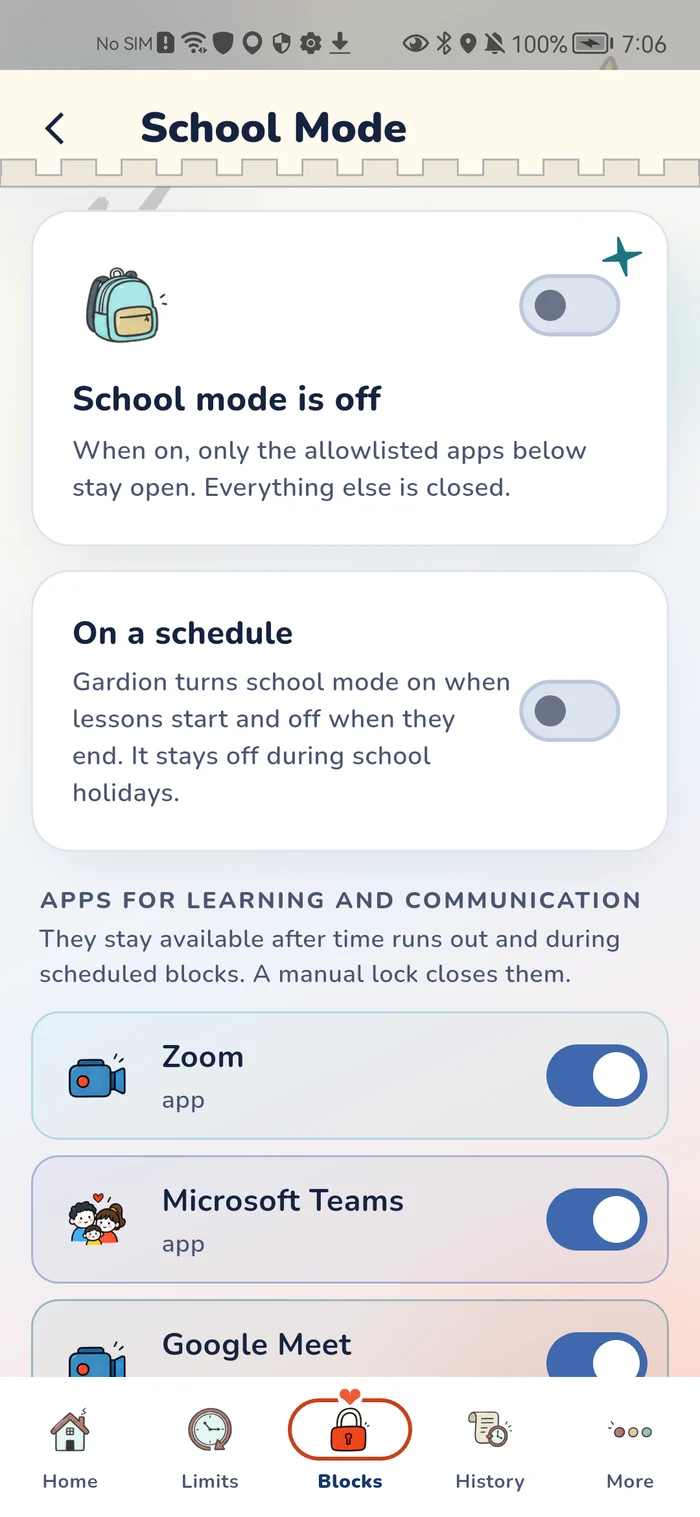
In Gardion, school mode sits in the School tab of the parent app and the web dashboard. You can turn it on with a switch, but a schedule saves you the morning routine. Turn on On a schedule and pick the days and times. The default is weekdays from 8 a.m. to 3 p.m. From then on, Gardion turns school mode on when lessons start and off when they end.
If you turn it off in the middle of the day, say for a doctor's appointment, it comes back on by itself the next school day. For breaks, add the dates under School holidays: the school schedule pauses on those days and resumes after the last one.
What stays open during lessons
The Apps for learning and communication list comes with ready-made entries we added for you: Google Classroom, Google Meet, Zoom, Microsoft Teams, Skype, Discord and Khan Academy. Each one turns on with a tap. Add your school's own app, a dictionary or a banking app for lunch money yourself. On Android, a school website opens from a button on the lock screen in its own window, and other sites stay closed until lessons end.
We suggest building the list together with your child, with the class timetable in front of you. Your child knows better than you where the English quizzes happen and which app the science teacher uses for homework.
On Android, a School mode screen sits on top of other apps during lessons. It shows an Approved apps row, Phone and Contacts buttons, an SOS button and a chat with you.
On a Windows computer, Gardion ends any program that isn't on the list, and the screen reads "Class time — only study apps are open." If a lesson needs a program that isn't on the list, the lock screen has an "Urgent: open a study program" button. Your child opens one study program for the time you chose in advance, from 15 minutes to 4 hours, and you get a notification.
Stars earned for chores can't be traded for game minutes during lessons. Your child sees "The exchange is off during school hours."
What you hear about the lesson
While a lesson is on, Gardion notes which programs and sites were open. If your child spends a minute or more in a program that isn't on the list, or opens an unrelated website, you get "Your child got distracted from the lesson" with the name of the program. You get at most three of these per lesson, and time in a browser alone doesn't count.
When school mode switches off, a summary arrives: "The lesson is over," with how long lessons ran and what was open.
These alerts are on by default. If you'd rather not get them, turn off Distracted in class in your notification settings.
How to set up school mode
1. Install Gardion Kids on your child's Android phone or the kids' program on their Windows PC, and the Gardion app on your own phone. Links and steps are on the install page.
2. Open the School tab, turn on On a schedule and match the times to your school's bell schedule.
3. Pick the school apps and websites on the list, then check the list with your child.
School mode is part of the Premium plan: $35 a year, about $3 a month, paid once with no auto-renewal. The first 14 days include every feature for free, no card needed. After school the usual limits apply, and we covered evenings and bedtime in our article on a child on the phone at night.
In short
In Gardion, open the School tab, turn on On a schedule and set the school days and lesson times. In Family Link, go to Screen time, then Schedules, then School time.
Yes. Your child can call, text or press the SOS button right from the School mode screen.
Not if you add the dates under School holidays. The schedule pauses on those days and resumes by itself after the last one.
You get "Your child got distracted from the lesson" if they spend a minute or more in a program that isn't on the list. After lessons, the "The lesson is over" summary arrives.
It's part of Premium, $35 a year. You can use it free for the first two weeks after you sign up, no card needed.
Set limits in 3 minutes
Limits, schedule and anti-bypass protection on Windows and Android. 14 days of full access, no card needed.
Try GardionOr install the parent app now.
Read next
- How to set up a Windows laptop for a child: accounts, limits and websitesHow to set up a new Windows laptop for a child: who does the first setup, a standard account, the Microsoft family group and Gardion limits from your phone.
- Is your child on the computer late at night? How to tell and what to doHow to tell if your child is on the computer late at night and what to do: an agreed time, the router, a Windows lock until morning and clock protection.
- How to check your child's browsing history on a phone or computerWhere to find your child's browsing history in Chrome and Edge, what Family Link and Family Safety show you, and how to get the list of sites on your own phone.