 Gardion
Daily screen time limit: how it adds up and what happens when it runs out
A screen time limit sounds simple: set two hours, and after two hours the phone locks. In practice a parent immediately has questions. Does time in a school app count? What if the child is in the middle of a call? Can you hand out an extra half hour for tidying the room without rebuilding the whole schedule? Here is what the daily limit is made of, what happens at the moment time runs out, and which things keep working after the lock.
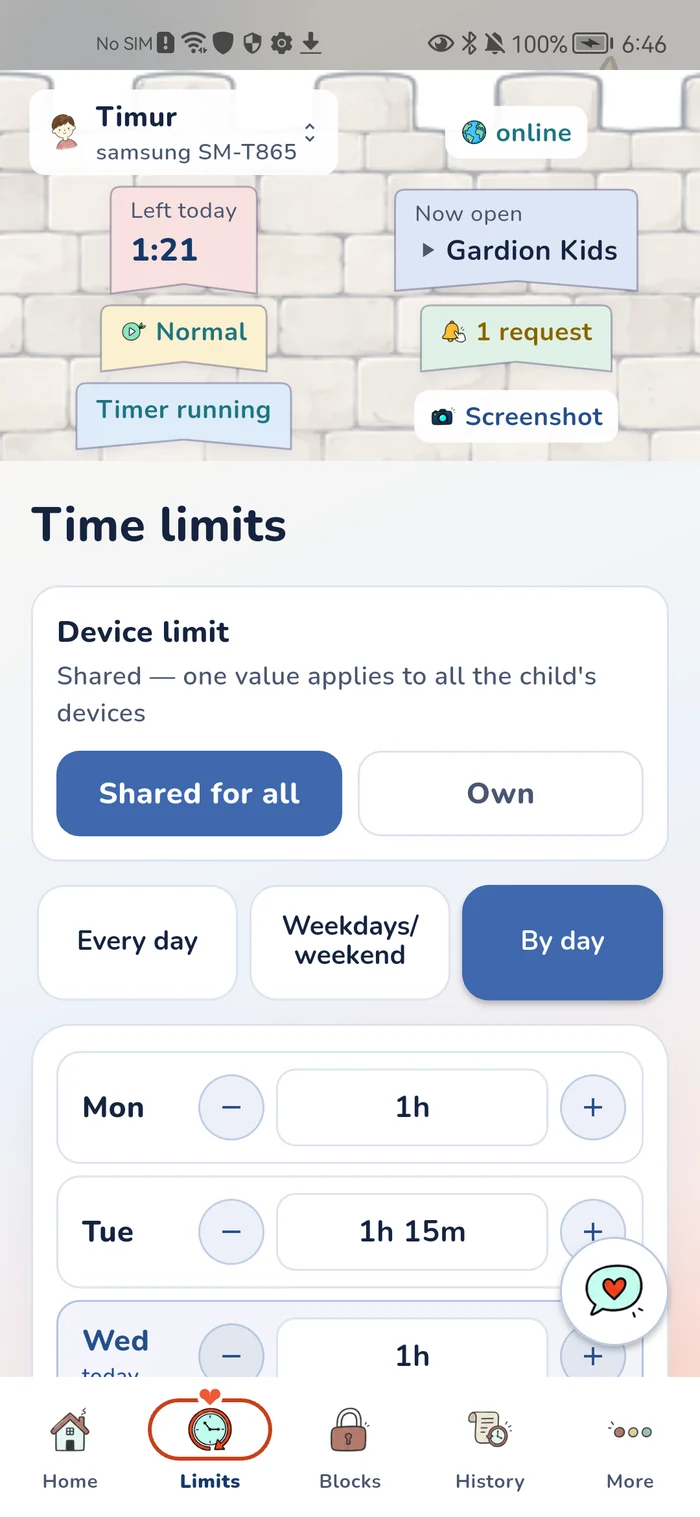
Every weekday gets its own number
The first thing that separates a usable limit from "two hours for everything": each day of the week carries its own figure. Monday and Saturday are different days, and one number for both means either too strict on the weekend or too loose midweek.
The step is fifteen minutes, and zero means the day is not capped at all.
Bedtime hours are set separately from the daily limit — a window when the device is locked no matter what. That is the night: even if the child barely touched the phone and the limit is untouched, at one in the morning the phone stays closed.
Per-app limits and category limits
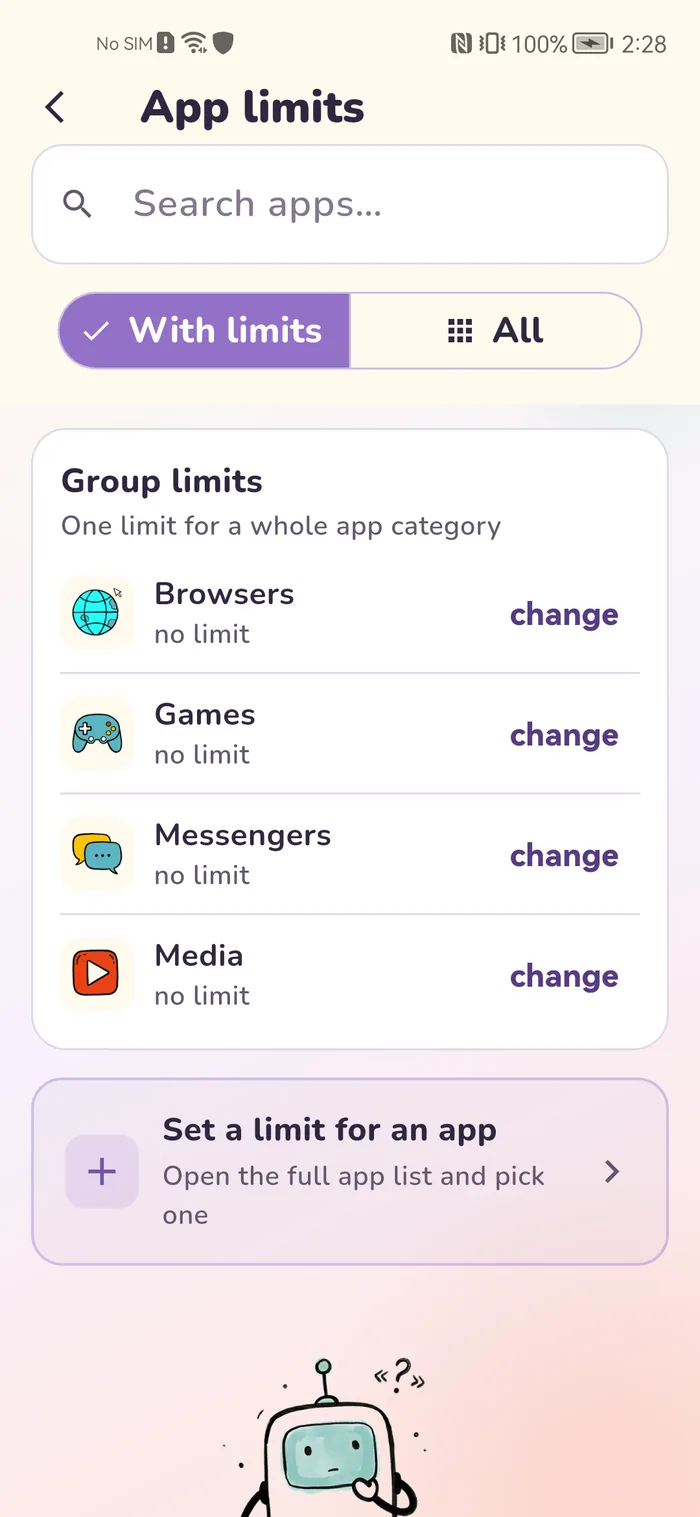
The daily limit is the overall budget for the device. Inside it you can restrict individual apps.
A limit on one app. Say an hour a day for a game inside a three-hour daily budget — the game closes after that hour, while the remaining two hours stay available for everything else.
A limit on a category. One number for a whole group: games, browsers, messengers, or video and music. Easier than setting them one by one, and it does not need editing every time your child installs a new game.
Both of these work alongside the daily limit rather than replacing it.
What happens when time runs out
Once the daily limit is spent, the device locks. The child sees a "Time is up" screen rather than a phone that silently stopped working — a difference that matters more than it sounds, because the child understands what happened instead of assuming the device broke.
And here is the part worth reading twice. The lock does not close everything.
School apps stay available. School mode (Premium) keeps a whitelist of apps for study and contact. Such apps keep working after the time runs out and during a scheduled lock. Parents usually add maps, transport, banking and the messenger the child uses to reach them.
Contact with the parent stays open. Your child can message you even when the time is gone.
The parent can grant more time. The "+ minutes" button in the dashboard adds it straight away, and the schedule stays as it was. That is the answer to "I cleaned my room, can I have another half hour": a one-off top-up leaves tomorrow untouched.
Breaks: a separate mechanic inside the limit
The limit answers the question of how much time there is in total, while breaks answer how that time gets spread out.
Two numbers get configured: how many minutes before a break, and how long it lasts. A break can include a video stretch — a short exercise instead of plain waiting.
Two settings remove the usual objections. The first is do not interrupt games: a break will not pull the child out of a match that cannot be paused. The second is an optional camera check that confirms the child actually got out of the chair for the break.
Breaks are the reason Gardion exists at all: the author's son has scoliosis, and the doctor told him to stand up regularly. A time limit does not solve that, because two hours straight and two hours with breaks put very different loads on a spine.
Age presets and admin mode
To avoid inventing numbers from scratch, there are ready-made sets by age. A preset rewrites the limits for every day, the night schedule and the school app list in one go. After that the parent adjusts the numbers: a preset is only a starting point and can be changed at any time.
For the times when the rules are temporarily beside the point — a trip, an illness, a week at grandma's — there is admin mode. Everything is open, limits and breaks do not apply, and the child's time is frozen, so the day does not burn away while the mode is on.
It is more honest than setting the limit to zero: the settings stay where they were, and switching the mode off restores them exactly.
In short
Yes. The limit is set per day of the week, in fifteen-minute steps. Zero means that day is not capped at all.
The device locks, but whitelisted school-mode apps — study, maps, transport, the messenger used to reach parents — keep working. Your child can message you at any point.
With the "+ minutes" button in the parent dashboard. The top-up applies today and leaves tomorrow's schedule untouched.
The daily limit is the overall budget for the device. An app or category limit works inside it — for example, one hour of games within three hours of total screen time.
The limit says how much time there is in total; breaks decide how it is spread out. Two hours straight and two hours with breaks load a spine and eyes differently. Breaks can be set to skip games.
Set limits in 3 minutes
Limits, schedule and anti-bypass protection on Windows and Android. 14 days of full access, no card needed.
Try GardionOr install the parent app now.
Read next
- Kaspersky Safe Kids review: where to download it and why it doesn't blockWhere to download Kaspersky Safe Kids without Google Play, what it costs, what parents say in reviews, and why it doesn't lock the child's phone.
- Chore app for kids: how your child earns screen time with starsA chore app for kids that ties chores to screen time. You set a chore worth stars and check it by photo. Your child trades the stars for minutes or a reward.
- Xbox parental controls: screen time, age ratings, purchases and your PINHow to set up Xbox parental controls: where screen time and age ratings live, how to make purchases wait for your approval, and how to lock your own profile with a PIN. Plus what the console can’t see on your child’s phone.