 Gardion
How to Limit Internet Access for Kids: Four Methods, Four Different Jobs
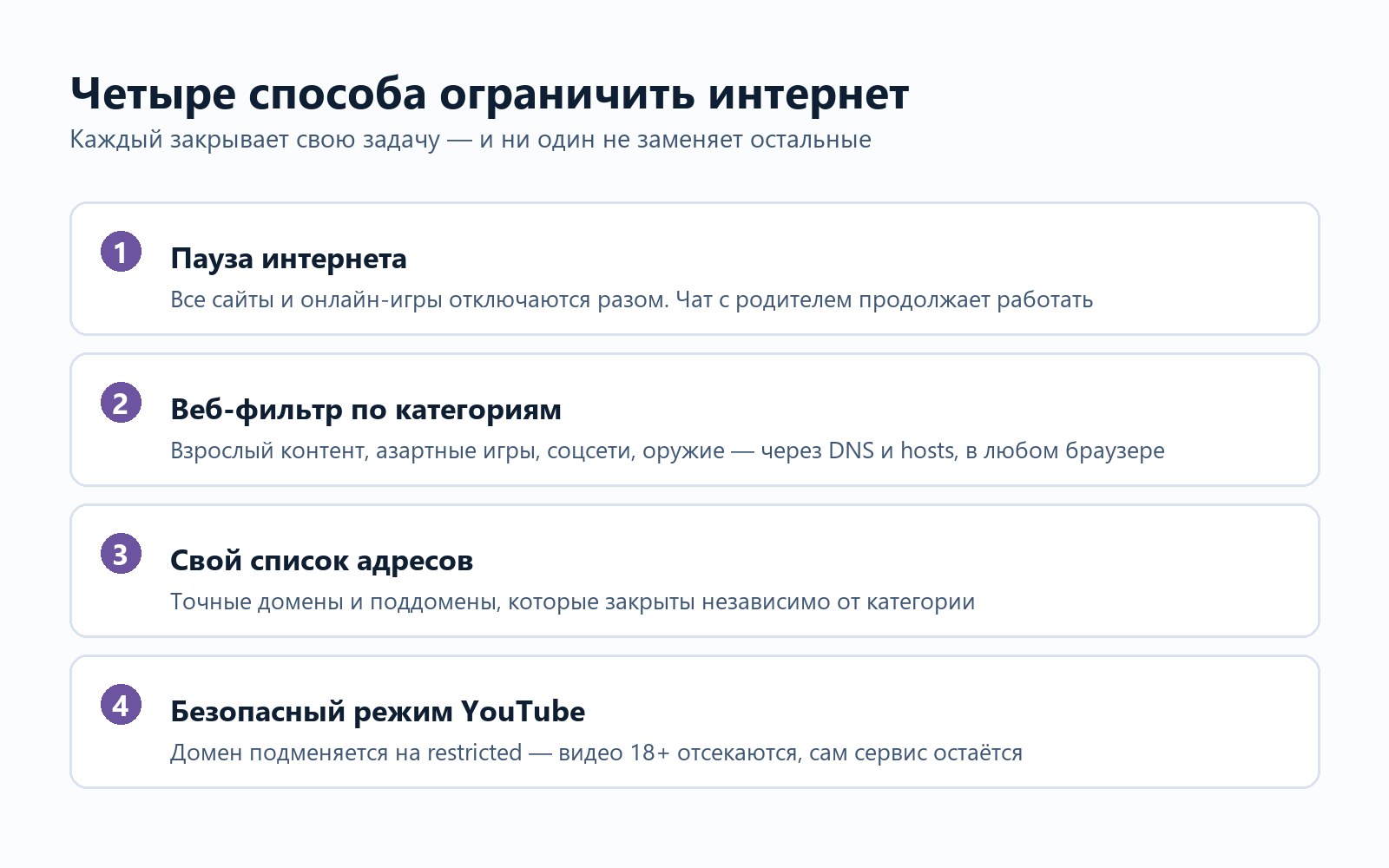
Asking to “limit the internet” usually means one of four very different things. One parent wants the connection off right now because homework is due. Another wants adult sites gone permanently. A third wants one specific forum blocked. A fourth wants YouTube to stay but drop the mature videos. The tools differ too, and reaching for the wrong one is the ordinary reason parents conclude that “controls don’t work”.
Four jobs hiding behind one phrase
Cut the connection now. The internet goes down entirely: websites and online games stop loading. On a Windows PC we call it pausing, and the chat with the parent keeps working through it, so your child can still message you and ask. On a phone, a one-tap lock does the same job.
Close whole categories. Adult content, gambling, drugs, weapons, social networks, gaming sites. Not a list of addresses but groups that stay current without your involvement.
Close specific addresses. Your own list of domains, covering exactly the sites you named along with their subdomains.
Filter content inside a service. YouTube stays available but switches to restricted mode and drops videos rated 18+.
Picking the wrong one costs you an evening: a parent turns off Wi-Fi and the child switches to mobile data; a parent blocks one site and the child opens ten more like it.
Pausing, when you need it this minute
This is the only one of the four that works instantly and needs no setup. Gardion has it on Windows: tap it and the connection on your child’s PC closes; every site and online game stops loading. Tap again and it comes back. On a phone, a one-tap lock plays the same role: the screen closes, while calls and the chat with you keep working.
Pausing suits exactly the moments people look for it: homework, dinner, bedtime. It cannot be your permanent answer, because it is a manual action and you will get tired of remembering it every evening. For recurring hours there is a schedule, and for a daily allowance of minutes there is a screen time limit.
Category filtering, and where it has to live
What matters is not the ability to block a site but the layer the block sits on. A filter inside one browser is defeated by installing a second one — the first thing kids try, covered among five common bypasses.
So filtering has to sit below the browser, at the device’s network layer. In our case that means DNS and the hosts file: the rule applies across every app at once, including the ones your child installs tomorrow.
The categories come ready-made: adult content, gambling, drugs and alcohol, violence, weapons, social networks, gaming sites, ads and trackers. Each has its own switch, and you never maintain address lists by hand.
Your own list, when categories are not enough
A category closes a class of sites, and sometimes a single site is the problem. That is what the custom list is for: enter one address per line, and the block covers the domain together with its subdomains.
The reverse happens too. A category catches something you need: a school portal lands under “gaming” because of its practice section. Keep the category on and add that address to the exceptions.
YouTube: filtering rather than blocking
Blocking YouTube outright is easy and almost always excessive, since lessons, homework walkthroughs and cartoons live there too. Restricted mode is the softer answer: the domain is redirected to the restricted version, and mature videos stop appearing.
It works in Chrome, Firefox, Edge and the YouTube app itself, because the redirect happens on the device. What it covers and where its reach ends is spelled out in the piece on parental controls for YouTube.
Why the carrier and the router only get you halfway
A carrier’s “kids internet” add-on filters mobile traffic on that SIM card and nothing else. At home your child joins Wi-Fi and the filter stops applying.
The router is the mirror image: it covers everything crossing the home network and can do nothing about mobile data, a friend’s Wi-Fi or a hotspot from another phone.
Both also treat everyone on the network the same way, so a router rule lands on the parents as well. A setting on the child’s own device does not depend on where they connect and leaves everybody else alone, and that is the whole difference.
A computer is a separate device here. A filter on the phone does not reach it, so if your child goes online from a PC, the rules have to be set on the PC itself. See parental controls for a PC.
A sensible order to do this in
Start with categories: they cover the bulk and need no list-keeping. Add YouTube restricted mode if your child uses it. Build the custom list later, for the specific cases once they show up. Keep pausing the PC as the manual tool for the evening.
And tell your child the filter is on. A hidden block gets discovered within a day, and after that the conversation is no longer about rules.
In short
You can, but only at home. A router filters its own network and has no effect on mobile data, a friend’s Wi-Fi or a hotspot from another phone. Its rules also apply to everyone in the flat, adults included. A setting on the child’s device does not depend on where they connect.
It does if the filter lives inside a browser. Blocking at the device network layer (DNS and hosts) applies across every app at once, so a second browser changes nothing.
Use the custom list: one address per line, and the block covers that domain and its subdomains. You do not have to switch on any category at all.
Gardion has pausing on Windows: websites and online games on the PC stop loading until you lift the pause. The chat with you keeps working, so your child can message and ask for the connection back.
Set limits in 3 minutes
Limits, schedule and anti-bypass protection on Windows and Android. 14 days of full access, no card needed.
Try GardionOr install the parent app now.
Read next
- Child on the phone at night: how to get sleep back without a nightly fightIs your child on the phone at night? How much sleep kids need, what works without an app, whether to take the phone away, and how to set bedtime in Gardion.
- How to see your child's phone screen and what they seeHow to see your child's phone screen with Gardion: you request a screenshot, your child confirms it on Android, and a Windows PC sends one within seconds.
- Child turns off parental controls on Xiaomi: what alerts you get and what to lockOn Xiaomi and Redmi, protection goes away either because MIUI saves battery or because someone acts on the phone. What each alert means, which sections to lock with App lock, and what no app can lock down.