 Gardion
An SOS button on a child phone: what happens after the press
A panic button is not a daily setting. It exists for one moment that may never come, and that puts two demands on it: the child has to reach it in a second, and the parent has to receive the alert even with the phone in a pocket and the sound off. Here is how ours works: where the child presses it, what travels with the alert, what happens without location permission, and what we record about delivery.
One press, held
SOS fires on a press and hold, not on a tap. Holding keeps the alert from firing on an accidental touch in a pocket, and it still asks nothing of the child: no password, no hunting for the right screen.
The button used to live only on the app home screen and the lock screen, so the child had to find the app first. The same call now comes from the notification shade, from the persistent notification and from a home screen widget.
What travels with the alert
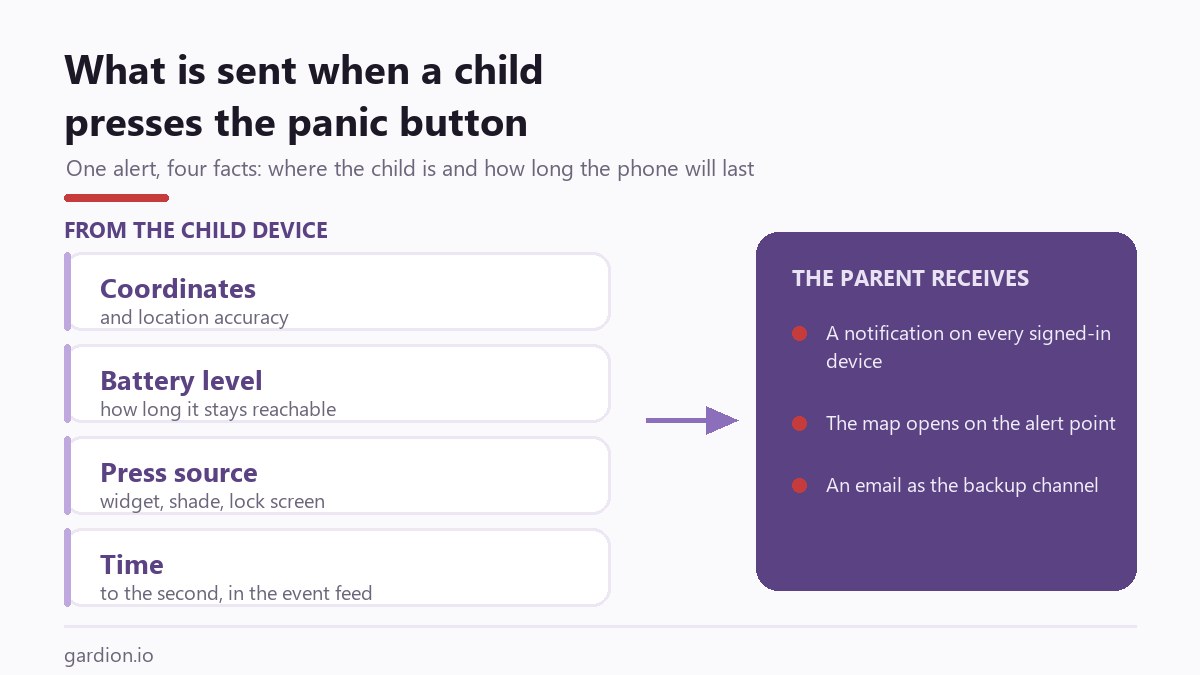
The app sends more than a cry for help. The alert carries coordinates and location accuracy, the battery level, and the place the press came from: widget, shade or lock screen.
Battery level matters more than it looks. It tells the parent how long the child phone will stay reachable and whether to count on contact at all.
What the parent gets
The alert goes out as a high priority notification to every device signed into the parent account. Coordinates and battery level sit inside the notification itself, not behind an app screen.
Tapping it opens the map on the exact point of the alert. That was a fix after a complaint: coordinates sat in the notification, and tapping it opened the general screen, leaving the parent to find the spot.
An email to the account address goes out in parallel. It is the backup channel for the cases that matter: the parent phone offline, notifications switched off by the system, the app evicted from memory.
If location permission is off
The alert still goes out. The app tries the last known position first, and when permission is missing or no fix exists yet, it sends the alert without coordinates, keeping the time, the device and the battery level.
That is deliberate: an alert without coordinates beats an alert that never leaves the phone.
Why every alert records who received it
On 23 August 2026 a child pressed SOS on a tablet and the parent got nothing. The logs could not even say that much, because the delivery error was swallowed silently.
Every alert now records its outcome: how many notifications were sent, how many failed, how many devices were targeted and whether the email went out. When a signal does not arrive, you can see the step where it was lost.
What the button does not do
It does not call emergency services. It is a signal to a parent, not a dispatch request.
It does not deliver instantly without a connection: the alert leaves the phone once the network returns. For the case where a child is not answering at all, location history does more than the button, because it is recorded before anything is pressed.
And it does not replace a conversation. Show the button to your child once: where it is, what happens after the press, and that a false alarm will not get them in trouble. Otherwise they will hesitate at the moment it matters.
In short
The button is available from the lock screen, the notification shade, the persistent notification and a home screen widget. No unlocking and no opening the app.
A high priority notification on every device signed into the account, carrying coordinates, accuracy and the child battery level. Tapping it opens the map on the alert point. An email to the account address is sent as well.
Yes. The alert goes out without coordinates, keeping the time, device and battery level. The app tries the last known position first, but a missing permission never cancels the alert.
The alert is sent once the connection returns. That is why the button does not replace calling emergency services: it reaches a parent, not a dispatcher.
The notification shows where the press came from and which coordinates arrived, and the event feed shows the time. That is usually enough. Do not scold a false alarm: fear of pressing costs more than one extra notification.
Set limits in 3 minutes
Limits, schedule and anti-bypass protection on Windows and Android. 14 days of full access, no card needed.
Try GardionOr install the parent app now.
Read next
- Your kid plays video games all day: what to doWhy kids can't stop gaming, how to agree on screen time without fights, when it's more than a habit, and how Windows can warn your kid and lock on time.
- Discord parental controls: Family Center and limits on your child's PCWhat Discord Family Center shows parents, where it stops, and how to block Discord or give it a daily limit on your child's Windows PC with Gardion.
- Remove second space and cloned apps on AndroidHow to find and remove a second space, cloned apps or Android 15 private space on a child's phone, with Settings paths for Xiaomi, Samsung, Huawei and Pixel.