 Gardion
Chore app for kids: how your child earns screen time with stars

In Gardion, you give your child a chore and decide how many stars it's worth. Your child marks it done in their own app on a phone or a Windows PC, you check it and tap Approve. The stars go into your child's balance, and they can trade them for screen time at a rate you set, or for a reward from a list you put together. Below is the whole loop, step by step, from the first chore to the first reward handed over.
How chores and stars work
Everything to do with stars lives in the parent dashboard, under Motivation. You can open the dashboard in the Gardion Family app on your phone or in a browser. The section has four tabs: Stars, with the balance and the exchange for minutes; Store, with rewards; Chores; and Goals.
The loop goes like this. You create a chore and set its value in stars. Your child sees it in their app and taps a button once the job is done. The chore comes to you for review. Once you approve it, the stars are added to a balance that both you and your child can see. Spending them is up to your child.
Your first chore
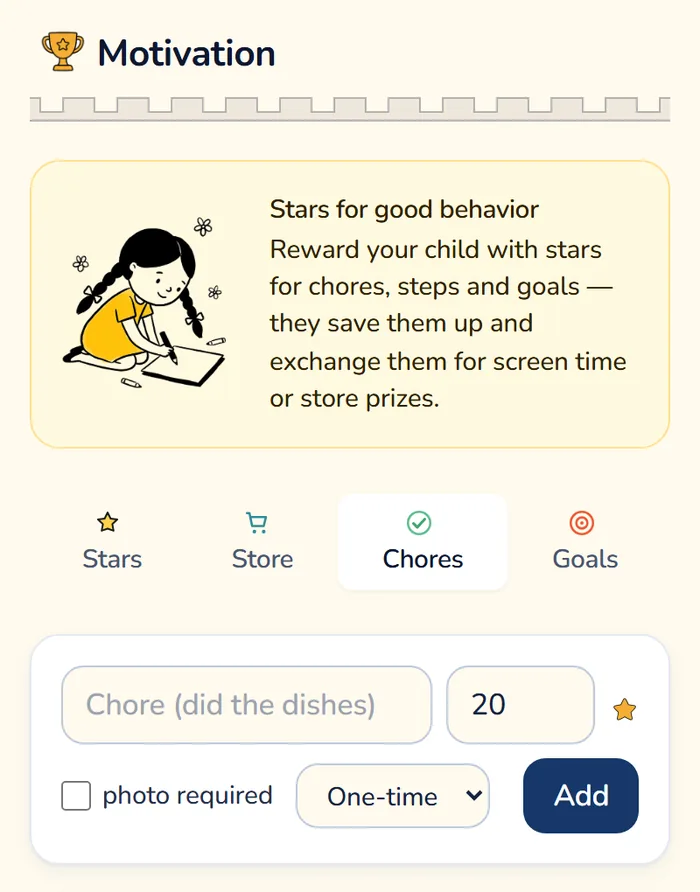
Open the Chores tab. The form has four fields.
1. The name. Write it so your child knows what counts as done: "Clear the desk" is clearer than "Tidy your room."
2. Stars. The default is 20, and you can change it.
3. Photo required. Tick it if you want to see the result: a watered plant, a packed school bag, a clean frying pan.
4. One-time or daily. A daily chore can be handed in once a day. A one-time chore disappears from the list after you approve it.
Tap Add, and the chore shows up in your child's list.
How your child hands in a chore
On a phone, chores are in Gardion Kids: tap the Stars tile on the home screen, then Tasks. Each task has a Do it button. If you asked for a photo, the button opens the camera, your child takes a picture of the result, and the task comes to you with the photo attached. Until you decide, the task shows In review. After you approve it, it shows Approved.
On a Windows PC, your child opens chores from the Gardion icon next to the clock. The My tasks window has a Done button next to each one. A PC can't send a photo, so for a chore with a photo Gardion asks your child to mark it in Gardion Kids on their phone. If your child doesn't have a phone, leave Photo required unticked.
Reviewing a chore
Handed-in chores wait in the Under review list. If you asked for a photo, you'll see a thumbnail next to the chore, with two buttons below: Approve and Reject.
Stars are added only when you tap Approve, and only once per hand-in. If your child tapped the button but the dishes are still in the sink, tap Reject. No stars are added, and your child can hand the chore in again once the job is actually done.
We keep chore photos for a week after you decide, then delete them from our server.
What stars buy
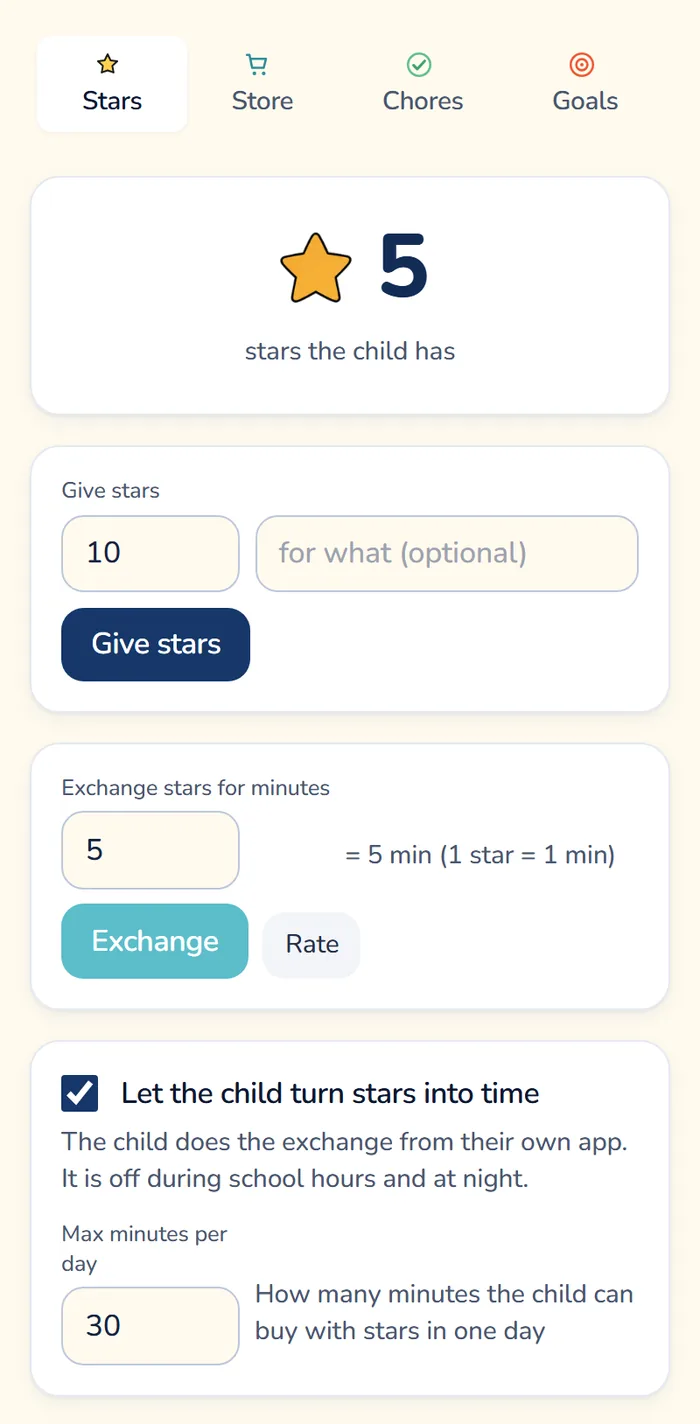
The first option is screen time. You set the rate with the Rate button on the Stars tab, and by default one star buys one minute. You can exchange stars yourself, but usually your child does it: the Let the child turn stars into time box is ticked from the start. Your child can trade stars in their app, or right from the lock screen when the day's time has run out.
The exchange has a daily cap. We set Max minutes per day to 30 by default, so your child can't get more than that from stars in one day, however many they've saved. The exchange is off during school mode and bedtime hours, so stars don't eat into lessons or sleep. Each time your child trades stars, you get a Stars exchanged notification.
The second option is a reward from the Store tab. You create the rewards yourself: an icon, a name and a price in stars. A trip to the movies, your child's pick of pizza for dinner, an extra hour outside on Saturday. Your child buys the reward in their app, the stars come off the balance right away, and you get a notification. Once you've delivered what you promised, tap Hand over. If you can't give the reward after all, cancel the request, and the stars go back to the balance.
How many stars to give
It's easiest to think in minutes. At one star per minute, a 20-star chore is worth twenty minutes of gaming. If cleaning the room feels like a half-hour job to you, make it 30 stars.
Chores aren't the only way to earn stars. During a screen break, Gardion offers a short workout, and your child gets a star when the camera picks up movement, up to five a day. On a phone, you can also turn on step and outdoor-time goals, which add stars on their own. Keep these in mind when you price chores: if stars come from everywhere, a chore stops meaning much.
Agree on the rules with your child up front: which jobs earn stars, which ones they do anyway because you live together, and what counts as done. The dashboard is where you write down what you've already agreed.
Sometimes you just want to give your child some extra time, say for a good grade or for helping their grandma. That's what prize codes are for. You create a code for the number of minutes you choose. Your child enters it in Gardion Kids, or claims the prize from the Gardion icon menu on their PC. No stars are spent.
What you need for chores
Chores, the reward store and prize codes are part of the Premium plan. Stars for workouts and trading stars for minutes also work on the Family plan. For the first 14 days, every feature is free, no card needed. We show how Gardion goes on your child's phone and PC on the how it works page, and our article on schedules covers screen breaks and bedtime in detail.
In short
Yes. Photo required is optional. Without it, your child taps Do it and the chore goes straight to you for review.
Tap Reject in the Under review list. Stars aren't added without your approval, and your child can hand the chore in again once it's done.
No. Your child can't get more minutes in a day than you set in Max minutes per day, and the exchange is off at bedtime and during school mode.
Yes. On Windows, your child opens chores from the Gardion icon next to the clock. A chore that needs a photo can only be handed in from the phone, in Gardion Kids.
Yes. The Stars tab has a Give stars box with the number of stars and an optional note on what they're for. It's handy when your child did something good that wasn't on the list.
Chores are part of the Premium plan. The first 14 days are free, no card needed.
Set limits in 3 minutes
Limits, schedule and anti-bypass protection on Windows and Android. 14 days of full access, no card needed.
Try GardionOr install the parent app now.
Read next
- Xbox parental controls: screen time, age ratings, purchases and your PINHow to set up Xbox parental controls: where screen time and age ratings live, how to make purchases wait for your approval, and how to lock your own profile with a PIN. Plus what the console can’t see on your child’s phone.
- Can a child delete a parental control app on Android?Yes, a child can remove any parental control app installed from a store. Why Android works this way, what root and Device Owner change, and what to do next.
- Child account on Windows: why it should be a standard userWhy a child with administrator rights can remove any parental control app on Windows, and how to switch them to a standard account using Microsoft's steps.