 Gardion
Child on the phone at night: how to get sleep back without a nightly fight
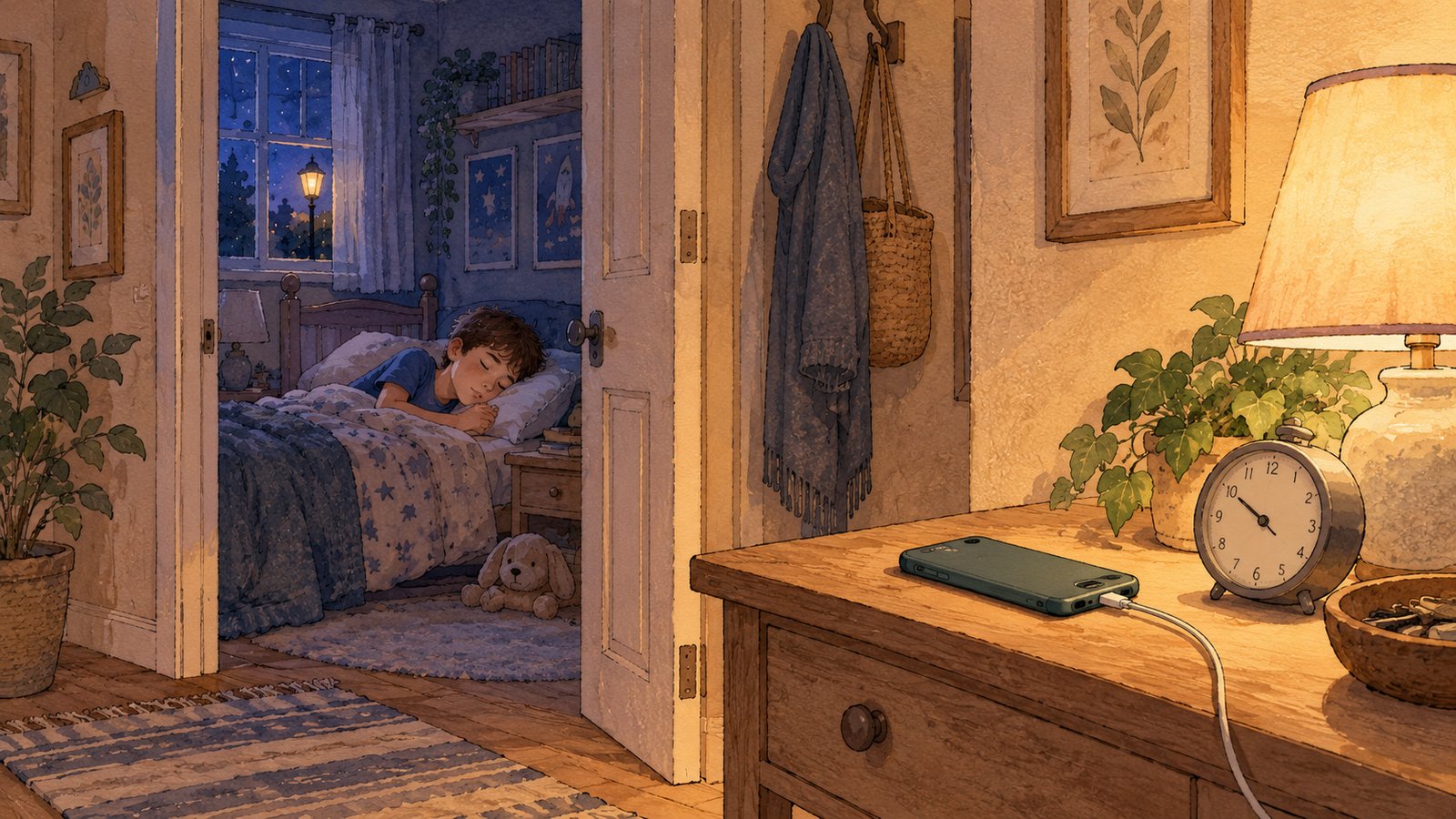
It's half past midnight. You get up for a glass of water and see blue light under your child's bedroom door. In the morning your child can't get up, is grumpy by lunch, and by evening it starts again. Three steps help, in this order: the phone spends the night outside the bedroom, you and your child agree on when it goes there, and if the agreement doesn't stick, the phone locks itself on a schedule. Here is how to do each one.
How much sleep a child needs
The American Academy of Sleep Medicine (AASM) recommends 9 to 12 hours of sleep a day for children aged 6 to 12 and 8 to 10 hours for teens aged 13 to 18. The recommendations were developed by sleep doctors and researchers and endorsed by the American Academy of Pediatrics.
Count back from the alarm. If school means getting up at seven, a twelve-year-old should be asleep around ten. Fall asleep at half past twelve and there are six and a half hours left before the alarm, every school night.
The screen itself makes it harder to fall asleep. The AASM suggests turning off electronics 30 to 60 minutes before lights out. It gives the reason in another guide: bright light from a screen tells the body to stay awake. So with lights out at ten, the phone goes down at nine, half past nine at the latest.
What works without any app
Start with the charger. The phone charges overnight in the hallway or the kitchen, and the rule covers everyone at home, adults included: a child finds it hard to accept a rule that only applies to them. The AASM also advises keeping devices out of the bedroom. Get a regular alarm clock: it takes away the most common argument, "I need my phone to wake up."
Set the time together with your child. Sit down and work out how many hours of sleep different bedtimes give. A teenager sticks to a number they worked out themselves more easily than to yours. Agree on the small things that usually break the rule too: what happens on Friday and Saturday, what to do when homework is posted late, and what happens if the rule is broken. Settle that last one during the day, calmly, rather than at midnight by the bedroom door.
Keep the last hour before bed screen-free: a shower, a book, a chat, packing the school bag.
Should you take the phone away at night?
With a younger child this usually works: the phone goes to you in the evening and comes back in the morning, and there's nothing to argue about. Teens are harder. When the phone is taken every evening over protests, handing it over becomes a daily fight, and your child gets a reason to look for a replacement: an old phone, a tablet, a laptop.
There is a middle option. The phone goes to the hallway charger because that's what you agreed, and you don't have to stand over your child. If the agreement doesn't hold, the phone locks itself at the set time. Then there's no one to argue with: your child knows bedtime in advance, and at midnight neither your voice nor a creaking door wakes anyone up.
Bedtime in Gardion
When the agreement keeps slipping and you're too tired to check every evening, let the app handle the night. Gardion has bedtime hours: during them your child's device is locked, even if there's daily screen time left. In the parent dashboard, tap Night and you get a window from 10 p.m. to 8 a.m. on every day of the week. You can change the time and the days. Want bedtime an hour later on Fridays and Saturdays? Add a second window and tick just those two days.
At bedtime an Android phone locks completely and shows "Time to sleep" with a night picture. A Windows laptop shows "Computer is paused" and the line "Bedtime: the computer rests at night."
If your child saves up stars from chores, they can't swap them for minutes at night. We turned the exchange off during bedtime hours, otherwise bedtime could be bought out. Your child sees "The exchange is off at night."
How to set different times for school nights and weekends, and what the ready-made modes such as School, Holidays and Sick do, is covered in our article on parental control schedules.
If your child needs to call someone at night
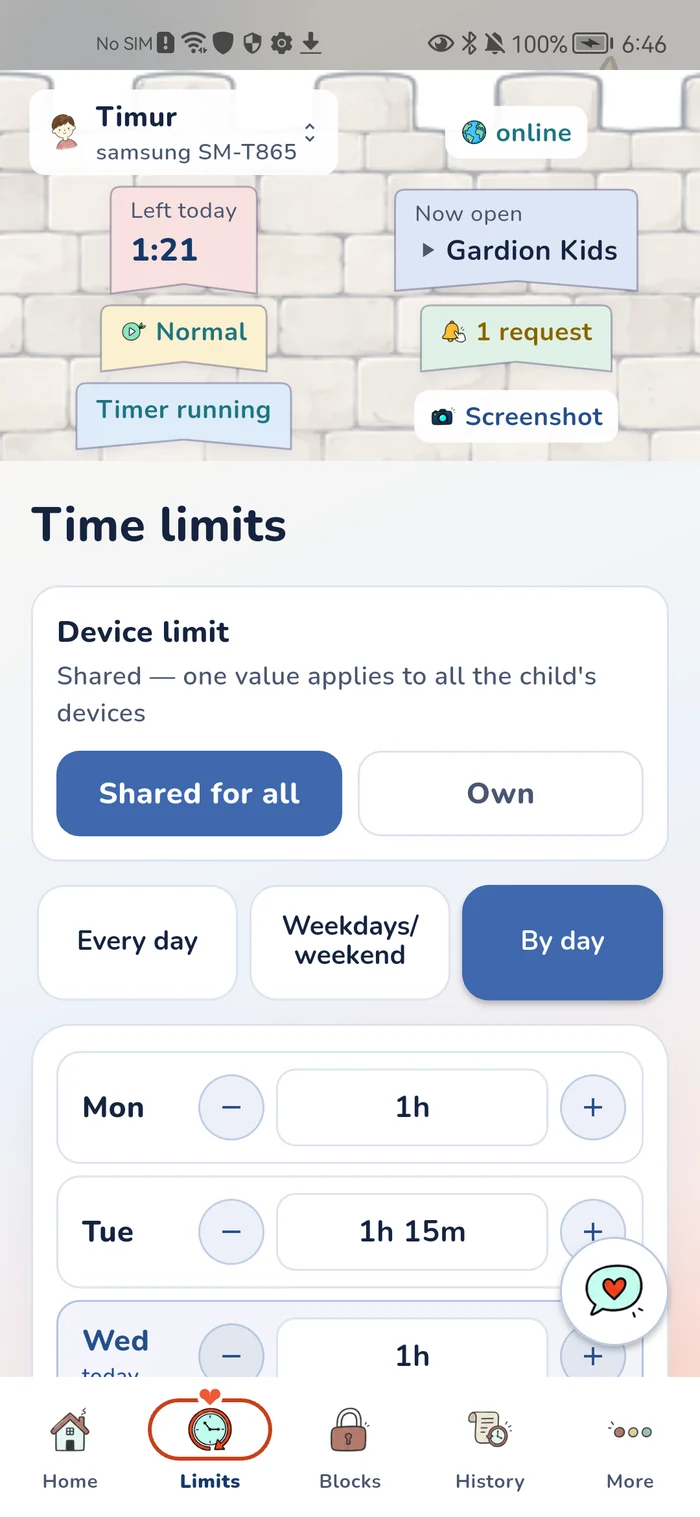
The lock shuts games and feeds, and your child can still reach people. The "Time to sleep" screen has Phone and Contacts buttons: calls, texts and emergency calls always work. There's also Chat with parent and the SOS button: your child holds it for two seconds and you get an SOS alert. Apps you've marked as allowed stay open too.
Sometimes the phone is needed for a real reason: finishing an essay, calling a friend back from camp. The lock screen has an Ask to unlock button. You get a notification about the request. Unlock now in the dashboard opens the phone for an hour. The schedule stays the same, and tomorrow bedtime kicks in as usual.
What you see in the morning
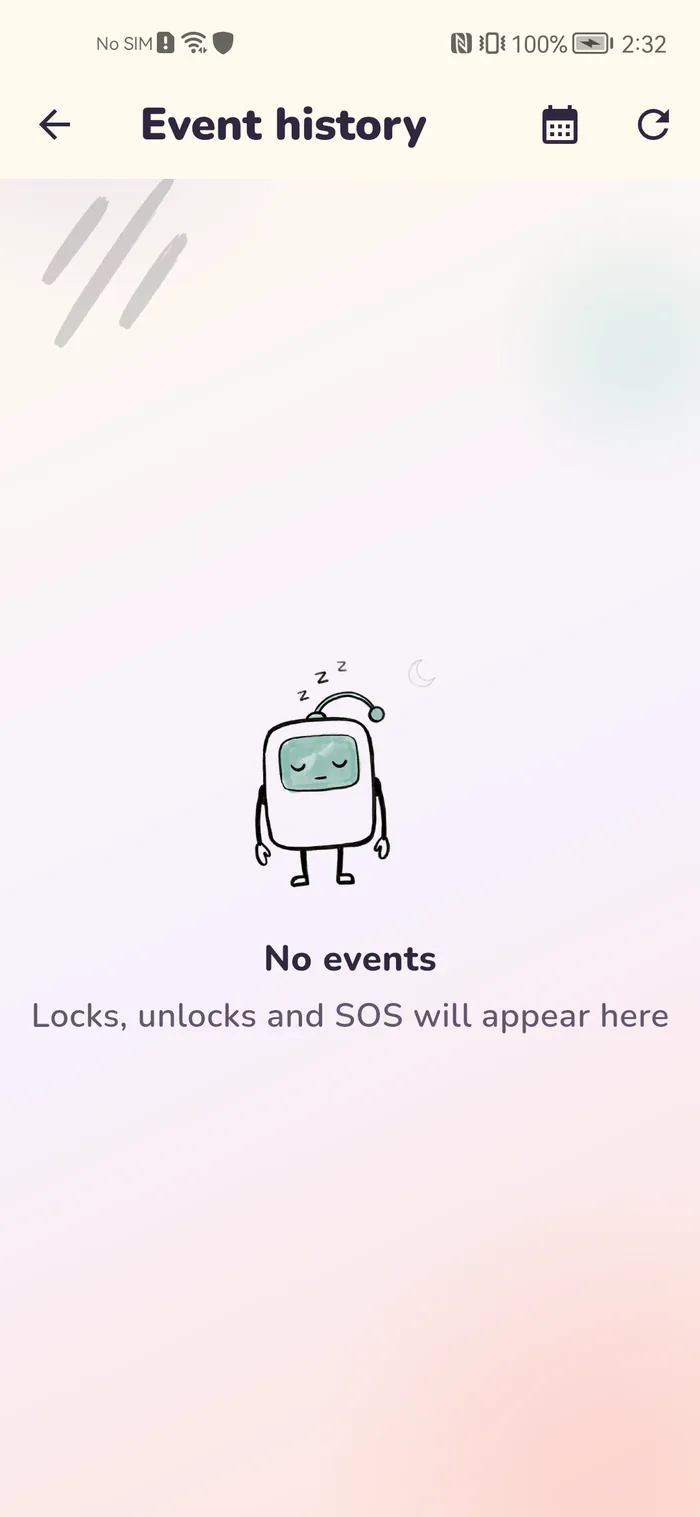
The Usage by hour chart shows which apps your child opened and when over the past day, night hours included. The event log shows when the lock was lifted and who lifted it.
Changing the clock on the phone won't push bedtime back: we check the time against our server. The same goes for Windows, where you also get a notification that the clock was changed. If your child tries to uninstall the kids' app from the phone, uninstall protection closes that screen and you get a notification about the attempt.
How to set up bedtime
1. Install Gardion Kids on your child's Android phone. On Windows, install the kids' program. On your side, install Gardion Family or open the dashboard in a browser. The install page walks you through each step.
2. Open Bedtime hours (in the Gardion Family app it's called Bedtime), tap Night and adjust the time to your alarm.
3. Tell your child when the lock starts and how to reach you if something happens at night.
Bedtime hours are part of the Family plan: $25 a year, about $2 a month, paid once with no auto-renewal. The first 14 days include every feature for free, no card needed. For how much daytime screen time is reasonable, see our guide to screen time limits by age.
In short
Count back from the alarm. The AASM recommends 9 to 12 hours of sleep for children aged 6 to 12 and 8 to 10 hours for teens. With a 7 a.m. alarm, a younger child does well with lights out at 9 or 10 p.m., a teenager at 10 or 11.
The lock screen keeps Phone, Contacts, texts, emergency calls, Chat with parent and SOS working.
Yes. Unlock now in the dashboard lifts the lock for an hour. The schedule doesn't change, and bedtime starts at the usual time the next night.
Yes, on Windows. During bedtime hours the screen says "Computer is paused", and your child can message you right from that screen.
No. We check the time against our server, so changing the clock on the phone doesn't move bedtime. On Windows you also get a notification.
Bedtime hours come with the Family plan: $25 a year. The first 14 days are free, no card needed.
Set limits in 3 minutes
Limits, schedule and anti-bypass protection on Windows and Android. 14 days of full access, no card needed.
Try GardionOr install the parent app now.
Read next
- How to see your child's phone screen and what they seeHow to see your child's phone screen with Gardion: you request a screenshot, your child confirms it on Android, and a Windows PC sends one within seconds.
- Child turns off parental controls on Xiaomi: what alerts you get and what to lockOn Xiaomi and Redmi, protection goes away either because MIUI saves battery or because someone acts on the phone. What each alert means, which sections to lock with App lock, and what no app can lock down.
- Kaspersky Safe Kids review: where to download it and why it doesn't blockWhere to download Kaspersky Safe Kids without Google Play, what it costs, what parents say in reviews, and why it doesn't lock the child's phone.