 Gardion
Remote parental controls: what you can really do from your own phone
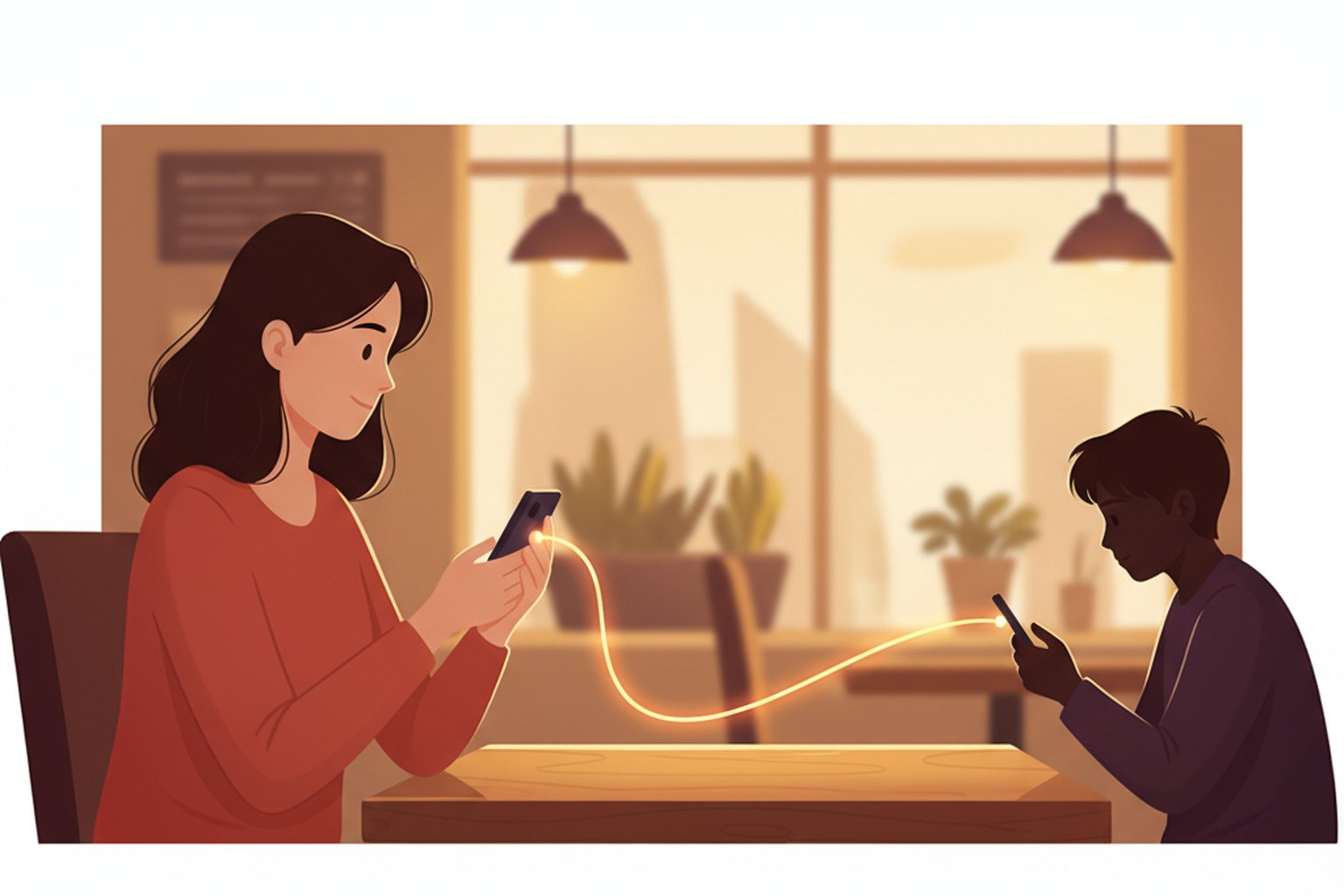
Every app’s description promises that you can manage your child’s phone from anywhere. Part of that is true, part is not, and the line does not fall where most parents expect. Here is what actually changes at a distance, how long it takes to reach your child’s phone, and which jobs still need that phone in your hands.
What “remote” actually means
No parental control app reaches into another phone directly. It works differently: a program on your child’s phone checks with a server from time to time to see whether the rules have changed. You change a rule in your app, and the server passes it on.
Three things follow from that, and they answer half the questions parents ask. First, a setting does not arrive instantly. Second, nothing changes while your child’s phone has no internet. Third, someone has to install that program on the phone once — nobody does this step remotely.

What really does change at a distance
Platforms broadly agree here; the details differ.
Google Family Link. Google’s help lists it outright: managing account settings, limiting app and device time, seeing the location of supervised devices, and content restrictions in Chrome, YouTube, Search and Google Play. A separate line says the Family Link app is installed on the parent’s phone precisely for remote management, and that it exists for both Android and iPhone.
Apple’s Screen Time. If you have Family Sharing set up and your child’s account is in the family group, Apple lets you set up and change Screen Time from your own iPhone, iPad, Mac or Vision Pro. From there you also answer your child’s requests for more time when a limit runs out.
What is on that list almost everywhere: the daily limit, limits on individual apps, downtime, locking the whole device, allowing or blocking app installs, and a dot on the map.
Five minutes, not instantly
The most common complaint sounds like this: “I pressed block and he is still playing.” Usually nothing is broken.
Google describes the behavior step by step: a change applies in about five minutes, or as soon as the device is back online. If your child is in an app at that moment, they get a one-minute warning to finish, and only then does the app close.
The delay is deliberate, and it explains why you should check the result of a block a few minutes later rather than ten seconds later.
What you cannot do remotely
Install controls on a phone you do not have in your hands. Whoever holds the device does the first install and grants the permissions, and that is true of Family Link, Screen Time and Gardion alike.
Change anything while the phone is off or offline. The rule waits on the server until the connection comes back.
Read messages. Neither Family Link nor Screen Time will show you the contents of a chat, and our FAQ says the same about us: Gardion manages time and access, so the dashboard reports minutes per app, browser history and location, and nothing from a conversation.
Make the controls invisible. Your child sees on screen that Gardion is running, because clear rules hold longer than secret watching.

What if the parent’s phone is not an Android
You can manage your child’s Android phone from an iPhone: the Family Link app is in the App Store, and Google’s help says so directly. The same goes for the Gardion dashboard, which opens in a browser on any device.
The other direction is harder: a child’s iPhone is set up with Apple’s own tools. We wrote about that separately, and said plainly there that Gardion does not run on iPhone.
There is one more case: the parent has no device of their own at all. Apple lets a teenager aged 13 to 17 create an account, and lets the parent set up Screen Time from the child’s phone. The full walkthrough is in the article on managing controls without the parent’s phone.
What the reports show
Remote management is worth having not for the block button but because you decide from facts. A day in the Gardion reports shows events, minutes for each app, browser history and a dot on the map.
What that looks like on real dashboard screens is in the breakdown of what parents see in reports. The same article explains what is missing from the reports, and why.
What to remember
Rules change remotely: limits, downtime, app permissions, locking the device, location and reports.
Two things do not happen remotely: the first install on your child’s phone, and everything else while that phone is offline.
A new rule takes about five minutes to arrive, and the app closes after a one-minute warning. That is the design, not a fault.
None of the systems in this article shows you your child’s messages.
In short
Yes. Family Link gives you a device lock button, and on Apple devices the same job is done with Screen Time limits. The change applies in about five minutes or as soon as the phone is online, and if your child is in an app at that moment, they get a one-minute warning.
No. The first install and the permissions are done on the device itself. This is the same in Family Link, Screen Time and Gardion. Everything after the install is remote.
Rules that are already in force stay on the phone and keep working. Only new changes and fresh reports fail to arrive, and they apply once the connection returns.
Yes. The Family Link app is in the App Store, which Google’s help states directly, and the Gardion dashboard opens in a browser on any device.
No. Neither Family Link nor Screen Time shows chat contents. Gardion does not either: the dashboard shows minutes per app, browser history and location, and we do not read messages.
Set limits in 3 minutes
Limits, schedule and anti-bypass protection on Windows and Android. 14 days of full access, no card needed.
Try GardionOr install the parent app now.
Read next
- Can a child delete a parental control app on Android?Yes, a child can remove any parental control app installed from a store. Why Android works this way, what root and Device Owner change, and what to do next.
- Child account on Windows: why it should be a standard userWhy a child with administrator rights can remove any parental control app on Windows, and how to switch them to a standard account using Microsoft's steps.
- Parental controls on VK: the VK Video kids profile and app time limitsVK has a kids profile only in VK Video. How to set it up on a phone and a TV, which privacy settings to change for a teen on VKontakte, and how to limit time in both apps.