 Gardion
How to Set Up Family Link: Your Child's Account, Supervision and First Rules

Family Link takes two phones, and the steps go in a fixed order. First your child needs a Google Account of their own, then supervision goes on their phone, and only after that does the app on your phone control anything. We followed that order through Google's help pages and put it in one place, with a check you can run the same evening. At the end are three cases where Family Link falls short.
What you need before you start
You need a Google Account of your own. Family Link links your child's account to an adult's account, and Google requires that adult to be 18 or older and live in the same country as the child.
Your child's device has to run Android, or be a Chromebook. Google says iPhones, iPads and computers other than Chromebooks can't be supervised. Your own phone can be anything: the parent app is on Google Play and the App Store.
Have your child sit with you, phone in hand. Supervision needs their consent, and they give it on their own screen.
How to create a Google Account for your child
A parent creates the account for a child under 13, or under the age of consent where you live. Pick the route that matches the device you have in front of you. The first one is the easiest, because your child's phone only comes in at the end, when they sign in.
In the Family Link app. At the top left, tap your child's profile, then Add child, and follow the steps. You'll need your child's name and birthday, an email address you pick together, and your consent as a parent.
On a new Android phone. Turn it on and follow the setup screens. When it asks you to sign in with a Google Account, tap Create account. If you don't see it, tap More options, then For my child. Enter your child's name, birthday, email and password, then sign in with your own account to give consent.
On a phone someone already used. If your child is getting your old phone, remove every account from it first, along with photos, chats and apps you'd rather they didn't see. Then add the new account the same way, through Create account or More options, then For my child.
A school account won't work as your child's personal account: Family Link can't manage Google Workspace for Education accounts. You can still add it to the phone separately for schoolwork.
If your child already has an account
A teenager may have had a Google Account for years, and there's no need to make a new one. You turn on supervision on their phone, following Google's steps:
1. Open Settings and tap Google, then All services.
2. Under "Kids & family," tap Parental controls.
3. Tap Let's do this and choose the account.
4. Follow the prompts: your teen gives consent, and you sign in to your account.
On your phone, install Family Link for parents from Google Play or the App Store. You'll use it to change the rules when your child is somewhere else.
No Google item in Settings? Then the phone doesn't have Google services, and there's nowhere to turn supervision on. That case is covered in the last section.
Your first rules, from your phone
Everything from here happens in your app. If you have more than one child, pick the right one at the top left first.
Daily limit. Tap Screen time, then Time limits, turn on Daily limit and open Weekly schedule. Pick a day and enter the time. If every day is the same, tap Apply to all days of the week. Keep in mind that each device gets its own limit. Two hours a day means two hours on the phone and two more on a tablet, if your child signs in there too.
Downtime and school time. Under Screen time there's Schedules, with two modes: Downtime for the night and School time for class hours. During those hours only apps you've marked as unlimited will open. Calls always go through. Your child can text at night only if you add their messaging app to the unlimited list.
Bonus time. Has the limit run out halfway through an essay? You can leave the daily limit alone. Under your child's device name in Screen time, tap Bonus time, set the minutes and tap Done. It works while the phone is locked or about to lock.
Apps. Go to Screen time, then Time limits, then App limits. Find the game and set it to Blocked. If your child is playing it right then, they'll see a warning that it's about to close.
Google Play. Under Controls, then Google Play, you set the age rating for apps, games and movies. In the same place, Require approval for decides which downloads wait for your OK: all content, paid content only, in-app purchases only, or never. For the first few weeks we'd pick all content, so you see everything your child tries to install. Games installed before you set the rating stay on the phone, and you block them by hand in the app list. We cover the difference between asking to download, to open and to install a file in your child asks you to approve an app.
Sites and contacts. Supervision lets you block or allow specific sites in Chrome and turn on SafeSearch. On phones with Android 14 and up, you can also choose who your child can call and text.
Location. Tap Location, then Set up location, turn on Location sharing and tap Next, then Turn on. The first pin can take a while to show up, because the phone has to find where it is.
How to check that the rules work
Run the check the same evening, while everyone's home. Set a short limit for today and wait for the screen to lock. Then put the usual limit back.
Don't check the second you tap. Google says changes reach the device in about five minutes when it's online. Without internet, the rule waits until the phone connects again.
While you're at it, find the parent access code in your app. It unlocks your child's phone when it has no internet. You'll only see the code in the app or on the Family Link website, never by email or text message.
Limit set, but the screen still won't lock? We go through the causes in Family Link not working.
What the parent app shows
Once you're set up, the app shows how many minutes each game and app takes, where the phone is, and which downloads are waiting for your answer. You also lock the phone from here for bedtime and class hours.
Messages aren't in there. For an account your teen had before supervision, Google lists what a parent can't do: see the screen remotely, see past searches, Chrome history or YouTube history, read emails or messages, or listen to calls. You also can't see or reset the account password. Tell your child this up front: nobody reads their chats through Family Link.
Where Family Link falls short
A Windows PC. Google's help says Family Link can't supervise computers other than Chromebooks. If your child moves from the phone to a laptop, that time doesn't count anywhere. We covered what Windows itself offers in Family Link for Windows.
A phone without Google services. The Settings item you need simply isn't there. Newer Huawei phones work this way, and they have their own guide.
One shared limit. Family Link gives each device its own limit. If you want the phone and the laptop to draw from the same two hours, you need a tool that sees both.
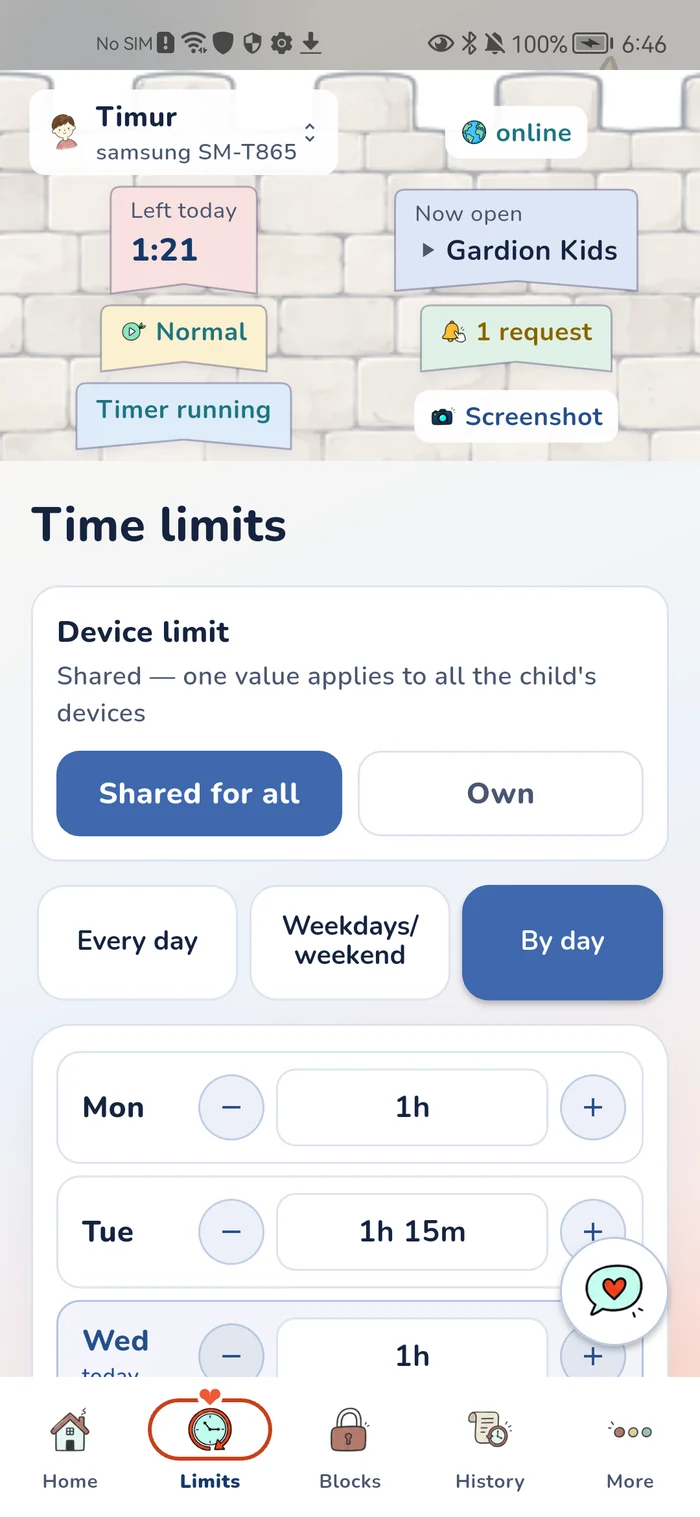
That's where Gardion fits. The Gardion Kids app also installs as an APK file from our site, so it runs on phones without Google Play. A Windows laptop joins the same family. The time limits screen has a switch: Shared for all splits one amount of time across every device, and Separate gives each device its own. The installation guide walks you through setup. The first 14 days are free with every feature, no card needed.
In short
Your own phone can be an iPhone, since Family Link for parents is on the App Store. Your child's iPhone can't be supervised with it. Apple has Screen Time for that, which we cover in [parental controls on iPhone](/blog/parental-controls-iphone).
In the Family Link app: your child's profile at the top left, then Add child. You'll need your child's phone later, to sign in to the new account.
A card is one way to confirm that an adult is giving consent. Google says you won't be charged, but a small temporary authorization may show up and is usually removed within 48 hours.
Yes, and you don't need a new account. Supervision goes on their phone the way the section "If your child already has an account" describes, and your teen confirms consent.
No. Family Link can't manage Google Workspace for Education accounts, so your child needs a personal one.
Set limits in 3 minutes
Limits, schedule and anti-bypass protection on Windows and Android. 14 days of full access, no card needed.
Try GardionOr install the parent app now.
Read next
- Kaspersky Safe Kids review: where to download it and why it doesn't blockWhere to download Kaspersky Safe Kids without Google Play, what it costs, what parents say in reviews, and why it doesn't lock the child's phone.
- Chore app for kids: how your child earns screen time with starsA chore app for kids that ties chores to screen time. You set a chore worth stars and check it by photo. Your child trades the stars for minutes or a reward.
- Xbox parental controls: screen time, age ratings, purchases and your PINHow to set up Xbox parental controls: where screen time and age ratings live, how to make purchases wait for your approval, and how to lock your own profile with a PIN. Plus what the console can’t see on your child’s phone.