 Gardion
How to see your child's phone screen and what they see
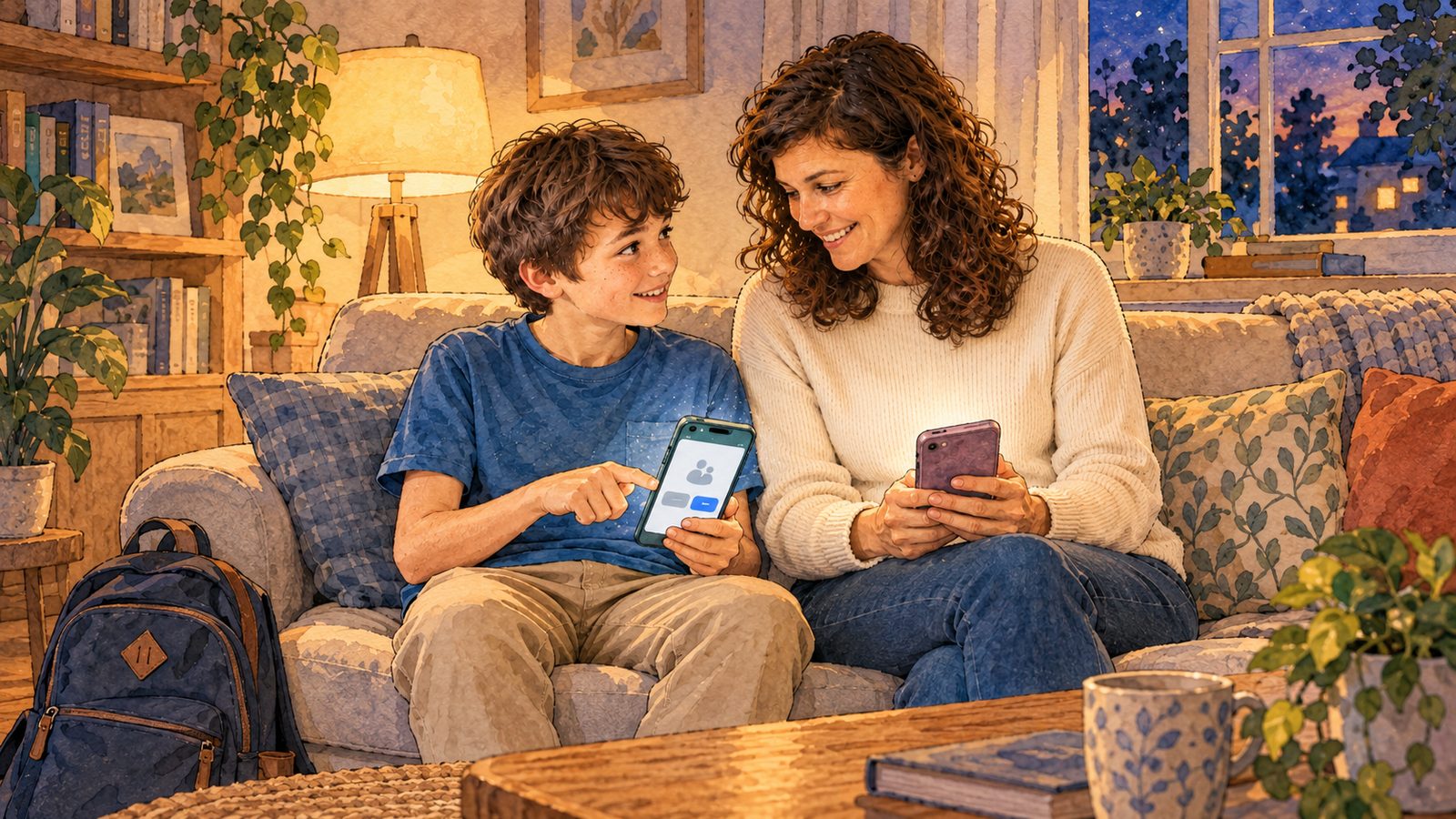
You tap "Take a screenshot" in Gardion Family. A note pops up on your child's phone: "Your parent asked for a screenshot. Confirm it on the next screen." Then Android asks whether the screen can be recorded. Your child agrees, and a few seconds later the picture is in your Screenshots section: a game, a video, or tonight's math homework.
One picture, when you ask for it
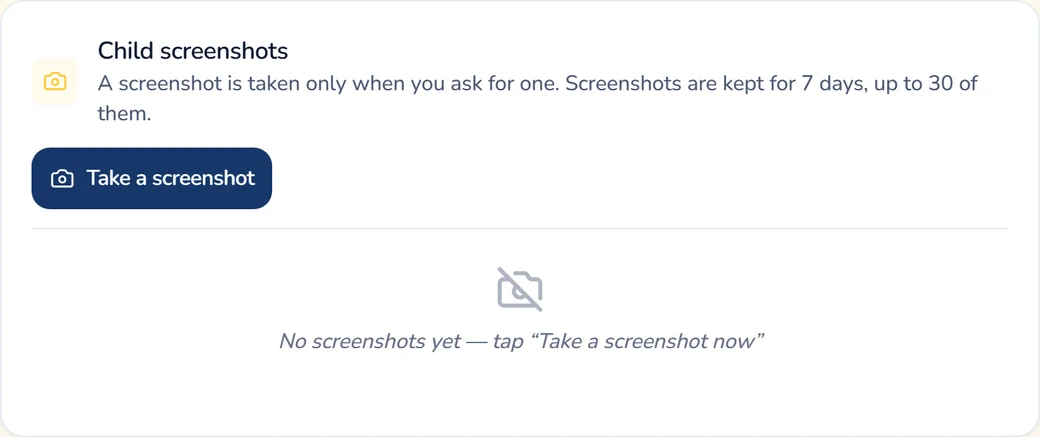
A Gardion screenshot shows a single moment: whatever was open on your child's phone when you tapped the button. Gardion does not record video, and it does not read messages in chat apps.
The button lives in the parent dashboard, in the Screenshots section. You can open the dashboard in the Gardion Family app on your phone or in a browser on your computer. Screenshots are part of the Premium plan.
How to take a screenshot of your child's phone
1. Open Gardion Family or the dashboard in a browser and pick your child's phone.
2. Go to Screenshots and tap "Take a screenshot."
3. The dashboard replies: "Screenshot requested. Your child has to confirm it on the phone." Now it's your child's turn.
4. Once your child confirms, the picture appears in the same section. If the list doesn't update by itself, tap Refresh.
Your child's phone has to be switched on and online. If its screen is off, nobody is there to confirm the request, and the dashboard tells you so right away.
What your child sees at that moment
First, Gardion Kids shows a note: "Your parent asked for a screenshot. Confirm it on the next screen." Then Android opens its own system prompt about recording the screen. Android draws that prompt itself, and it cannot explain why a screenshot is needed. Without our note, a sudden question about screen recording could scare a child, so we show the note first.
Your child can agree or say no. After a yes, Gardion Kids captures one frame and stops recording immediately. After a no, the dashboard shows "The screenshot was declined on the phone."
Android does not let a regular app capture the screen in secret. The system asks the person holding the phone every time. Your child also learns about screenshots during setup: the Gardion Kids screen that explains what parents can see says that screenshots are taken only with a separate Android permission.
We think this is the right way to do it. Your child sees every request and can ask you why you made it. That conversation over dinner is easier than explaining later why a screenshot was taken in secret.
When no screenshot arrives
If there is no picture, the dashboard tells you why. Here are the messages you may see and what to do about each one.
- "The screenshot was declined on the phone." Your child turned the request down, so ask what's going on before you try again. - "Your child did not confirm the screenshot: the system prompt "Start recording?" went unanswered." The prompt opened, but nobody answered it. After a while Gardion Kids removes the prompt so it doesn't hang on the screen. - "The phone screen was off, so nobody could confirm the screenshot." Ask your child to wake the screen, then send the request again. - "The phone is offline right now." The request waits: if the phone reconnects within a few hours, the prompt appears on it.
Windows computers
On a computer, it's faster. After you tap "Take a screenshot," the picture arrives within a few seconds, and your child's screen shows no prompt. If the computer has two monitors, the picture includes both. When the computer is asleep or offline, the dashboard says: "No screenshot arrived. The computer may have gone to sleep or lost the network."
Since Windows doesn't ask your child, tell them yourself that you have this button and when you use it. Finding out by accident would hurt. Every request goes into the dashboard's event log, so you can always show your child when and how often you looked.
Where screenshots are stored
Screenshots stay on the Gardion server for seven days and are then deleted automatically. The oldest ones go sooner if a device piles up too many. Only a parent signed in to the account can open a screenshot: the server gives that parent a link that stops working after a short time. You can delete any screenshot right away, and "Delete all" clears the whole section.
Screenshots and reports
A screenshot shows one minute, which is not enough to see the whole day. Reports show how long your child played, which websites they opened, and where they went; we covered them in what parents see in Gardion reports. Start with the report. A screenshot helps when a line in it puzzles you: a game you don't recognize, or a browser open in the middle of a class.
Getting started
Screenshots are part of the Premium plan. For the first 14 days every Gardion feature is free, no card needed. First install Gardion Family on your phone, then connect Gardion Kids on your child's phone. Links to both apps and the setup steps are on the Gardion install page. You can take the first screenshot the same evening, as long as your child is nearby and happy to show you.
In short
Not on Android: the picture arrives only after your child confirms the request in the system prompt. On a Windows computer there is no prompt, so tell your child about the button ahead of time.
No. Gardion takes one picture for each request and does not record video.
Seven days, after which the server deletes them automatically; you can remove any of them sooner in the Screenshots section.
Gardion works on Android phones and tablets and on Windows computers.
Screenshots are part of the Premium plan. The first 14 days are free, no card needed.
Set limits in 3 minutes
Limits, schedule and anti-bypass protection on Windows and Android. 14 days of full access, no card needed.
Try GardionOr install the parent app now.
Read next
- Child turns off parental controls on Xiaomi: what alerts you get and what to lockOn Xiaomi and Redmi, protection goes away either because MIUI saves battery or because someone acts on the phone. What each alert means, which sections to lock with App lock, and what no app can lock down.
- Kaspersky Safe Kids review: where to download it and why it doesn't blockWhere to download Kaspersky Safe Kids without Google Play, what it costs, what parents say in reviews, and why it doesn't lock the child's phone.
- Chore app for kids: how your child earns screen time with starsA chore app for kids that ties chores to screen time. You set a chore worth stars and check it by photo. Your child trades the stars for minutes or a reward.