 Gardion
How to set up parental controls on your child’s phone

The first thing I did was set up Family Link for my son, and I got stuck. The phone I worked out; the computer turned into a separate project, because limiting a child in Windows means giving them their own account and me a second administrator one, and that was harder than the controls themselves. Then I went looking through Android apps: some could not do what I needed, others wanted real money, and with a few I simply never reached the end of the setup. Gardion grew out of that search. Below are the three ways to put controls on a child’s phone, with the limits of each stated plainly.
First decide what you are limiting
The answer picks the method, and it is the one decision no app can make for you.
Limiting time means a daily total and the hours when the phone goes quiet. Limiting apps means an hour for a game and nothing for one particular social network. Blocking sites means a filter in the browser and in search. Seeing where your child is means a dot on a map. All three methods handle the first two jobs; not all of them handle the other two.
One step is common to every method: the first install and the permissions happen on your child’s phone. Neither Family Link, nor Screen Time, nor Gardion installs itself from a distance. Everything after the install becomes remote. If you will never hold your child’s phone, there is nothing further to read, because that step has no way around it.
Method one: what Android already has
In June 2026 Google expanded Android parental controls to every phone that updates to Android 17. They used to live on Pixel only; now they are part of the system.
They sit in the phone’s settings behind a PIN and cover the essentials: a daily screen time cap, a downtime schedule, an age filter for Google Play, and limits or blocks on individual apps.
The upside is obvious: nothing to install, it is already inside. There are two downsides, and both are structural. Not every family gets them, because the phone has to receive Android 17, and for up to half of the handsets children use that update will never arrive. The second downside is reach. This method works on one phone; the computer, the tablet and a second handset stay outside it.
Start here if your child is under ten, there is one device, and a time limit is all you need.
Method two: Family Link
The app goes on your phone, so that you can manage things at a distance afterwards. It exists for Android and for iPhone, so a parent with an iPhone can still run a child’s Android.
Two things are worth knowing in advance, so you do not decide something is broken.
A rule reaches your child’s phone in about five minutes; if the phone was offline, it applies the moment it connects. A child who is inside an app at that moment gets a one-minute warning first and has time to finish. So after you press block, give the phone those five minutes before deciding nothing happened.
Age changes the rules. From thirteen (the threshold differs by country) a teenager can ask to turn supervision off, but until eighteen that needs a parent’s approval (Google Help). A parent can end it at any moment. The notification about supervision ending goes to both of you, so it cannot be lifted quietly, and that is the right design.
One more thing trips everyone up: app install approval covers the first install. Your child deletes a game, reinstalls it a month later, and no new request reaches you. That, and the two other doors hiding behind the words “approve this app”, are covered in where that button lives.
Family Link is free and it covers the whole phone, but the computer stays outside its reach.
Method three: a separate app
A fair question: why pay when the first two are free. Three reasons parents reach the third method, and the first is exactly the one I got stuck on.
The computer. Homework and half the games live there, and Family Link does not look inside it.
Protection from uninstalling. System controls come off from Settings, and a teenager finds that road quickly.
One dashboard for every device. When a child has a phone and a computer, two separate remotes turn into a daily chore.
What follows is how we built it, with the limit you should know about before installing.
How Gardion connects
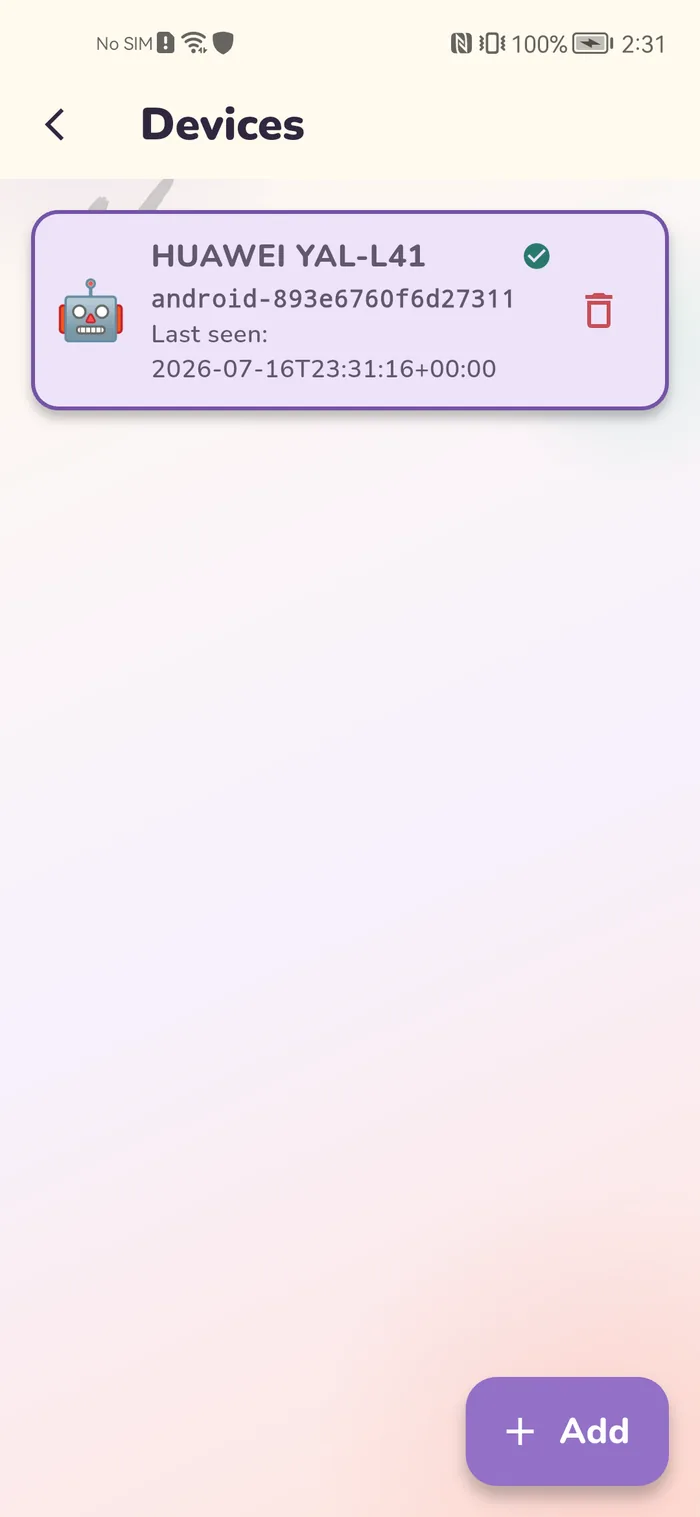
You open the dashboard, tap Add device and pick the platform: Android, Windows, or a universal link. You give your child’s age in the same step, anywhere from 3 to 17.
Before the code appears, the dashboard asks for consent: confirm that you are the parent or guardian, and agree to the processing of your child’s personal data. If your child is ten or older, a second line appears — that they know about the install and know the parent will see their apps and usage time. Silent installation does not exist here by design.
Then you get an activation code that lives for 24 hours. Your child’s phone takes it by hand, by link, or by scanning a QR code.
The parent dashboard opens as an ordinary web page. You reach it from a browser on a computer, from your own phone, or from someone else’s when yours is out of reach. There is a demo you can open without installing anything.
The app on your child’s phone runs as a device administrator. A long press will not uninstall it. An attempt to open the uninstall screen is interrupted, and you are told about it straight away.
Where the free plan ends. It is one computer and zero phones. You start with 14 days of full access; when those end, the computer stays covered for free. By that point the phone needs a paid plan.
If your child has an iPhone
Apple has no separate parental control app, and everything sits inside Screen Time: limits, schedules, filters, the communication circle. You set it up from your own device through Family Sharing, and if you have no Apple device at all, Apple lets a teenager aged 13 to 17 create an account so you can run Screen Time straight from their phone.
Gardion does not work on iPhone; we cover Android and Windows. What Screen Time can do and where it lets you down is in the article on parental controls on iPhone.
Which one fits your situation
Three questions, and the answers settle the choice.
How old is your child? Under thirteen, all three methods work. After thirteen, the system controls and Family Link start asking the teenager for consent, so you will be negotiating out loud whichever method you use.
How many devices do they have? One phone is served fine by the built-in controls or Family Link. A phone plus a computer is already about a method that sees both.
What do you actually want to see? If a daily limit is all you need, there is nothing to pay for: take the free option. Per-app reports, site filtering and protection from removal start at the third method.
And one thing regardless: your child notices any controls on the first day. The conversation about why these limits exist has to happen anyway, and it goes better before the install than after.
In short
No. The first install and the permissions are done on the device itself, and that is the same in Family Link, Screen Time and Gardion. Everything after the install becomes remote: limits, schedules, blocks, location. The breakdown is in the article on [remote parental controls](/blog/remote-parental-controls).
The controls built into Android and Family Link are free. Gardion’s free plan covers one computer, not a phone: you start with 14 days of full access without a card, and after that a phone needs a paid plan.
From thirteen, the system methods require the teenager to take part, and there is no way around that. What is left is negotiating, and choosing something that does not come off with one tap in Settings.
Gardion runs as a device administrator: a long press will not remove it, and an attempt to open the uninstall screen pushes your child away from it and sends you a notification. Nothing is absolute, but the controls cannot come off quietly.
No. Neither Family Link, nor Screen Time, nor Gardion shows the contents of chats. The dashboard shows minutes per app, browser history and a dot on the map.
Set limits in 3 minutes
Limits, schedule and anti-bypass protection on Windows and Android. 14 days of full access, no card needed.
Try GardionOr install the parent app now.
Read next
- Can a child delete a parental control app on Android?Yes, a child can remove any parental control app installed from a store. Why Android works this way, what root and Device Owner change, and what to do next.
- Child account on Windows: why it should be a standard userWhy a child with administrator rights can remove any parental control app on Windows, and how to switch them to a standard account using Microsoft's steps.
- Parental controls on VK: the VK Video kids profile and app time limitsVK has a kids profile only in VK Video. How to set it up on a phone and a TV, which privacy settings to change for a teen on VKontakte, and how to limit time in both apps.