 Gardion
Parental controls on a TV: what the set does on its own and where it stops
A TV in the kids' room starts with one button, and the internet starts right after it: apps, clips, a store, someone else's recommendations. Manufacturers ship a set of locks, each one built differently, and many parents meet those differences on the evening they cannot get into the settings themselves.
What people actually search for
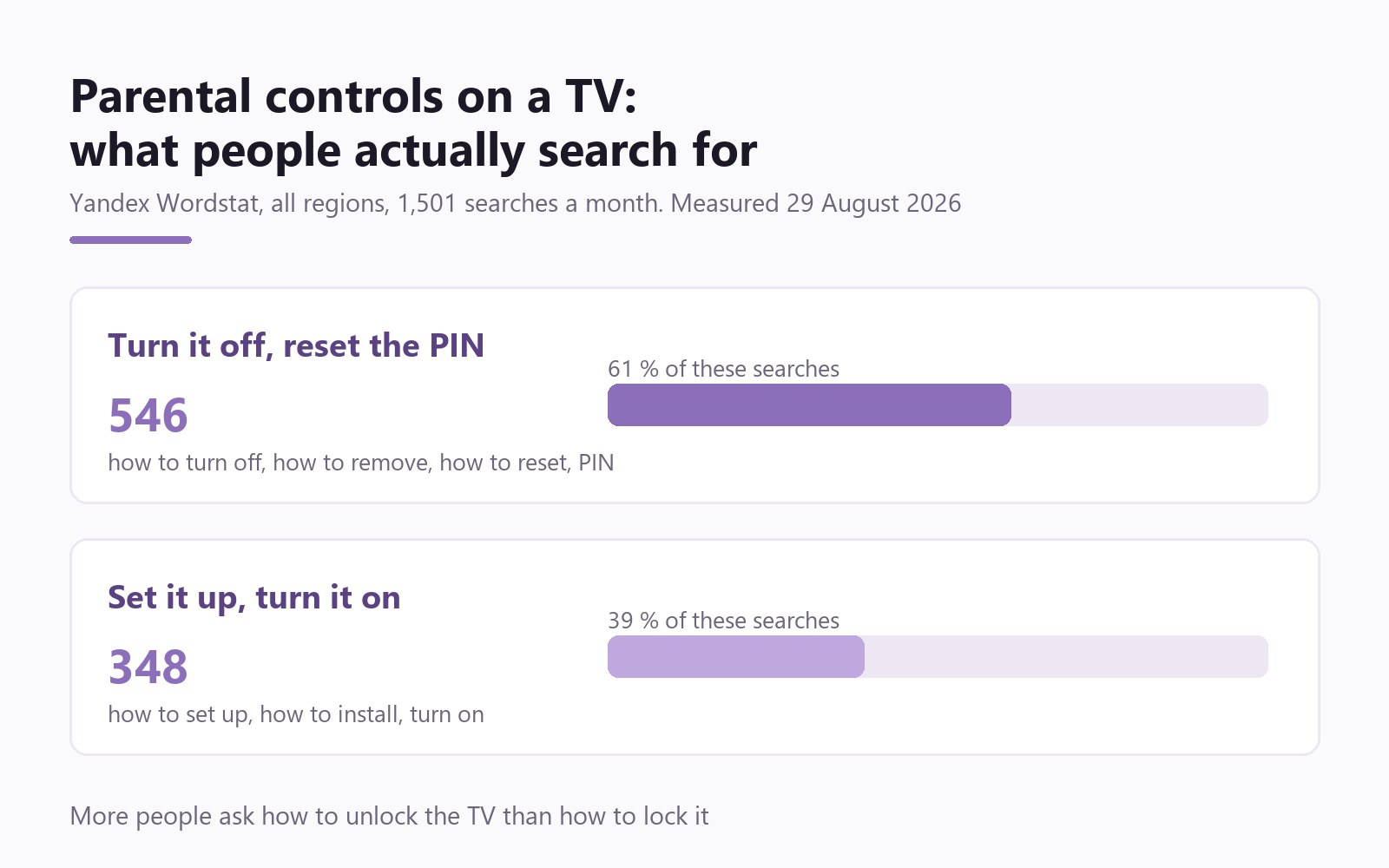
Measured on 29 August 2026 in Yandex Wordstat, all regions, one month. The Russian-language cluster for parental controls on a TV holds 1,501 searches, and the split inside it is telling.
348 searches ask how to set the lock up. 546 ask how to get rid of it or recover the code: how to turn off, the parental control PIN, how to remove, how to reset.
For every parent who switches the lock on, roughly one and a half are trying to switch it off. Keep that in mind for the rest of this article: a TV PIN gets invented once and remembered never.
Google TV and Android TV: the kids profile
Google TV sets and streaming boxes offer the fullest set of controls today. You create a separate kids profile, and Google's own help describes it plainly: during setup the parent chooses which apps the child can use.
The profile carries a daily viewing limit set in 15-minute steps, plus a bedtime schedule in 30-minute steps. Content ratings on the child's account hide films and shows that are not meant for them.
Leaving the profile is locked: the help page states that you need the adult's Google Account PIN or password to exit. That makes a kids profile on the TV the closest thing to what you already configure on a phone.
Samsung: blocking programs by age rating
On a Samsung set the path runs from the Home button to Settings, then Broadcasting, then Program Rating Lock, then the PIN. The factory PIN is 0000, and changing it is the first thing to do.
You then pick an age category (in Russia the list runs 0+, 6+, 12+, 16+ and 18+), and the TV stops showing programs marked for an older audience.
One detail from the same support page matters more than the setting itself. Once the PIN has been entered, the lock is released across all channels and stays released until the TV is restarted. Type the code once in front of your child and the evening runs with no lock at all.
LG: a password on channels, content and inputs
LG keeps the lock under Safety, and the path depends on the model year. On 2012–2020 sets it is Settings, All Settings, General, Safety; on 2021 and newer a System step appears inside General. The default password is 0000 again.
The feature covers channels, content and inputs: a blocked channel stays in the list but delivers neither picture nor sound.
This is also where the trap of the whole cluster sits. LG's answer about a forgotten password is short: only their support service can reset it. Write the PIN down somewhere you will still find it in a year.
Where the TV stops helping
A TV lock works on the TV and knows nothing about the rest of the house. The same clip opens on a phone, a tablet or a laptop, and none of the TV settings apply there.
There is a second gap inside the screen itself. Age ratings cover broadcast channels and the built-in store, while streaming apps keep their own settings: YouTube has its own, each film service has its own, and every one of them has to be configured separately. VK Video has a kids profile with a PIN for this. Our guide to parental controls on VK shows how to turn it on on a TV.
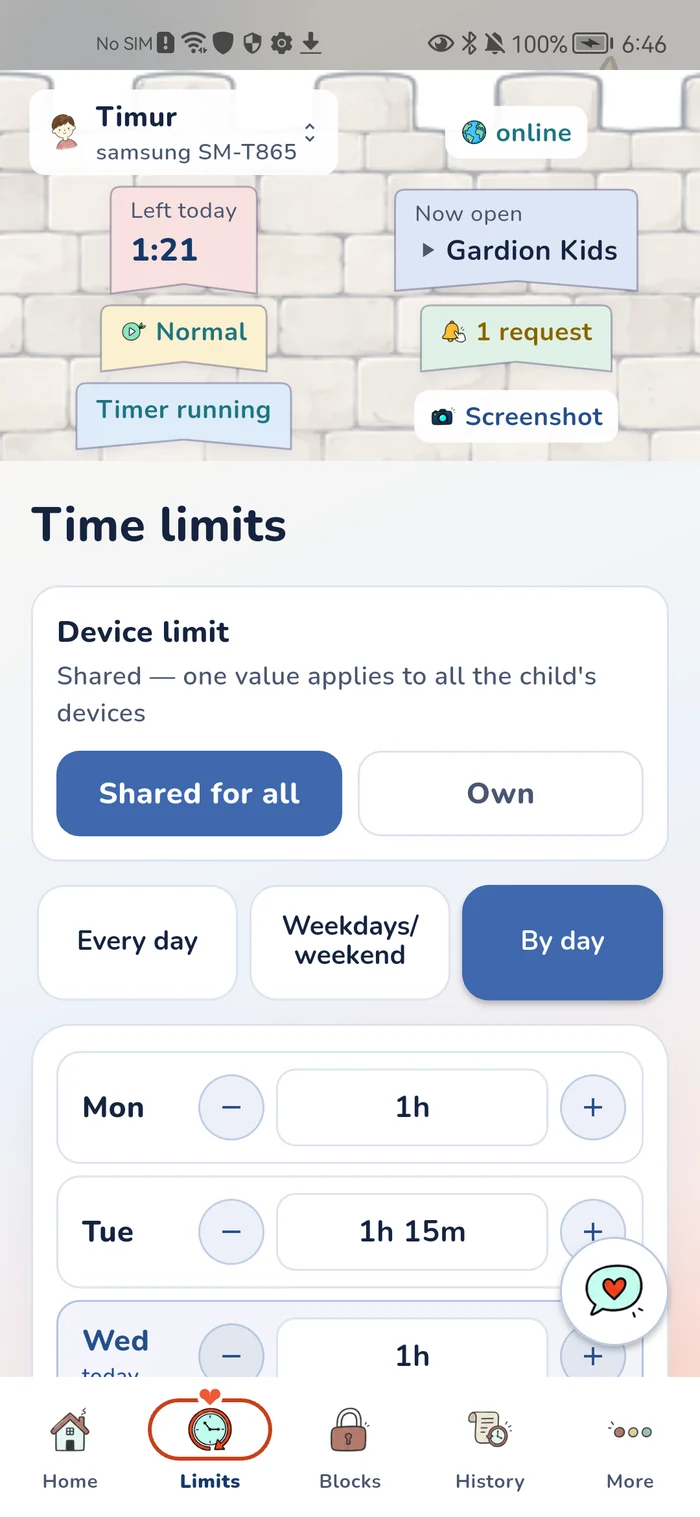
Our apps install on the child's phone and tablet and on a Windows PC; we do not control televisions. What we do offer is a daily limit and a schedule for the whole device: three hours a day stay three hours whichever apps they go to, and during school hours and bedtime the list of available apps narrows. The daily screen time limit article covers how that works.
When the PIN is already lost
Samsung has a built-in reset: a button sequence on the remote returns the PIN to 0000, and the exact sequence depends on the model year, so check Samsung support for your set.
LG has no self-service reset and sends you to their support team. On Google TV a forgotten profile PIN is solved with the adult's Google Account password, the same account you already use on your phone.
The practical conclusion is dull and useful: keep the TV PIN wherever the rest of the family passwords live. Otherwise removing your own lock becomes a support ticket.
What to set up tonight
Change the PIN from the factory 0000 and write the new one down. Every teenager with a phone can look up the default in seconds.
On Google TV create a kids profile and curate the app list inside it rather than leaning on the age filter alone. On Samsung and LG set the age category and block the inputs nobody uses.
Then say the rule out loud. A silent lock on the family TV is discovered the same evening, and the conversation that follows is no longer about cartoons — it is about why you did it quietly.
In short
On Google TV, yes: the kids profile carries a daily viewing limit in 15-minute steps and a bedtime schedule in 30-minute steps. Ordinary Samsung and LG smart TVs have no time limit — they offer password-protected blocking of channels, content and inputs.
Samsung and LG both ship with 0000. Change it immediately: everyone knows that code, and it is the first thing a child tries.
Samsung resets the PIN with a button sequence on the remote that depends on the model year. LG offers no self-service reset and refers you to support. On Google TV the adult's Google Account password unlocks the kids profile.
Only partly. Age ratings apply to broadcast channels and the built-in store, while streaming apps keep their own settings, so YouTube has to be configured on its own.
No. Our apps install on the child's phone and tablet and on a Windows PC. The television is configured with its own tools, while limits and schedules on the other screens stay with us.
Set limits in 3 minutes
Limits, schedule and anti-bypass protection on Windows and Android. 14 days of full access, no card needed.
Try GardionOr install the parent app now.
Read next
- How to set up a Windows laptop for a child: accounts, limits and websitesHow to set up a new Windows laptop for a child: who does the first setup, a standard account, the Microsoft family group and Gardion limits from your phone.
- Is your child on the computer late at night? How to tell and what to doHow to tell if your child is on the computer late at night and what to do: an agreed time, the router, a Windows lock until morning and clock protection.
- How to check your child's browsing history on a phone or computerWhere to find your child's browsing history in Chrome and Edge, what Family Link and Family Safety show you, and how to get the list of sites on your own phone.