 Gardion
Parental controls on realme: Kids mode, session limits and Family Link
Aleksandr Popov · · How we write our articles

Your realme phone already has parental settings built in, but plenty of parents never find them: across three versions of the skin the section changed both its name and its address. The official manuals answer three questions: where it lives now, what you can set inside it, and the point where one session mode stops being enough.
Kids mode is a mode for your phone
We read both realme manuals back to back, and the difference between them matters more than it looks. The realme UI 6.0 manual describes the built-in Kids mode as three things: a dedicated home screen with child-friendly apps, a screen time limit, and eyesight monitoring for how the child sits. A parent picks the apps, sets the time and hands the phone over.
Then comes the part worth understanding before you set anything up. The mode works as a single session. Once the allowed time expires, Kids mode exits by itself and the screen locks, and getting back to the home screen takes the lock screen password. Both manuals say the same: version 6.0, and version 4.0 where the same feature was called Kid Space.
So the case it was built for is clear. Your child asks for the phone for half an hour, you start the mode, they watch cartoons, the phone locks itself. For a phone the child owns and keeps in a pocket the mechanics are different: the session has to be started by hand, from that same phone, every time.
The path in realme UI 4 and 6
Half the instructions in search results still lead to the old address, so here are both.
realme UI 4.0, where the feature is called Kid Space: Settings → Special features → Kid Space. realme UI 6.0, where it is called Kids mode: Settings → Accessibility & convenience → Kids mode.
The skin version is in Settings, under About device. If neither item is there, search the settings for the word "kid", which finds the mode in any version.
You can also put a shortcut on the home screen; in the 6.0 manual it is a separate switch, Create Home screen shortcut. For a mode you start by hand several times a day, that saves the most time.
What you set inside
The rules themselves are not on the first screen of the mode. They live on a sub-page called Parental controls: inside Kids mode you tap the menu in the upper-right corner and confirm the lock screen password. There are four things there.
Allowed apps. Added apps sets the list the child sees on the dedicated home screen. Nothing else is there: no messages of yours, no contacts, no app store to install something new from.
Time limit. You set the length of one session, and when it runs out the mode exits on its own and the phone goes to the lock screen.
Wi-Fi and mobile network. Two switches turn the network off inside the mode completely. In our experience this is the most underrated setting in the section: with no network, the browser, downloads and in-game ads all fall away at once.
Eyesight protection. The mode watches ambient light, posture and the distance to the screen, and a reminder arrives when the child sits badly. The blue-light filter is a separate switch.
App Lock, Zen Space and System clone
Three neighbouring features get mistaken for parental controls. They solve other problems, but a parent should know they exist.
App Lock sits in Security & privacy. The apps you pick open only with a separate privacy password, or with a fingerprint or face if you turn that on. It helps more than it sounds: on a shared phone the gallery and the banking app stay behind a password while games stay open.
Zen Space is a focus mode for adults. In the deep variant the phone can only make calls and take photos, and the manual warns plainly: deep Zen cannot be exited once started. The light variant keeps the apps you choose and lets you leave whenever you want.
System clone creates a second system with its own apps and data, entered with a fingerprint or a password. The feature was made to separate work from personal life, but it is worth knowing about: next to your carefully configured system on a teenager’s phone there can be a second, empty one.
Family Link on realme
realme runs Android with Google services, so Family Link installs here without the compatibility caveats you get on some other brands. It adds what a session mode does not have: rules that stay on the child’s phone all the time and change from the parent’s phone.
A per-app limit is set like this: Screen time → Limits → pick the app and set the daily time. Family Link works on Android 7 and later. System apps cannot be limited this way.
We would keep both tools. Kids mode helps when your child asks for your phone for half an hour; Family Link is for the phone the child owns.
Background activity on ColorOS
The realme skin grew out of ColorOS and behaves like the whole OPlus family. An app that runs in the background and counts time is something the system tries to unload from memory to save battery. This applies to any parental control, Family Link and ours alike.
The cure is two permissions, granted once. Autostart is allowed in the app manager; on ColorOS that screen is called Auto-launch management. Background work is switched on for the app itself: Settings → Manage apps → the app → Battery usage → Allow background activity. Our app shows that same text on realme by itself once it recognises the skin.
We check the result with a reboot, and we suggest a parent does the same. If control still works after the phone comes back on, the permissions are in place.
How this works in Gardion
Gardion is built around what a session mode leaves out: the rules live on the child’s phone by themselves and change from the parent’s phone.
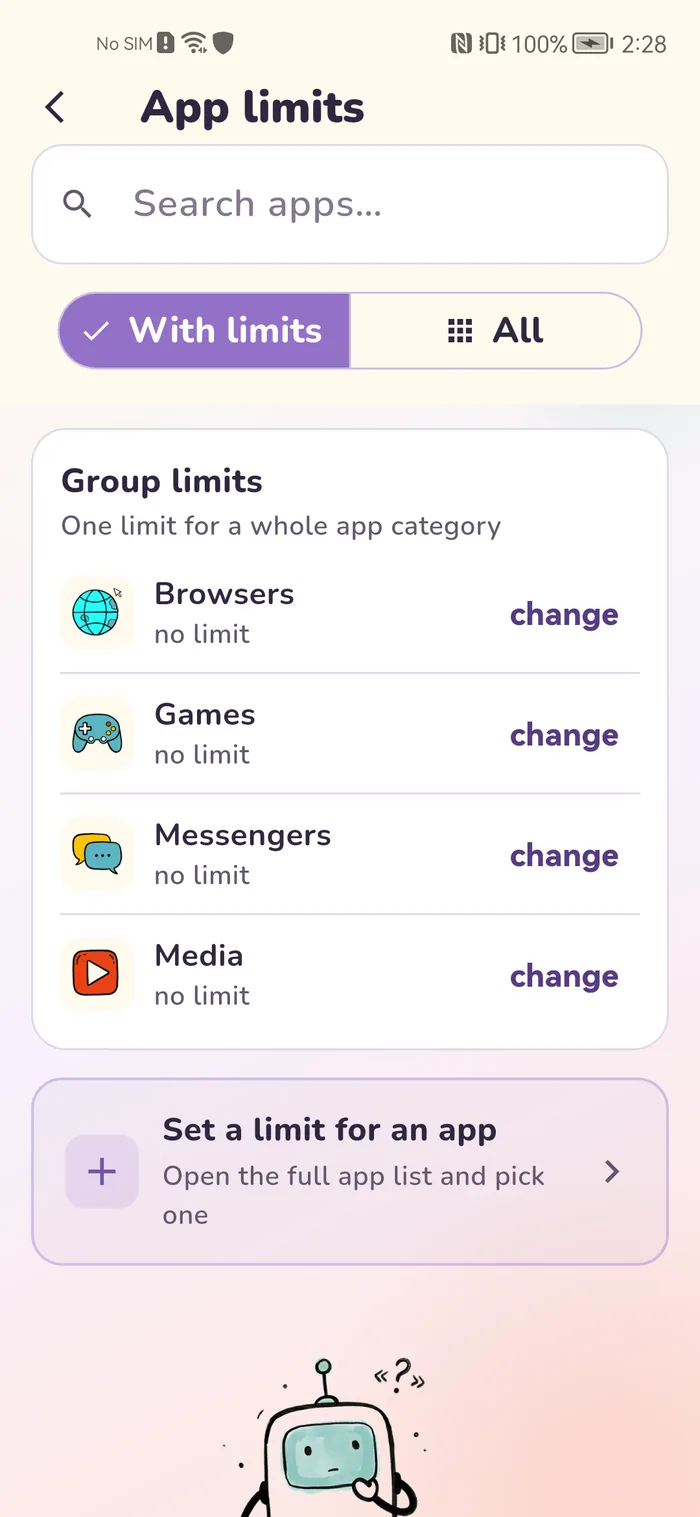
A schedule separates school hours from the evening: on weekdays games are unavailable from eight to two, in the evening they open for an hour and a half, and Sunday has a rule of its own. A limit goes on one app or on a whole category, and the child sees the time left and can ask for extra minutes straight from the lock screen, and the parent approves from their phone. Requests, daily reports and every child sit in one panel.
One more thing concerns realme directly. In the starting catalogue apps are grouped by category, so after installing nothing forces a parent to remember package names: games, browsers and messengers are already collected into groups, and the limit goes on the group as a whole.
You can try it free for two weeks, no card needed. One Windows computer is covered by a free plan with no time limit; a phone is part of the Family plan: $25 a year for two devices and two children, as a single payment.
What to do today
Four steps, fifteen minutes together.
Open the phone settings and find Kids mode by searching for "kid": that alone tells you which version of the section you have. Set the app list and the time, and decide whether the mode needs a network, because switching it off answers several questions at once. Put the shortcut on the home screen if you hand the phone over often.
If the phone belongs to the child, put permanent control on it and grant the two permissions right away: autostart and background activity. Without them any control app on realme goes quiet after a reboot, and you will not find out immediately.
We have the same breakdown for other skins: Xiaomi, Honor, Samsung. There is also a separate piece on hour-by-hour schedules.
In short
The path depends on the skin version. On realme UI 6.0 it is Settings → Accessibility & convenience → Kids mode; on realme UI 4.0 the feature was called Kid Space and sat under Settings → Special features. The version is shown under About device, and searching the settings for "kid" finds the mode either way.
Four things, all on the Parental controls sub-page that opens with the lock screen password: the list of allowed apps, the length of one session, switches for Wi-Fi and the mobile network, and eyesight protection with posture reminders and a blue-light filter.
The mode exits by itself and the screen locks. Getting back to the home screen takes the phone’s lock screen password — both the realme UI 4.0 and the realme UI 6.0 manuals describe it that way.
Yes. realme is Android with Google services, so there are no compatibility caveats here. A per-app limit is set under Screen time → Limits; it needs Android 7 or later, and system apps cannot be limited this way.
Skins in the ColorOS family unload background apps to save battery. Two permissions fix it: autostart under Auto-launch management, and background work under Settings → Manage apps → the app → Battery usage → Allow background activity. Check the result with a reboot.
Set limits in 3 minutes
Limits, schedule and anti-bypass protection on Windows and Android. 14 days of full access, no card needed.
Try GardionOr install the parent app now.
Read next
- App Stores Outside Google Play: What Family Link Actually ControlsWhy sideloaded app stores refuse to install or update on a supervised phone, which switches in Family Link really apply, and what a store’s own kids mode does and does not cover.
- Parental controls on vivo phones: why they switch themselves off and the three settings that fix itOn vivo phones the system's own security center unloads parental control apps from memory. The three switches from vivo's support pages, paths for new and old Funtouch OS versions, and how to check the controls are working.
- Parental controls on Honor phones: Family Link, Digital Balance and what they leave outWhether Family Link runs on an Honor phone depends on the year it was made. The built-in Digital Balance tool step by step, the "My child" mode that blocks app installs, and the one thing neither of them can do from a parent's phone.
- Parental Controls on Huawei Phones Without Google ServicesFamily Link will not run on newer Huawei devices, and that is a Google restriction rather than a Huawei one. Here is what Digital Balance, AppGallery access control, a child HUAWEI ID and Kids Corner actually cover.