 Gardion
Google Play parental controls: content ratings, purchases and what the store leaves out

Google Play parental controls answer one question: what your child can download. You pick the highest rating you are comfortable with, say Teen, and the Play Store stops installing anything rated above it. We went through the Google Play and Family Link help pages to show both ways to turn these controls on, where they fall short and how purchase approvals work. At the end we cover the part the store has no setting for: how long your child plays and how late.
What Google Play parental controls cover
Google calls the feature content restrictions. Once they are on, your child can't buy or download content rated above the level you chose. Apps and games, movies, TV shows and books each get their own setting.
There are two ways to set this up, and it helps to pick one before you go looking for the button. The first is a PIN on your child's phone. The restrictions apply only to that device, and nobody can change or remove them without the PIN (almost nobody, more on that below). The second is a supervised account in Family Link. The settings live in your child's Google Account, and you change them from your own phone.
Google is also folding the Play PIN into Android's own parental controls. If you set up restrictions for the first time, the Play Store uses the same PIN as the parental controls on the device. A Play PIN you created earlier keeps working.
Set up content restrictions with a PIN
Use this option when your child manages their own Google Account and isn't supervised in Family Link. Take their phone and follow the steps from Google Play Help:
1. Open the Play Store app and tap the profile icon in the top right corner.
2. Tap Settings, then Family, then Content restrictions.
3. Tap Go to Parental controls, then Set up a parental controls PIN, then Next.
4. Create a PIN your child doesn't know.
5. Pick the content types to filter: apps and games, movies, TV shows or books.
6. For each type, choose the highest rating allowed.
If several people use the phone under separate profiles, each profile needs its own restrictions. A tablet won't pick up the setting either, so repeat the steps there.
Set up Google Play controls in Family Link
With a supervised account, you set the rating from your own phone. Open the Family Link app, select your child at the top left, then tap Controls and Google Play. Choose a content type and a rating level the same way as above. The same settings are available in a browser at g.co/YourFamily.
This option is harder to undo. Only a parent in the family group can change the restrictions, and the change requires that parent's Google Account password. Google notes that the restrictions stay the same whether or not your child can control their own account settings.
Family Link also covers Google Play Games. When your child asks to create a Play Games profile, you get a request, and the choice to approve or delete the profile appears under Controls > Google Play > Google Play Games. A supervised profile can't be made public, can't follow anyone or gain followers, and can't be found by email address. Recording and sharing gameplay is off, and the gamer tag is generated automatically.
The Play Games app itself still lists every game, including purchased and recommended ones. Installing a game from there sends your child to the Play Store, where your rating limit applies.
Where content restrictions fall short
The restrictions do their job, with four gaps that Google's own help pages describe.
Blocked content doesn't disappear. Your child can still find a game rated above your limit in search results or open it through a direct link. The install button is what the restriction takes away.
Apps installed before you set the restrictions stay on the phone, even if their rating is above the limit. In Family Link you can block them one by one.
A rating describes the content of a game. It says nothing about who your child can talk to: in Google's words, an app's interactive features are separate from its content rating. A game rated Everyone 10+ can still have open chat. To check, open the game's page in the Play Store and read the Read more section.
Finally, the PIN option can be removed without the PIN. Google describes how for parents who forget the code, and a teenager can find the same page just as quickly. For older kids we would choose Family Link, where only your password changes the settings.
Purchase verification and purchase approvals
Two settings deal with money. Purchase verification lives in the Play Store settings on your child's phone. With Always selected, every purchase through Google Play's billing system, including purchases inside apps, needs the Google Account password or biometrics. Purchase approvals belong to the family group: you decide what needs your OK, choosing from all content, all purchases that use the family payment method, only in-app purchases, or no approval at all. What the approval request looks like on your phone is covered in our guide to approving an app for your child.
Both settings only see payments made through Google Play's billing system. If a game also sells items on its own website, those purchases never reach the Play Store. The same goes for anything installed from another app store. In a few countries the gap is wider: in Russia, for example, Google paused Play billing in 2022 and lets developers take payments their own way.
What Google Play doesn't control: time
Neither the PIN option nor Family Link's Google Play settings include a daily limit, a schedule or a bedtime. The store decides what can be installed. How long and how late your child plays is outside its reach.
Picture an ordinary school night. The game is rated for your child's age, and you approved the download yourself. Lights go out at ten, and at half past eleven the screen is still glowing under the blanket. The rating was fine. The clock was the problem.
Time limits are set at the phone level. Family Link has Downtime and School time, and phones running Android 17 or later have a built-in Parental controls section with a daily limit and Downtime. If your child's phone runs an older Android version, or Family Link doesn't fit your family, a separate app has to handle time.

How Gardion adds time limits and app approval
Keep the Play Store restrictions on. They handle age ratings well, and Gardion doesn't replace them. Gardion runs alongside and adds what the store is missing.
Approval for every new app. Turn on Require approval for new apps, and any new app on your child's phone stays blocked until you tap Approve. It makes no difference where the app came from: Google Play, another store or an APK file sent in a chat. The Play Store only approves its own downloads, while Gardion checks everything new.
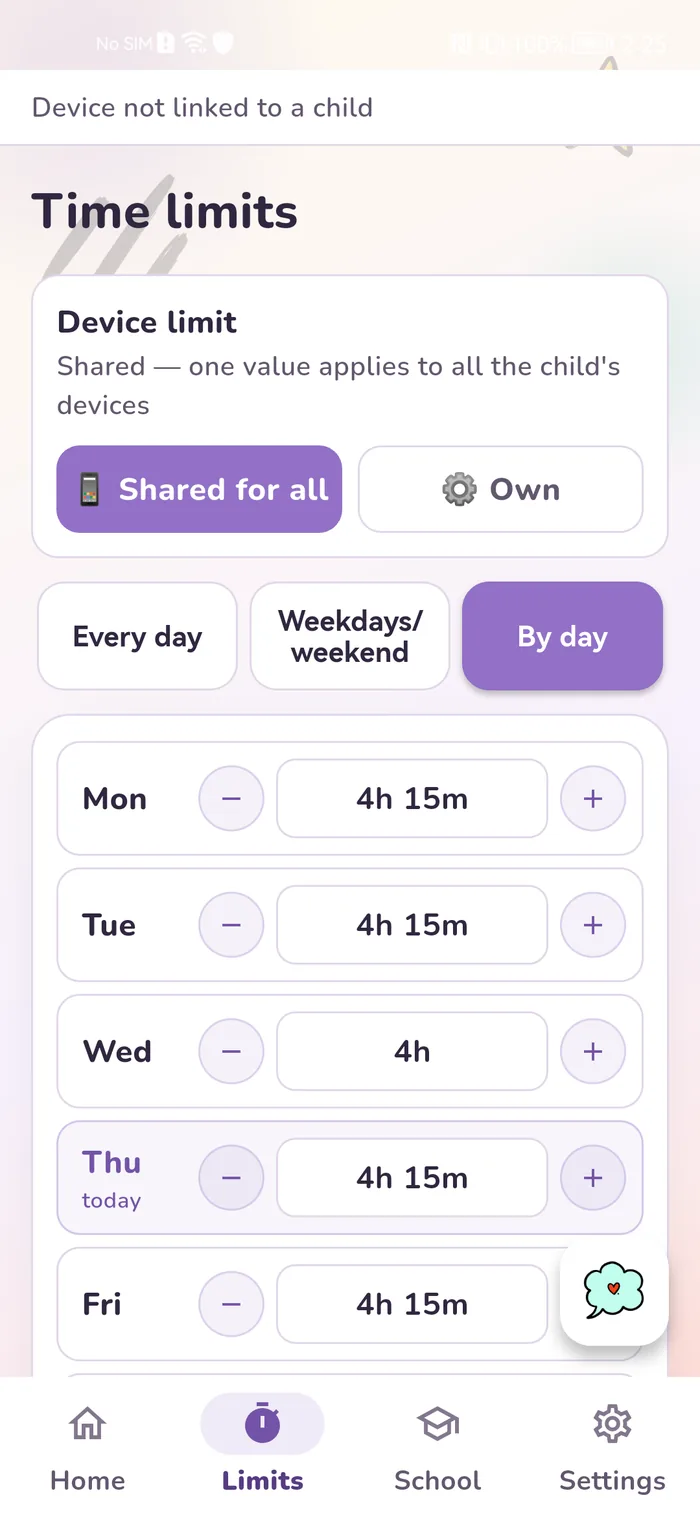
A limit for one game or all of them. You can give a single game a Daily limit, or set one limit for the whole Games group under Group limits. Gardion sorts new apps into groups by itself, so a game installed today counts toward the shared game time right away. When the minutes run out, the game stays locked until tomorrow. Your child can ask for more time, and the request comes to your phone for you to decide.
Bedtime. This is a schedule that locks the whole phone during the hours and days you pick: night, school hours, dinner. Calls and texts keep working, so you can always reach your child. If bedtime starts at ten, the game from that school night won't open at half past eleven.
Gardion covers a child's phone on the paid Family plan. The first 14 days give you full access for free, no card needed.
In short
In the Play Store app: tap your profile icon, then **Settings** > **Family** > **Content restrictions**. If your child has a supervised account, open Family Link on your phone and go to **Controls** > **Google Play**.
With the PIN option, go back to **Content restrictions** and enter the PIN. With a supervised account, you change the settings in your own Family Link app. Your child can't turn them off from their phone.
The Play Store filters by rating, so set the rating for apps and games low enough to exclude the game. Games installed before that stay on the phone. To block one by name, use Family Link or an app such as Gardion.
No. They only cover payments made through Google Play's billing system. Purchases on a game's own website or in another app store go around them.
No, the store has no time settings. Screen time is set on the phone: with Family Link, with Parental controls on Android 17 or later, or with Gardion's daily limits and bedtime.
Set limits in 3 minutes
Limits, schedule and anti-bypass protection on Windows and Android. 14 days of full access, no card needed.
Try GardionOr install the parent app now.
Read next
- Parental controls on VK: the VK Video kids profile and app time limitsVK has a kids profile only in VK Video. How to set it up on a phone and a TV, which privacy settings to change for a teen on VKontakte, and how to limit time in both apps.
- Standoff 2 parental controls: age rating, gold, chat and screen timeStandoff 2 carries three age ratings: Teen on Google Play, 13+ on the App Store and 16+ from the studio itself. What to decide about gold purchases and chat, and how to set a time limit for the game.
- Parental controls on WhatsApp: parent-managed accounts and time limitsSince 2026 WhatsApp has offered parent-managed accounts for kids under 13. How to set one up, what a parent sees, five privacy settings for teens and how to limit time.