 Gardion
How to check your child's browsing history on a phone or computer

The list of sites your child opened is kept by the browser itself, on their phone or computer. In Chrome you get to it through the three-dot menu and History. But your child can clear that list in a couple of taps, and pages opened in Incognito never land there at all. Family Link doesn't show you their Chrome history, and Microsoft Family Safety only reports sites visited in Edge. If you want the sites to come to your own phone and stay there after a cleanup, you need a parental control app on your child's device.
Where the history is on your child's device
In Chrome on Android, open the browser, tap the three dots at the top right and choose History. If the address bar sits at the bottom of the screen, swipe up on it first. On a computer it works almost the same way: three dots at the top right, then History, then History again. You can also search the history from the address bar: type @history, press Tab or the space bar, and enter a word from the page title. That is how Chrome Help describes it.
Edge keeps the same kind of list: the address of each site with the date and time of every visit.
Two things won't be on the list. Chrome doesn't save pages opened in Incognito, and it doesn't show pages that were deleted from history. Your child can clear the history on their own with "Delete browsing data", and if Chrome sync is on, the entries disappear from all of their devices at once.
What Family Link shows you
In Family Link you manage your child's Chrome: you turn on the site filter, keep lists of allowed and blocked sites, and decide which permissions sites get. Browsing history isn't one of those settings.
If your child already had a Google Account and you added supervision later, Google is explicit. Its page on supervising an existing account says you won't be able to use Family Link to "check your child's Chrome browsing history", find their past searches or check their YouTube watch history.
For search history, Google points you to the My Activity page on your child's device, and your child may need to sign in. In Family Link you can also turn saving of your child's search history on or off.
Incognito mode is turned off in Chrome when your child is signed in with an account managed by Family Link. That only covers Chrome with their account signed in, though. On Windows, Mac and iPhone your child can sign out of Chrome, and they can open sites in a different browser. We cover Family Link setup step by step.
Windows computers and iPhones
On Windows, family reports come from Microsoft Family Safety. The family organizer turns on activity reporting, and the reports then include your child's web and search activity. Microsoft notes that web and search activity for other browsers cannot be reported, and the supported browser is currently Edge. When web filtering is on, unsupported browsers are blocked so the filter can't be bypassed. Sites your child opens in Chrome or Firefox won't appear in that report. We list what else the built-in Windows settings do in our guide to parental controls on Windows.
On iPhone, sites show up in Screen Time. Apple says it tells you which apps and websites you use and for how long. To see your child's report from your own phone, you both need to be in Family Sharing. Gardion doesn't install on a child's iPhone, so we covered the built-in iPhone settings in a separate guide.
How browsing history reaches Gardion
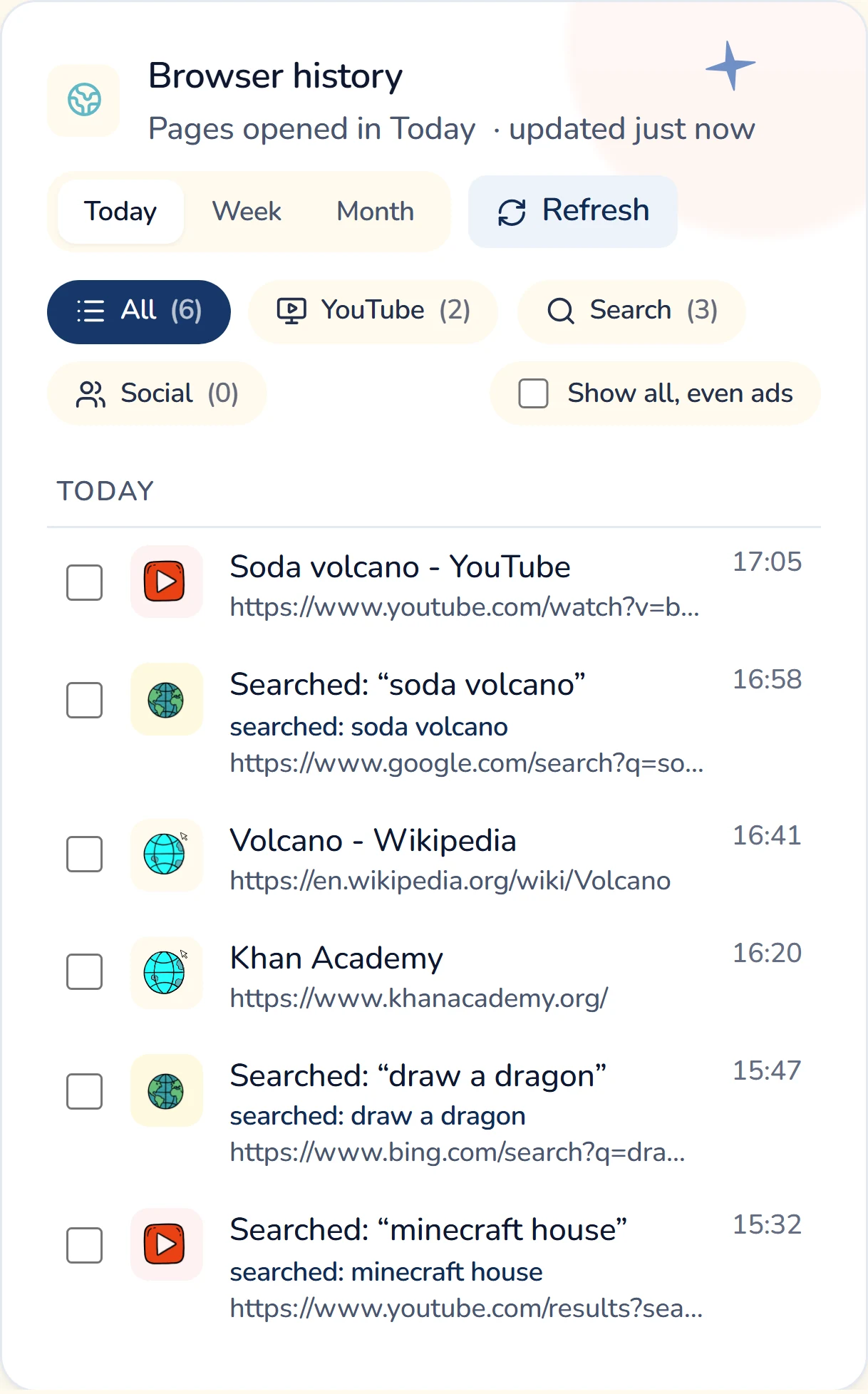
In Gardion we made the history independent of the browser: sites are recorded on your child's device and sent to you. You can see them in the Gardion Family app under History → Browser, and in the web dashboard, in the Browser history card.
On Android, the address is read from the browser's address bar while your child is on the page. That works in nearly any browser: Chrome, Samsung Internet, Firefox, Opera, Edge, DuckDuckGo. On a Windows computer, the app reads the history of Chrome, Edge, Firefox, Opera, Brave and Yandex Browser, and it also records the title of the browser window on screen.
The entries are stored on our server. If your child clears the history in their browser, everything that already reached you stays on your list.
The list is grouped by day, and each entry has a time. When your child searches on Google, YouTube, Bing or DuckDuckGo, the entry gets a "searched:" line with the query, so you don't have to decode a long URL.
What to do about a site you found
A long list is easier to read in parts. The tabs above it narrow the list to YouTube, searches or social sites. Ad addresses and embedded page parts are hidden; tick "Show all, even ads" if you want to see them too.
If you don't like a site, block it from the same list: tick the entry and press Block. The Allow button next to it adds the site to your allowed list, for when the filter has blocked something your child needs for school. How the filter itself works, and what it blocks in different browsers, is covered in our article on parental controls in the browser.
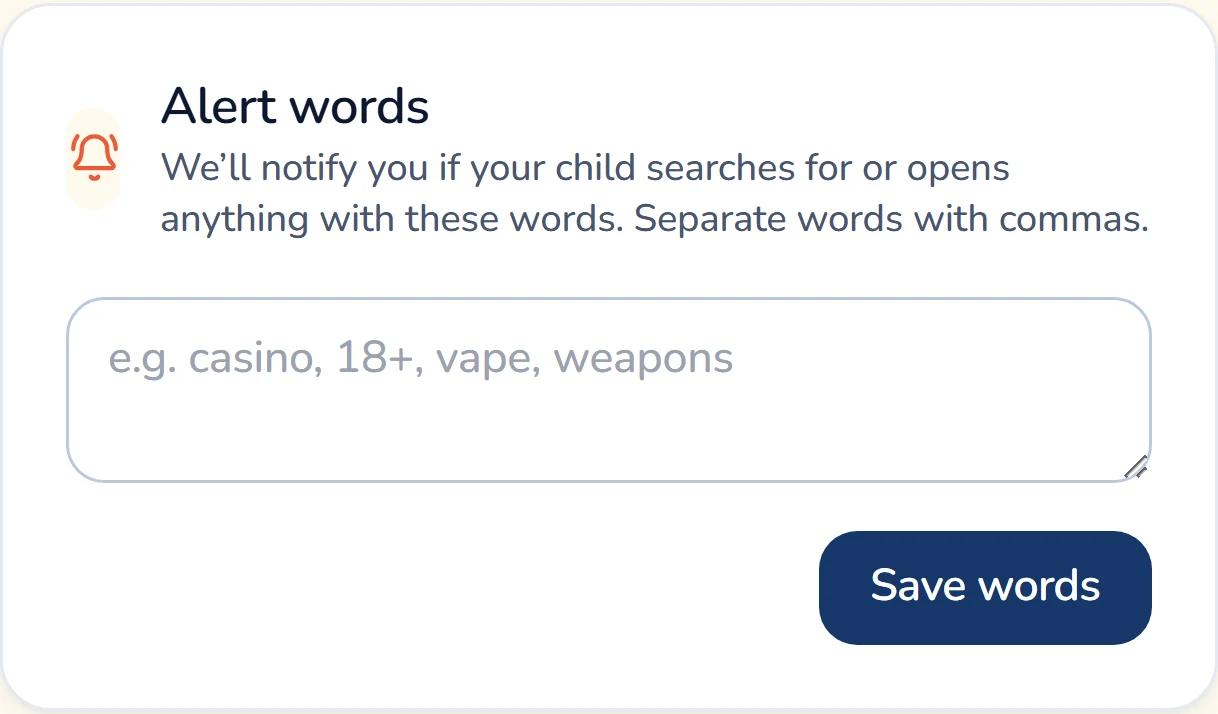
How many days you can see depends on the plan: Family keeps three days of history, Premium keeps a month. Premium also has Alert words. You type words separated by commas, and if your child searches for or opens a page with one of them, you get a notification. We look for the word in the address, the page title and the search query.
Time in apps, location and the other reports are covered in our overview of what parents see in Gardion reports.
In short
In the browser itself, deleted pages are gone from the history. With Chrome sync on, they disappear from all of your child's devices at once. In Gardion, the entries that arrived before the deletion stay: we keep them for the full period of your plan.
In Gardion, yes: the entry shows the query on its own "searched:" line. We pick up queries on Google, YouTube, Bing, DuckDuckGo and Yandex. Without an app, Google shows search history on your child's device, on the My Activity page.
Three days on the Family plan and a month on Premium. On Premium the dashboard adds a Month option next to Today and Week.
For the browser's own history, yes: the list lives in your child's browser. With Gardion you need the phone once, to install Gardion Kids, and after that the sites come to you. Setup is covered in our [installation guide](/blog/set-up-parental-controls-on-a-childs-phone/).
Set limits in 3 minutes
Limits, schedule and anti-bypass protection on Windows and Android. 14 days of full access, no card needed.
Try GardionOr install the parent app now.
Read next
- Child on the phone at night: how to get sleep back without a nightly fightIs your child on the phone at night? How much sleep kids need, what works without an app, whether to take the phone away, and how to set bedtime in Gardion.
- How to see your child's phone screen and what they seeHow to see your child's phone screen with Gardion: you request a screenshot, your child confirms it on Android, and a Windows PC sends one within seconds.
- Child turns off parental controls on Xiaomi: what alerts you get and what to lockOn Xiaomi and Redmi, protection goes away either because MIUI saves battery or because someone acts on the phone. What each alert means, which sections to lock with App lock, and what no app can lock down.