 Gardion
Parental controls on a tablet: what changes compared with a phone
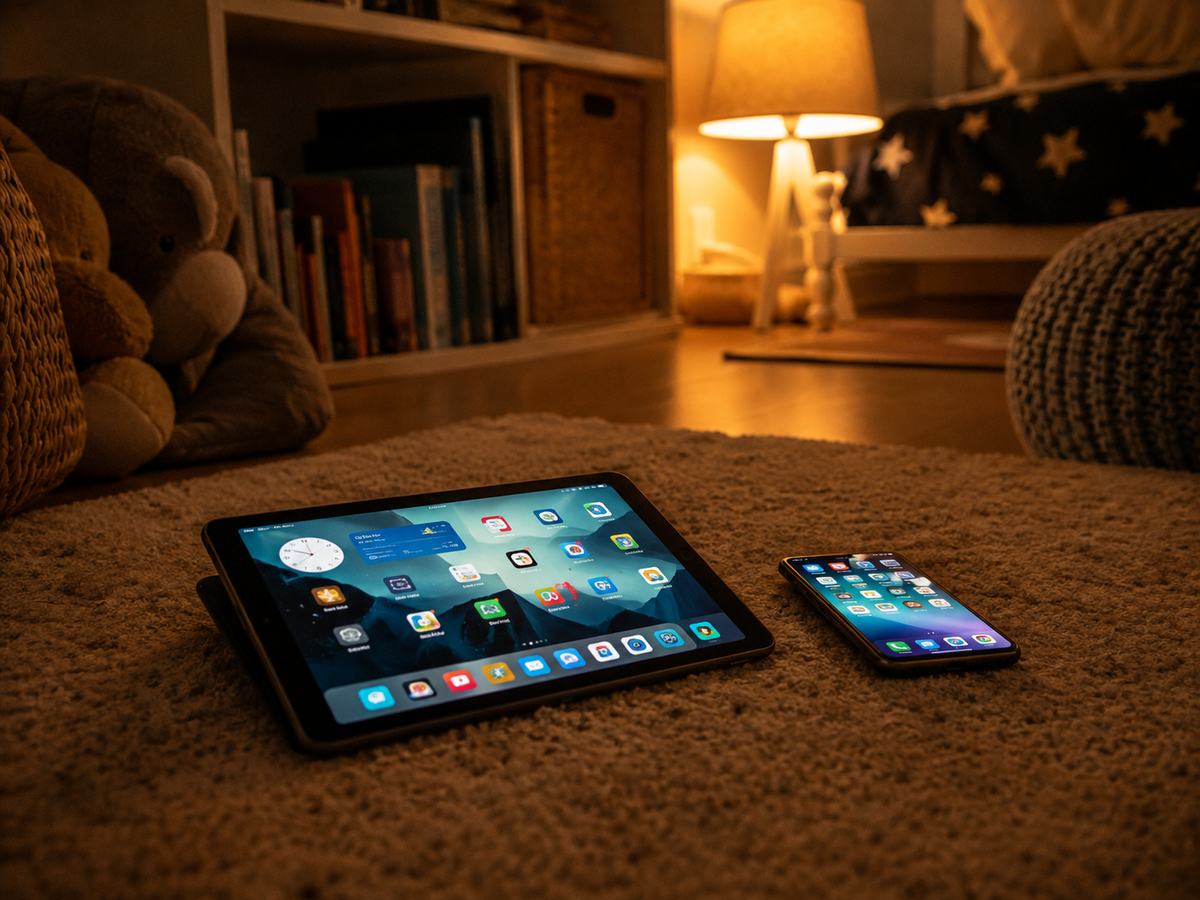
The tablet is usually the device that slips through, even when the phone is locked down. The reason is mundane: a phone belongs to one child, a tablet belongs to the household. The tablet was bought for cartoons, it lives on the kitchen counter, everyone picks it up, and nobody ever thought to give the child a separate account on it. Here is how controls work on an Android tablet and on an iPad, why some tablets cannot run Family Link at all, and what to do with a device the whole family shares.
Android tablet: the same Family Link, with one condition
Family Link behaves on a tablet exactly as it does on a phone — daily limits, a bedtime lock, app approvals and blocks, and reports showing time spent in each app.
Google's requirement for the child's device is Android 6.0 or later. A parent can manage it from Android 6.0 and up, from an iPhone or iPad on iOS 16 and up, or partly through familylink.google.com in a browser.
The one condition changes everything: the tablet has to be signed in with the child's account. Supervision attaches to the account, not to the hardware. As long as the tablet runs on an adult account, there is nothing for the limits to apply to.
iPad: Screen Time only, and Family Link is out
Google states this plainly in its Family Link help: you cannot set up parental controls with Family Link on iPhone and iPad, or on computers other than Chromebooks.
So an iPad leaves you with Screen Time: app limits, Downtime at night, content and purchase restrictions. You set it up either on the tablet itself behind a parent passcode, or remotely if the iPad belongs to your Family Sharing group.
Do not reuse the device unlock code as the Screen Time passcode. Your child watches you type the first one every day, so the second one stops being a secret.
Tablets without Google services
Some tablets ship without Google Play at all. Family Link needs a Google account and an install from the Play Store, so on those devices it simply never appears.
You can check this in seconds, ideally before buying: no Play Store on the tablet means no Family Link on it either. What is left is whatever the manufacturer built into its own settings, or a third-party app.
The trap: one tablet for everybody
The most common setup goes like this. There is a single tablet, it is signed in with the mother's account, and the child uses it in the evening. A parent sets a limit, and the limit starts locking out the mother.
The fix is separation rather than cleverness, and there are two ways to do it.
Give the child their own account on the tablet. The device becomes a child's device, Family Link works normally, and the adult account comes off it.
Add a second user. Android supports multiple profiles on one device, each with its own apps, home screen and data. Tablets offer this more often than phones do, precisely because a tablet is a shared object by nature.
While both accounts share one profile, any control you set will either annoy the adult or miss the child.
What the tablet hides from you
Here is the part that catches parents out. A tablet counts as its own device, and its screen time does not automatically add up with the phone's. The child runs out of time on the phone, picks up the tablet and carries on.
That is why limits belong on every device at once, and why the number worth watching is total screen time across all of them. How much that should be is covered in screen time limits by age.
How Gardion handles tablets
We support Android tablets and Windows computers. Our app runs on the child's tablet, and the parent manages everything from their own phone: limits, schedules, the app list, reports. All of the child's devices sit in one list, so a phone and a tablet are not two separate setups.
We do not support Apple tablets. For an iPad, Screen Time remains the answer.
In short
On an Android tablet, yes — it needs Android 6.0 or later and the child's account signed in. On an iPad, no: Google states that parental controls cannot be set up with Family Link on iPhone and iPad.
Separate the accounts first: either leave only the child's account on the tablet, or add a second user in Android settings. While the tablet runs on an adult account, the limits will restrict the adult.
Family Link cannot be installed there, because it needs a Google account and an install from the Play Store. That leaves the built-in restrictions from the manufacturer or a third-party app.
No, each device is counted separately. That is why limits go on every device the child uses, and why the number to watch is total daily screen time.
Yes, on Android tablets and on Windows computers. The child's phone and tablet appear in one device list. We do not support Apple tablets.
Set limits in 3 minutes
Limits, schedule and anti-bypass protection on Windows and Android. 14 days of full access, no card needed.
Try GardionOr install the parent app now.
Read next
- Kaspersky Safe Kids review: where to download it and why it doesn't blockWhere to download Kaspersky Safe Kids without Google Play, what it costs, what parents say in reviews, and why it doesn't lock the child's phone.
- Chore app for kids: how your child earns screen time with starsA chore app for kids that ties chores to screen time. You set a chore worth stars and check it by photo. Your child trades the stars for minutes or a reward.
- Xbox parental controls: screen time, age ratings, purchases and your PINHow to set up Xbox parental controls: where screen time and age ratings live, how to make purchases wait for your approval, and how to lock your own profile with a PIN. Plus what the console can’t see on your child’s phone.