 Gardion
Is your child on the computer late at night? How to tell and what to do
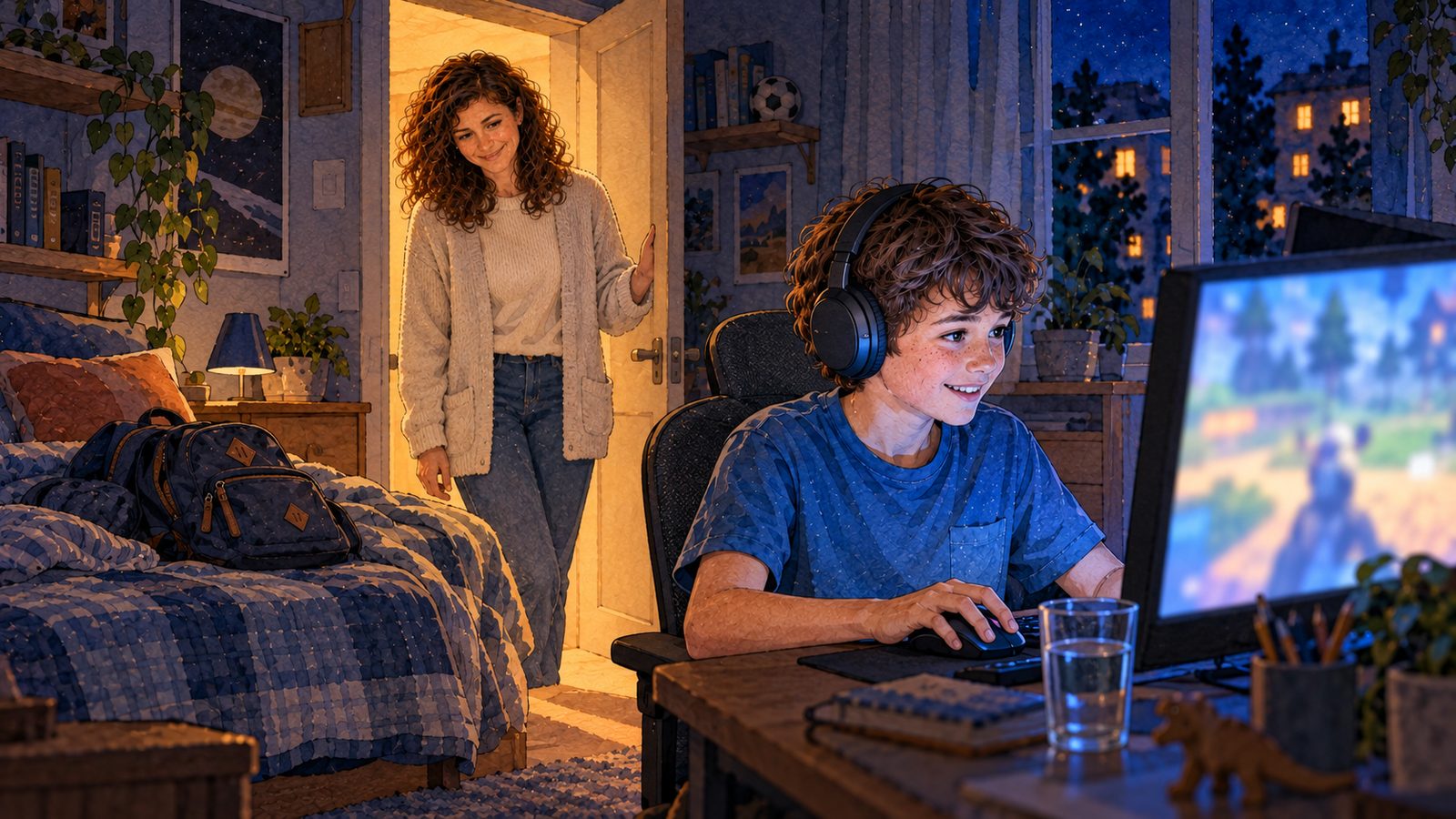
A computer in a kid's bedroom is harder to catch than a phone. The sound goes into headphones, the monitor is dimmed all the way down, and friends are online too, calling them into voice chat for one more match. Parents find out in the morning, when the child can't get out of bed for school. We suggest starting with an agreed time. If the agreement doesn't hold, you can lock Windows until morning with a program, and changing the system clock won't help your child.
How to tell they were up at night
The first signs are ordinary: your son sleeps through the alarm, snaps at people during the day and yawns over homework. You can ask him directly. But you have no way to check an answer like "I went to bed at ten."
In Gardion we built a "Usage by hour" chart for this. It shows which programs were running and at what time of day, including two and three in the morning. If Steam or Minecraft shows up at 3 a.m., the conversation is about a fact. We like this chart more than any report: one picture, and there is nothing to argue about.
Start without any software
Name the hour when the computer goes off and stick a note with it next to the monitor. Sleep needs by age are in our article on phones at night.
If your home has room, move the desktop into a shared room. A laptop is easier: in the evening it stays on the charger in the hallway.
There is also the router. It can switch off the internet on a schedule, and for websites and online games that is enough. Games already downloaded to the drive still launch without a connection, though, and single-player Minecraft runs fine offline. We covered router setup separately.
Lock Windows until morning
In the Gardion dashboard, open "Bedtime hours" and tap "Night". A window from 10 p.m. to 8 a.m. appears, and you can shift it to fit your family. Weekdays, weekends and school holidays are covered in the article on schedules.
At the set time, a full-screen lock that reads "Computer is paused" covers the monitor. The game and the browser stay hidden behind it until morning. The lock keeps a "Message a parent" button, in case your child really needs to ask something.
Tell your son or daughter the time in advance. A lock they were warned about starts fewer arguments than a lock in the middle of a match.
If your child looks for a way around it
A teenager's first move is to open the date settings and set the clock back. Gardion checks the time against its server, so the lock stays. Within a minute you get an alert: "The computer’s clock was changed."
The second move is a new Windows account. Turn on the "New account creation" alert in Gardion, and you'll know if one appears. The Strict protection setting stops your child from opening Task Manager and Registry Editor.
The most reliable setup is a standard account for your child, without administrator rights. Why it matters and how to create one is in our article on standard accounts.
When one button is enough
Not every family wants a lock every night. Sometimes you just need to end the evening once, from the dashboard, while you are already in bed.
The "Internet" button in the dashboard closes the browsers on your child's computer and keeps them offline until you tap it again. You can also put the computer to sleep or shut it down, and the dashboard asks you to confirm. Or you can send a short message to the screen: "Half an hour till bed, save your game."
If one game is eating the night, you may not need the lock at all. It is simpler to give that game its own daily limit, or set a shared limit for the "all games" group. Homework and drawing don't use up that limit.
Price and setup
Bedtime hours, game limits, the Internet button and commands from the dashboard are part of the Family plan. It costs $25 a year, and the 14-day trial includes every feature, no card needed.
Gardion installs on desktops and laptops running Windows 10 and 11. You manage it from the Gardion Family app. Everything else it does on Windows is on the Gardion for Windows page, and the step-by-step setup, including the SmartScreen window, is in the installation guide.
In short
Open the Usage by hour chart in Gardion. It shows which programs were running in every hour of the day, night hours included.
No. Gardion checks the time against its server, so the bedtime lock stays in place and you get an alert that says "The computer’s clock was changed."
For websites and online games, yes. Games installed on the drive launch without internet, and the router can't stop them.
Set limits in 3 minutes
Limits, schedule and anti-bypass protection on Windows and Android. 14 days of full access, no card needed.
Try GardionOr install the parent app now.
Read next
- How to set up a Windows laptop for a child: accounts, limits and websitesHow to set up a new Windows laptop for a child: who does the first setup, a standard account, the Microsoft family group and Gardion limits from your phone.
- How to check your child's browsing history on a phone or computerWhere to find your child's browsing history in Chrome and Edge, what Family Link and Family Safety show you, and how to get the list of sites on your own phone.
- Child on the phone at night: how to get sleep back without a nightly fightIs your child on the phone at night? How much sleep kids need, what works without an app, whether to take the phone away, and how to set bedtime in Gardion.