 Gardion
Your kid plays video games all day: what to do
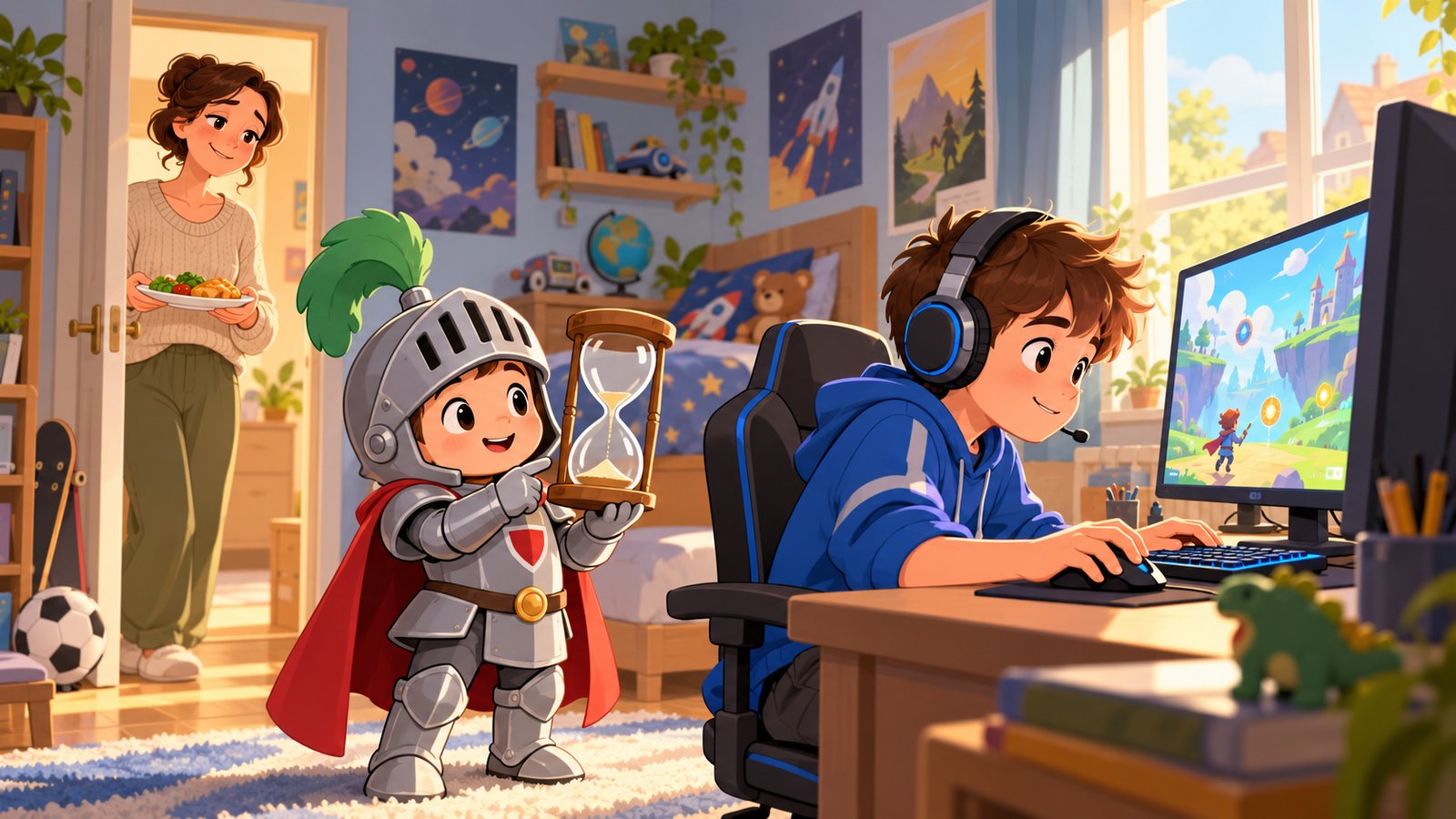
"One more game, I promise." Dinner is getting cold, you call a second time, then a third, and the evening ends with raised voices and a slammed door. The next day it happens again. Here is why it is so hard for kids to stop, what to agree on as a family, and how to let the computer enforce the agreement so you don't have to stand behind their chair.
Why they can't just stop
An online match can't be paused. If your son quits halfway through, his team plays on without him and probably loses, and the other players will let him know about it in chat. To him, "turn it off right now" sounds like "let your friends down."
Video has a different hook. On YouTube, the next video starts by itself, and one review quietly turns into a whole evening. Nothing in the app tells anyone to stop, and adults struggle with that too.
For a teenager, the biggest pull is friends. In the evening the whole group is in the same voice chat, lining up for the same game. Logging off means dropping out of a conversation that carries on without you.
Where the fights come from
Most fights start the same way. A parent walks in and wants the computer off now. Your kid had no idea the time was up, they're mid-match, and the bargaining begins. You get angry, and a minute later the argument is about who's in charge.
A warning helps. "Ten minutes left. Finish this one and don't start another." When kids know the end is coming, they push back less. The catch is that nobody can walk around the house with a timer every half hour, least of all from the office. We'll come back to that below.
Agree on the rules first
We'd start here and add software later, once the agreement exists. Pick a calm day and decide together: how many hours on school days and on weekends, when the computer can go on, what comes first (homework, dinner), and what happens when a rule is broken. Write it down and tape it next to the monitor.
The American Academy of Pediatrics has a guide to making a family media plan. It suggests screen-free zones such as the dinner table, homework time and the hour before bed. The AAP also says to discuss the rules with your kids and to revisit the plan at the start of each school year and over the summer and holiday breaks. Rules that worked at nine rarely survive to twelve.
Kids are more likely to follow rules they helped write. Give them a real choice somewhere: which hours they play, or how to spend extra minutes on Saturday. If you want guidelines by age, see our article on screen time limits by age.
Fill the time that opens up
If there's nothing to do once the game is off, your kid will be back at the screen in no time. "Go outside" is not a plan. Offer something specific: practice, walking the dog, a board game with you, cooking dinner together. Things done with other people tend to work best, because friends are often what keeps a kid in the game in the first place.
Don't fight the game itself. Ask what they're playing and have them show you a match. A parent who knows the difference between Minecraft and Fortnite gets a lot further in the next negotiation.
When it's more than a habit
Playing a lot is not a disorder. The World Health Organization describes gaming disorder by three features: impaired control over gaming, gaming taking priority over other interests and daily activities, and continuing to play despite clear harm. The pattern is normally evident for at least a year and seriously affects school, family or friendships. According to the WHO, it affects only a small proportion of people who play.
If you recognize all three in your child, talk to your pediatrician or a child psychologist. No app replaces that conversation.
Let the computer keep the agreement
An agreement falls apart when nobody is there to keep it: you're at work and the kids are home alone. That's why we built Gardion for Windows to count the minutes itself and lock the computer at the agreed time.
Five minutes before the end, a window pops up showing the time until lock, with the reminder "Save your work." It shows again with one minute left. When time runs out, a full-screen lock appears with the message "Today's time is up." Arguing with a lock goes nowhere, and you're not in the room, so there's no one to fight with.
If your son really needs a few more minutes to finish a match, the lock screen has an "Ask for 15 more min" button. You get a notification and decide whether to approve or decline. He sees your answer right there on the lock screen.
You can give the Games group a limit of its own. Minecraft, Roblox and other games draw on that shared budget, while an essay in Word or a drawing app doesn't touch it.
You set the breaks too: how often they come and how long they last. First a warning gives your kid time to save, then a short warm-up appears with exercises for the neck, shoulders and eyes. Each warm-up earns a star, and stars can be turned into screen time right from the lock screen. It's our favorite part: kids earn computer time by stepping away from the computer. If you don't want a break to cut into a match, turn on "Don't interrupt during games," and the break waits until the game is closed.
To see where the day went, open the "Usage by hour" report: which programs ran and at what times. We explain how the daily limit works in our guide to limiting screen time. If gaming runs into the night, read our article on kids on the computer late at night.
A single daily limit for one computer is part of the free version. Time requests, breaks with warm-ups, game limits and the hourly report come with the paid plan. Everything Gardion does on Windows is on the Gardion for Windows page, and the Windows install guide walks you through setup. The first 14 days include every feature, no card needed.
In short
Start with an agreement: how long, when, and what comes first. Then plan something for the time that opens up. You can hand enforcement to an app that warns your kid and locks the computer when the time is up.
Not by itself. The WHO describes gaming disorder as impaired control over gaming, gaming crowding out other activities, and playing on despite harm, usually for at least a year. If you see that pattern, talk to your pediatrician or a child psychologist.
Yes. Gardion shows a warning five minutes before the lock and again one minute before, with the reminder "Save your work."
Yes. Your child taps "Ask for 15 more min" on the lock screen, and you decide in the app. You can also add or take away time yourself with one tap, no request needed.
Set limits in 3 minutes
Limits, schedule and anti-bypass protection on Windows and Android. 14 days of full access, no card needed.
Try GardionOr install the parent app now.
Read next
- Discord parental controls: Family Center and limits on your child's PCWhat Discord Family Center shows parents, where it stops, and how to block Discord or give it a daily limit on your child's Windows PC with Gardion.
- Remove second space and cloned apps on AndroidHow to find and remove a second space, cloned apps or Android 15 private space on a child's phone, with Settings paths for Xiaomi, Samsung, Huawei and Pixel.
- Findmykids alternative: when a map isn't enoughLooking for a Findmykids alternative with game limits? What Gardion keeps from the map, what it adds, and how to cancel and remove Pingo.