 Gardion
Discord parental controls: Family Center and limits on your child's PC
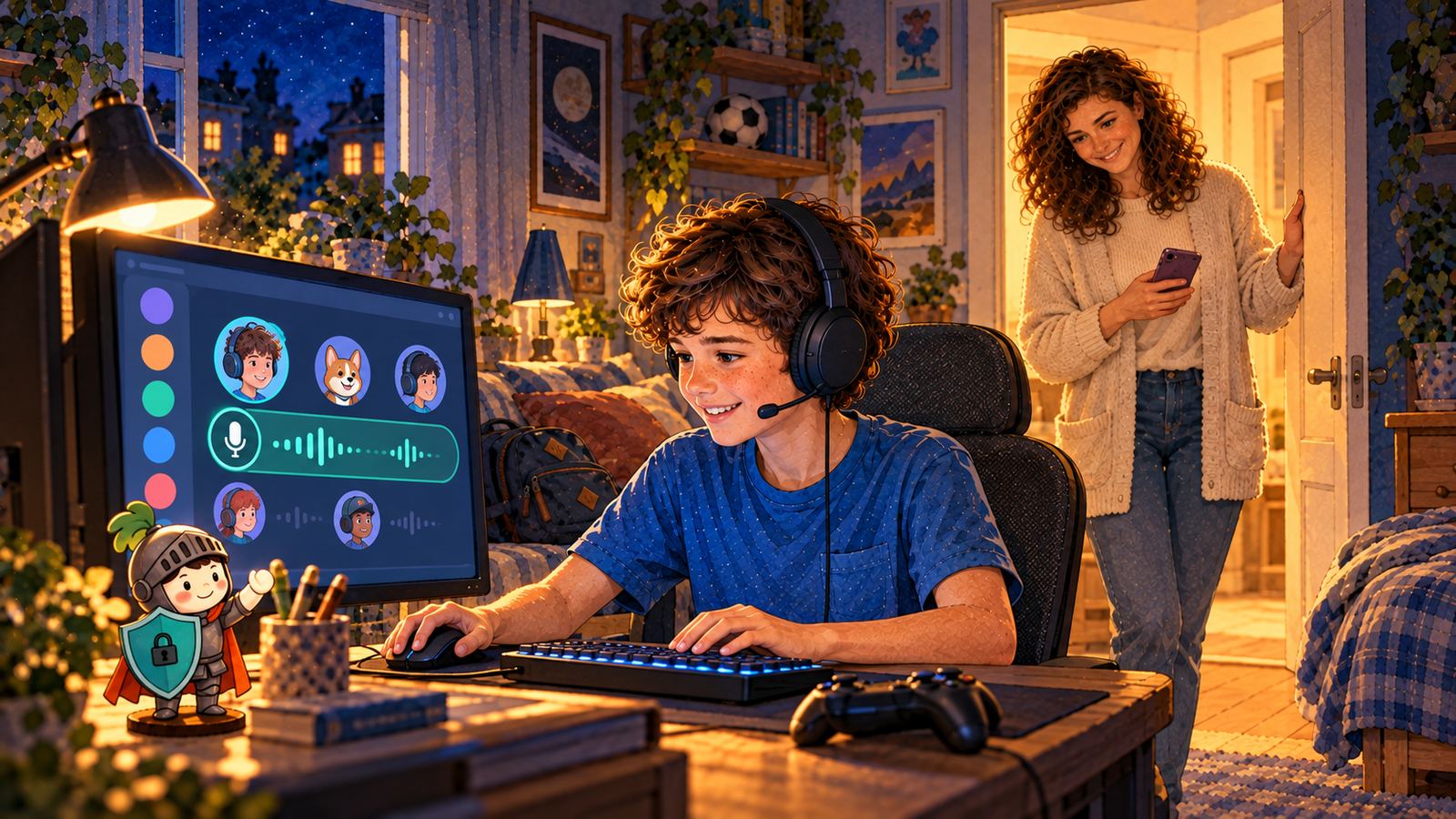
Your son is at his desk in headphones. The game is paused, and he's laughing with people you can't hear and don't know. That's usually Discord. Here's what Discord's own Family Center shows a parent, where it stops, and what you can set on the Windows computer itself.
What Discord is and the minimum age
Discord is a chat app built around voice. Players gather on servers, each with text channels and voice channels they drop into while they play. There are also direct messages and one-on-one calls. Anyone can create a server, so the people in a voice channel with your child can be classmates or adults they've never met.
Discord's Terms of Service say users must be at least 13, or older if the law in their country sets a higher age. The service isn't designed for younger children.
What Family Center shows you
Family Center is Discord's built-in tool for parents. You need your own Discord account. Your teen starts the connection: they open the Family Center tab, show you a QR code or send you an invite link, you open it, and they accept.
According to Discord's guide for parents, you then see the last seven days of activity: new friends, servers joined, who they messaged or called, total call minutes, and what they spent in the Discord shop. A weekly email sums it up. Message content isn't included. You see who your teen talked to, but not what was said. We'd set it up either way, because your teen sees exactly what you see.
You can also change a few settings. Media that Discord's filters flag as sexual or graphic can be blurred or blocked. You decide who can send friend requests and whether server members can send direct messages. There's a monthly spending cap, which can be zero, and Screen Time Limits, a schedule of hours when Discord won't open. While the accounts are connected, your teen can't change these settings on their own.
Where Family Center stops
The connection lasts only as long as your teen agrees to it. They can disconnect at any time, Discord says so in the same guide, and from then on you see nothing. Activity from before the connection isn't shown either.
And Family Center only knows about Discord. It doesn't show how long your child spends at the computer, which game is running alongside the call, or what's open in the browser. A voice channel can run next to a game until well past midnight. Discord's downtime ends the chat, and the game keeps going.
Discord in Gardion on Windows
Gardion runs on the computer itself, so it doesn't need a Discord account or your teen's approval. We've already put Discord in the Popular apps library in your parent dashboard, under Messengers. Tap Block, and Discord won't start on that computer. You can block it ahead of time, before your child has even installed it. If a full block feels like too much, give Discord a set number of minutes a day. And if a call runs late, there's a Close right now button on your phone.
The website is a separate step. Add discord.com to Specific sites, and it won't open in any browser.
One thing about how time is counted. While your child sits in a voice call, Gardion counts it as computer time, even if they haven't touched the mouse for a while. The Usage by hour report shows when Discord was open and for how long.
Blocking, per-app limits, your own site lists and the hourly report are part of the Family plan, $25 a year. It also adds a schedule and a bedtime for the whole computer, and VPN apps won't run on your child's PC. How the overall daily limit works is covered in our guide to limiting screen time.
When Discord is needed for school
If a class, a coding club or a team uses Discord, blocking it outright isn't an option. The Gardion dashboard has a School apps list with a ready-made "Discord (school)" entry. Apps on that list stay open even when time is up or the computer is locked. Bedtime still applies at night, and the computer pauses.
Where to start
1. Ask your child which servers they're on and who they play with. Sitting next to them works better than reading reports.
2. Set up Family Center together, so you see new friends and servers and they know you see them.
3. Install Gardion on the computer and decide how many minutes a day Discord gets and how late it can run.
Everything Gardion does on Windows is on the Gardion for Windows page, and the steps are in the Windows install guide. The first 14 days include every feature, no card needed.
In short
Discord's terms set the minimum at 13, or higher where local law requires it.
No. Gardion sees that Discord is running and how much time it took. It doesn't read or record chats or calls.
In the Gardion dashboard, open Popular apps, find Discord and tap Block, then add discord.com to Specific sites so it won't open in a browser either.
Family Center shows who your child talks to, but it works only while your teen keeps the connection, and it covers Discord alone. Time at the computer and other programs have to be limited on the computer itself.
Set limits in 3 minutes
Limits, schedule and anti-bypass protection on Windows and Android. 14 days of full access, no card needed.
Try GardionOr install the parent app now.
Read next
- Remove second space and cloned apps on AndroidHow to find and remove a second space, cloned apps or Android 15 private space on a child's phone, with Settings paths for Xiaomi, Samsung, Huawei and Pixel.
- Findmykids alternative: when a map isn't enoughLooking for a Findmykids alternative with game limits? What Gardion keeps from the map, what it adds, and how to cancel and remove Pingo.
- Kids360 alternative: how to switch and remove Alli360Leaving Kids360? Four questions to ask a replacement, how to cancel the subscription and remove Alli360 from your child's phone, then set up Gardion.