 Gardion
Parental controls on your router: what they cover and what walks straight past them
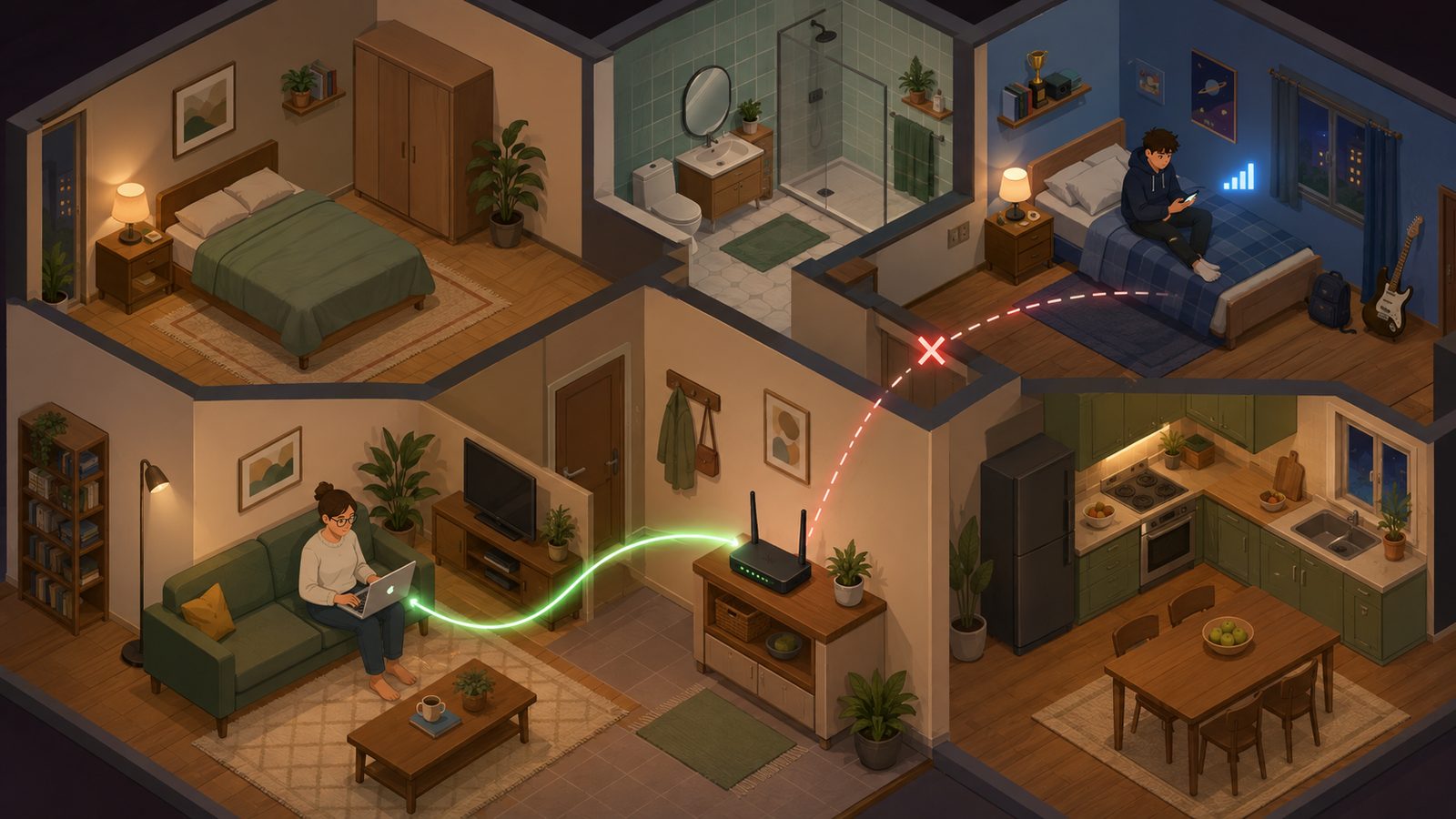
Setting limits on the router feels like the cleanest option available. One rule in the admin panel and the evening internet ends on every kid device at once, with no app to install and no argument about someone touching a teenager's phone. We went through what a router genuinely does, how to switch it on, and the point where the rule turns into a formality.
What a router actually does
A router sees the traffic that goes through your home network, and it can do three things with it. Schedules: a given device gets internet access only during set hours. Address lists: a blocklist closes the sites you name, an allowlist leaves only those open. DNS substitution: point the router at a family DNS service and it filters whole categories such as adult content.
All of this happens at the network level, so the operating system on the device does not matter. The same rule applies to a phone, a tablet, a laptop and a TV.
Routers tell devices apart by MAC address. Modern phones use a different address for every network: Android and iOS generate a private MAC by default, and the one printed under the battery cover is something else entirely. For your home network that private address stays the same, so rules hold — just find the device in the list by name and connection time rather than by the number on the box.
Where the setting lives
Vendors name the sections differently and the logic is identical. You reach the admin panel at an address like 192.168.0.1 or 192.168.1.1 with the administrator password; in the vendor app the same settings usually sit on the main screen.
TP-Link keeps a Parental Controls section: add the child's device, set a schedule and optionally a list of blocked or allowed domains. Keenetic puts the same rules under access profiles: a device joins a profile, and the profile carries the schedule and the filter. ASUS has AiProtection with category blocking plus a separate per-device schedule tab.
One trick works everywhere: put the kids' devices on the guest network with its own password. Rules then apply to a whole network instead of device by device, and a new tablet lands under them the moment it connects.
Four situations where the router cannot help
Mobile data comes first and matters most. The home Wi-Fi switched off at 10 p.m., the phone moved to the cellular network, and the evening carried on. That traffic never touches your router.
Second, other networks. Wi-Fi at a friend's place, at grandma's, at school, in a shopping mall. Your setting stayed home with the router.
Third, VPNs. There are hundreds of free apps in the store, installing one takes a minute, and after that everything runs through an encrypted tunnel where neither domain rules nor DNS filtering can see it. Time-based schedules still work, because they close the channel regardless of what is inside it.
Fourth, encrypted DNS. Modern browsers can look up addresses over a protected protocol that bypasses your router settings entirely. DNS filtering simply stops firing, and from the outside it looks like "I set it up and the site still opens".
What a parent sees, and what stays invisible
A router shows the list of connected devices and, at best, a history of domains. It has no idea how many minutes went into a particular app, which programs are installed on the phone, or what happened away from home.
One more thing usually surfaces on the first evening: a router rule applies to everyone on that network. Cut the internet at 10 p.m. and it goes off for the parents too, unless devices are split by lists or by separate networks.
What device-level controls cover instead
Controls installed on the child's phone work from the other side: they know apps rather than addresses. A daily limit on one program and a shared limit for a whole category count the same whether the phone is on your Wi-Fi, on mobile data or on a neighbour's network.
Web filtering in Gardion runs at the device network level, so a second browser does not get around it and encrypted DNS inside a browser does not affect it. Schedules close the right apps during school hours and at night anywhere, not only at home.
And there are things a router cannot do at all: show a per-app report, block a single program, and tell you where your child is. We covered each of those settings in separate articles on daily limits, schedules and app blocking.
Gardion runs on Android and Windows. It does not install on iPhone.
Putting the two together
The combination that works looks like this. The router handles what it is genuinely good at: a shared lights-out for home devices, and a coarse category filter for the TV and the old tablet where no control app can be installed.
Phone-level controls take everything else: time inside apps, new installs, school hours, and whatever happens away from home. Our article on limiting internet access for kids walks through all four approaches in detail.
One last thing to do before any of it: change the router's admin password. It ships printed on a sticker underneath, and a teenager who has got as far as wanting to edit the schedule finds that sticker first.
In short
Yes. Almost every home router can hand out internet on a schedule to specific devices and filter sites through lists or a family DNS service. The section is usually called Parental Controls or access profiles, in the admin panel at 192.168.0.1 or 192.168.1.1.
The router never sees that traffic, and no network setting closes it. Time and app limits have to live on the device itself, where they apply on any network.
Domain and DNS filtering stops working, because the traffic moves into an encrypted tunnel. A time schedule keeps working, since it closes the connection as a whole.
Android and iOS use a private random address per network by default. It stays constant for your home network, so the rule will not fall apart, but look the device up in the router list by name and connection time.
If devices are not split by lists or separate networks, yes. The simplest fix is a separate guest network for the kids' devices, with the rules written for that network.
Set limits in 3 minutes
Limits, schedule and anti-bypass protection on Windows and Android. 14 days of full access, no card needed.
Try GardionOr install the parent app now.
Read next
- Discord parental controls: Family Center and limits on your child's PCWhat Discord Family Center shows parents, where it stops, and how to block Discord or give it a daily limit on your child's Windows PC with Gardion.
- Remove second space and cloned apps on AndroidHow to find and remove a second space, cloned apps or Android 15 private space on a child's phone, with Settings paths for Xiaomi, Samsung, Huawei and Pixel.
- Findmykids alternative: when a map isn't enoughLooking for a Findmykids alternative with game limits? What Gardion keeps from the map, what it adds, and how to cancel and remove Pingo.