 Gardion
Kids360 alternative: how to switch and remove Alli360

Kids360 comes as two apps. The parent installs Kids360, and the child's phone gets a companion app called Alli360. Leaving it means three jobs: cancel the subscription, remove Alli360, and set up whatever replaces it. This guide covers what to ask a replacement, the order to remove the old setup in, and how Gardion handles the problems parents mention most in Kids360 reviews.
What parents say in Kids360 reviews
We read recent Google Play reviews of Kids360 from the US store, posted between mid-September and October 13, 2026. Most of the complaints describe the same gap: the parent sets a rule and the child's device keeps working as before.
On September 26 a parent wrote, "My child keeps deleting the application from his phone." Another, on September 20, said Kids360 didn't block Safari on a child's iPad when the parent used Android. Several reviews mention that in-app support answers with an automated bot.
The free plan explains part of this. According to Kids360's own help page, a daily limit on the free version is informational: parent and child get a notification and the apps keep opening. Manual blocking is free for the first three days. Automatic blocking at the limit and schedules come with a subscription.
Four questions for any replacement
Put them to every app on your list, including ours.
1. Which devices does it run on? The Kids360 site lists Android and iOS. Gardion runs on Android phones and tablets and on Windows PCs. It can't be installed on a child's iPhone, so if your child uses one, look elsewhere. On the other hand, a phone and a PC can share one daily limit.
2. Does the free version actually block anything? On Kids360 the free limit only warns. Our free plan covers one Windows PC, and the PC locks when time runs out. Phones are on the paid plans.
3. What does it cost, and how do you pay? Kids360 sells its subscription through the app stores. On October 14, 2026 the US App Store listed annual plans from $49.99 to $79.99. Gardion is paid once a year on our site: $25 for two devices or $35 for five. When the year ends, the account drops to the free plan, and nothing renews automatically.
4. What will you hear about if your child opens the uninstall screen? Our answer has its own section below.
For a wider list with prices, see our comparison of parental control apps. If you're coming from Google's tool, read the Family Link alternative guide.
Switching in order: subscription, Alli360, Gardion
The worst surprise in a switch is a renewal you forgot about, so start with billing.
1. Cancel Kids360 where you subscribed. On Android that's Subscriptions in Google Play. On iPhone, open Settings, tap your name, then Subscriptions (Apple's steps). Google's help page says uninstalling an app doesn't cancel its subscription. The Kids360 terms of use also accept cancellation by email at support@kids360.app.
2. Remove Alli360 from your child's phone. Its Play Store listing says the app uses device administrator rights to protect against unauthorized removal. You turn off that role first, then uninstall the app and switch off its accessibility service. Our Kids360 removal guide has every step with screenshots. Then delete Kids360 from your own phone.
3. Install the Gardion parent app from Google Play. If you have an iPhone, you set the rules in the web dashboard instead.
4. Add your child and their phone. The parent app gives you a personal link with a pairing code built in. Open it on the child's phone to install Gardion Kids, and the app will ask for permissions one at a time. Uninstall protection is the last step.
5. Connect a Windows PC separately with the Windows setup guide.
Don't keep two parental control apps on one phone: both need accessibility access and both draw over the screen. For other settings worth checking, see our guide to parental controls on Android.
When your child opens the uninstall screen
Gardion Kids watches for the system uninstall screen. As soon as your child opens it, the app sends the phone back to the home screen and shows: "Uninstall is blocked. Your parent has been notified." At the same moment you get "Gardion closed the uninstall screen."
Gardion Kids starts on its own after a reboot. Rules are stored on the phone, so the daily limit and the schedule keep working offline.
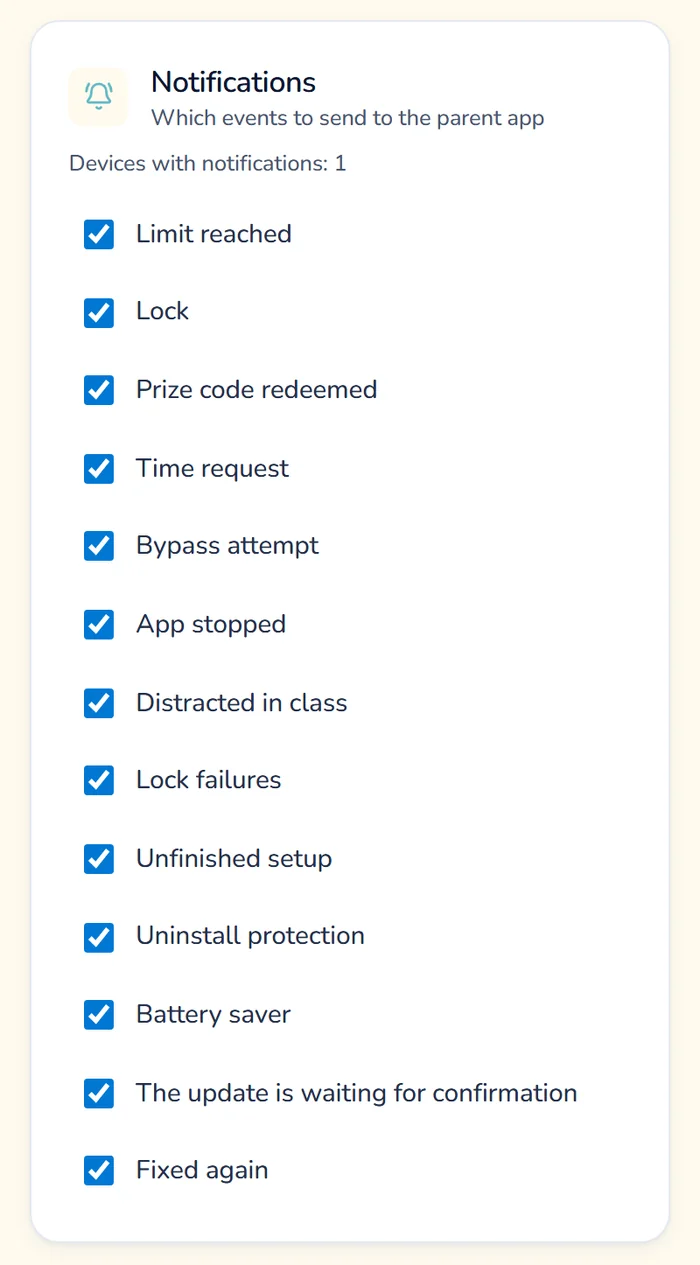
The permissions Gardion needs are watched too. If one is turned off, a full-screen notice reading "Gardion setup is not finished" covers the phone and you get an alert. You choose which events reach you with checkboxes in the dashboard settings.
Stars instead of tasks
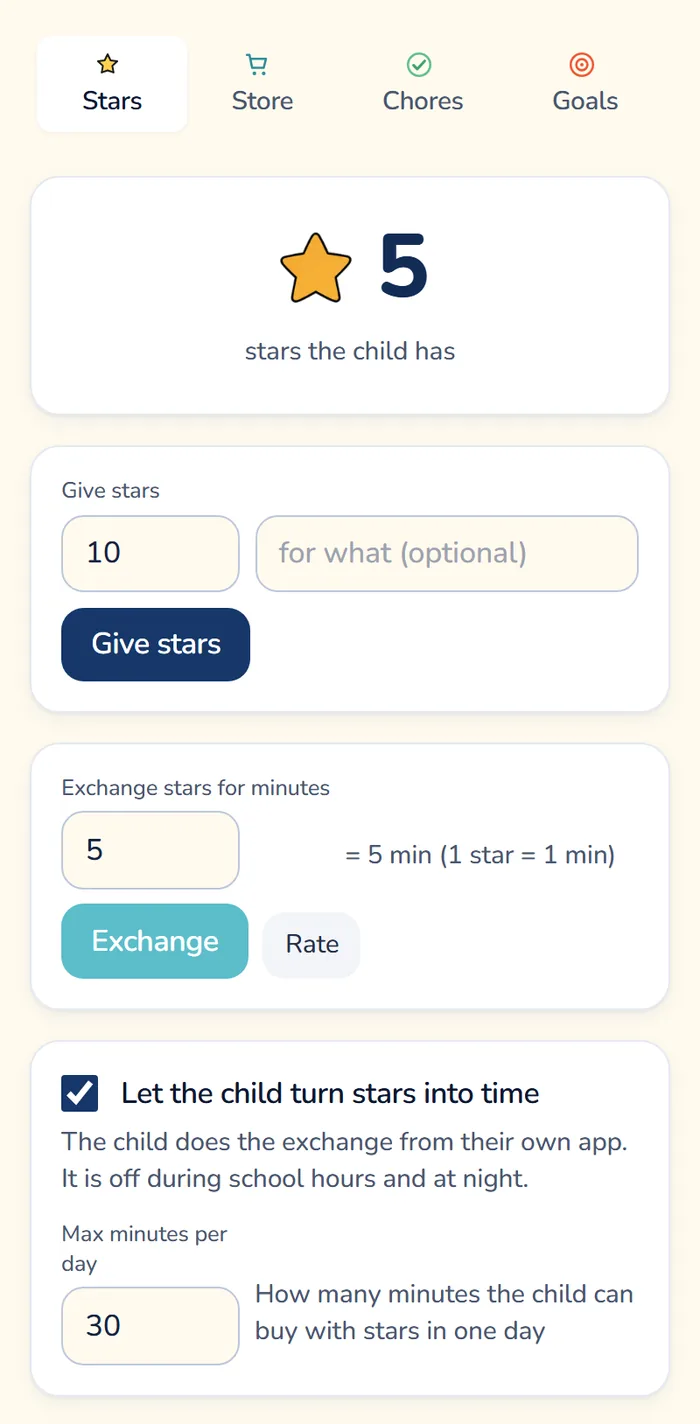
Earning screen time with tasks is the core idea of Kids360, in the developer's own description. Gardion does something similar with stars.
Your child earns a star for each movement break and trades stars for minutes in their own app. You set the rate and the daily cap. Trading is off during school hours and at night. Photo-checked tasks and stars you hand out yourself come with Premium; our chore app guide explains how they work.
Every feature, stars and tasks included, is open for the first 14 days, and no card is needed.
In short
Not according to their own pages. Kids360 and Alli360 are published by MINDCARE LAB LTD in Limassol, Findmykids by LETEM LTD in Nicosia. We cover switching from Findmykids in a [separate guide](/blog/findmykids-alternative).
Gardion is free for one Windows PC; phones need a paid plan. Our [free parental control guide](/blog/free-parental-control) compares the free options and what each one does.
No, limits and schedules are set up again from scratch, so before removing Kids360 it helps to write down which limits you had and at what times.
No, Gardion runs on Android and Windows only. A parent with an iPhone can still manage the rules in the web dashboard, and our guide to [parental controls on iPhone](/blog/parental-controls-iphone) covers Apple's built-in tools for the child's side.
Set limits in 3 minutes
Limits, schedule and anti-bypass protection on Windows and Android. 14 days of full access, no card needed.
Try GardionOr install the parent app now.
Read next
- Remove second space and cloned apps on AndroidHow to find and remove a second space, cloned apps or Android 15 private space on a child's phone, with Settings paths for Xiaomi, Samsung, Huawei and Pixel.
- Findmykids alternative: when a map isn't enoughLooking for a Findmykids alternative with game limits? What Gardion keeps from the map, what it adds, and how to cancel and remove Pingo.
- School mode on your child's phone: what stays open during lessonsSet up school mode on a child's phone: School time in Family Link, Screen Time Schedules on iPhone, and Gardion's school mode with a list of school apps.