 Gardion
Parental Controls Stopped Working on Android: What to Switch On for Honor and Samsung
Aleksandr Popov · · How we write our articles

You install the app, set the limits, and for the first few days everything works. Then the reports stop, and yesterday’s screen time reads zero even though the phone was busy all evening. The app is still there, the icon has not moved. The cause usually sits in the phone’s own settings: the system unloads the app from memory to save battery. Here is what that looks like on Honor and Samsung, with paths taken from real devices.
What happens to the app
Android is allowed to close programs that sit in the background for a long time. For music or notes nobody notices. For parental controls it means the time counter stops, and a block fails to fire at the moment a child opens a game.
On top of that every manufacturer adds a layer of its own. Honor and Huawei call theirs “Launch settings” in EMUI; Samsung has a battery mode plus a separate switch that strips permissions from apps left unused. Developers track this behavior at dontkillmyapp.com — the list makes it clear that Huawei, Xiaomi, Samsung and OnePlus need the most work.
Honor and Huawei: four switches in one menu
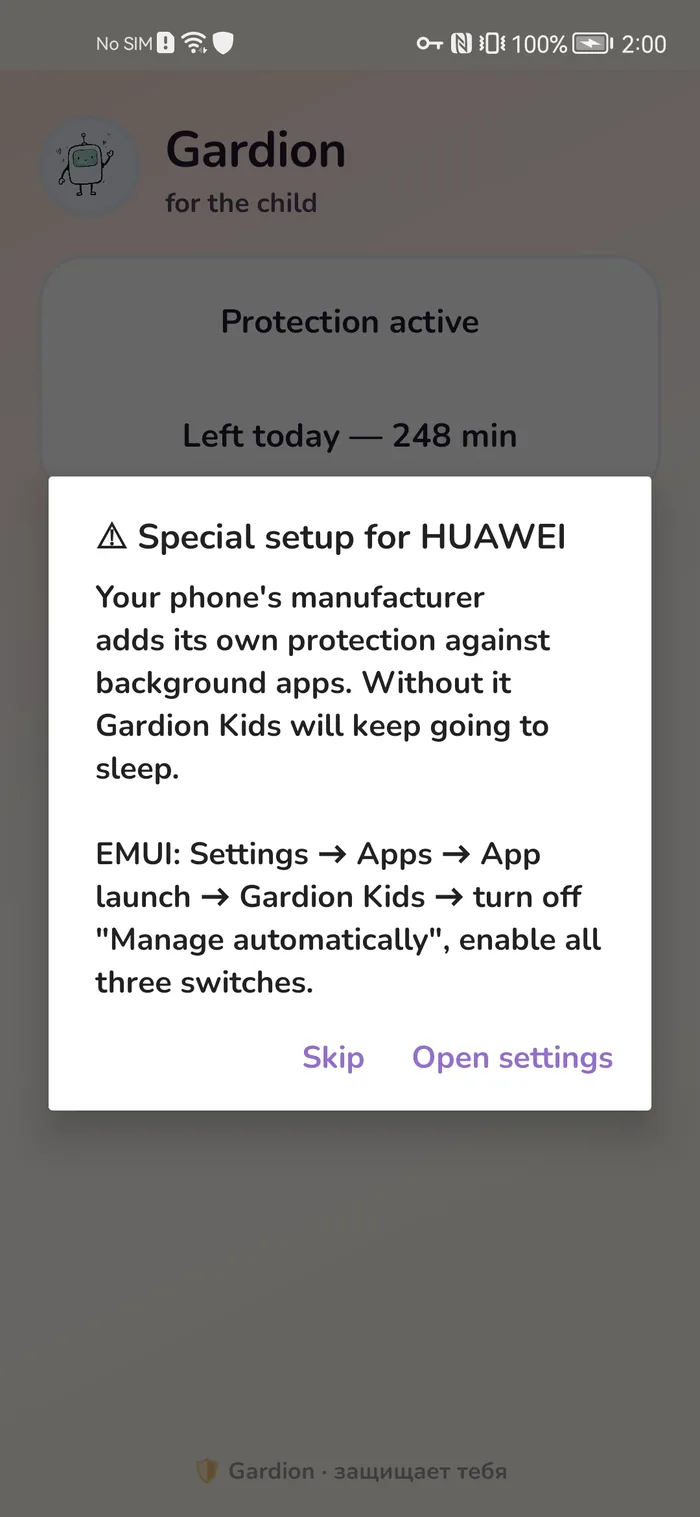
The path: Settings → Apps → Apps → the control app → “Power consumption details” → “Launch settings”. Turn off “Automatic management” first — the line under it reads “block unnecessary launches to save power”. While it is on, the three switches below stay greyed out.
Then switch on “Auto-launch”, so the app returns after a reboot; “Secondary launch”, so a block fires when a game opens; and “Run in background”, so the counter keeps going while the app is minimised. Check “Display over other apps” separately: without that permission the break screen never appears on top of the game.
A walkthrough with five screenshots from an Honor 20 Pro on EMUI 12 is on the Honor and Huawei page.
Samsung: battery mode and permissions that leave on their own
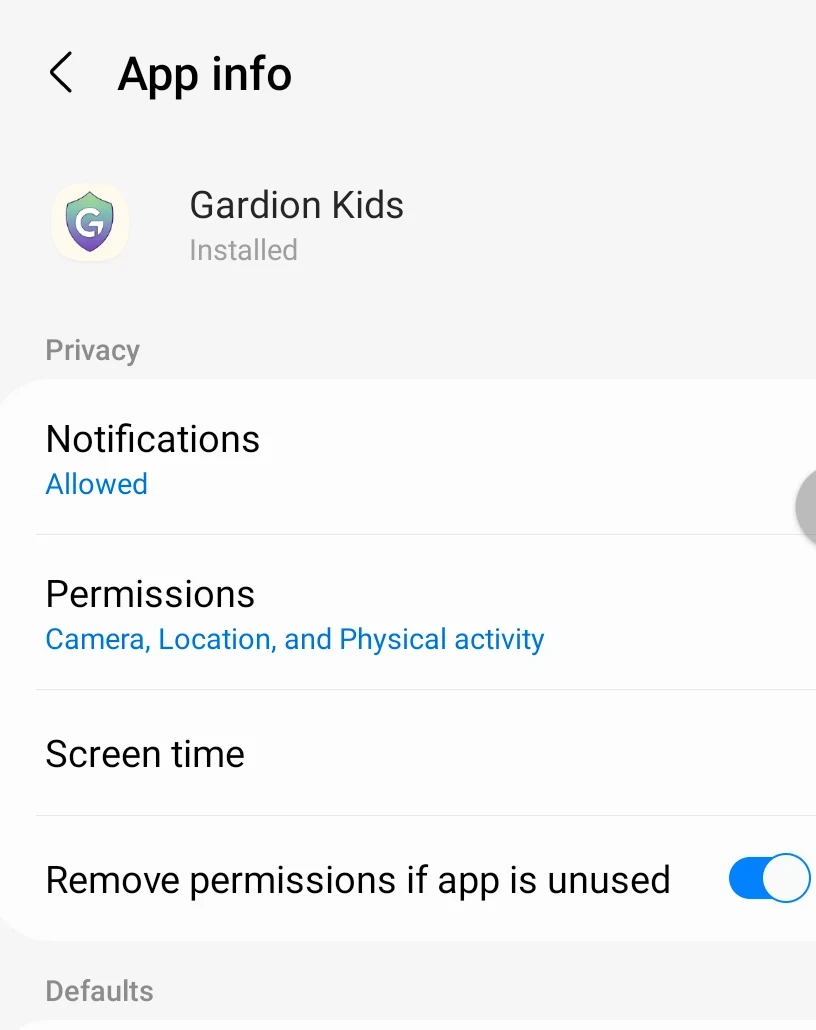
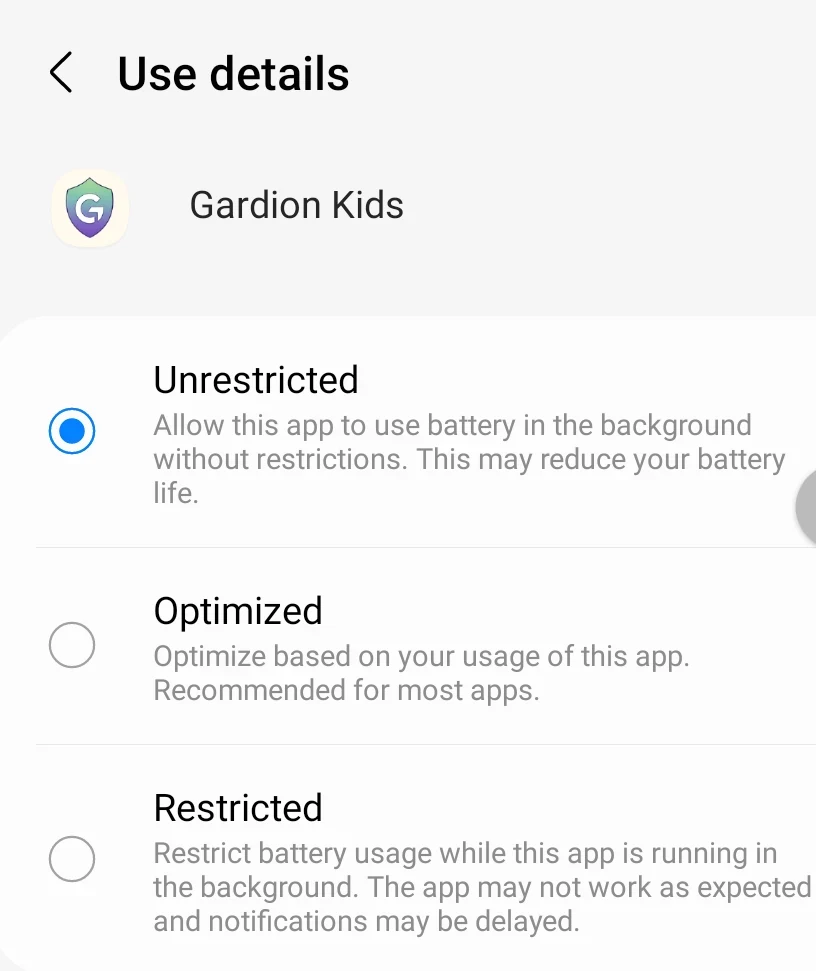
In One UI open Settings → Apps → the control app → “Battery”. Three states live there: Unrestricted, Optimised and Restricted. The default is Optimised; parental controls need Unrestricted.
The same app screen carries a switch called “Remove permissions if app is unused”. It is on by default and meant for programs you abandoned. A parent is not supposed to open the child app at all — so after a few months Android takes its permissions away and the controls are left without rights. Turn that switch off by hand; details are on the Samsung page.
A check that takes a minute
Reboot the child’s phone and look at the parent dashboard a minute later: the device should be back online. Then open a game that has a limit on it — the break screen should appear on top of it. Both worked, the settings are holding.
Major firmware updates put some of these switches back where they were. Every couple of weeks it is worth checking the device state in the parent dashboard: that is what shows the phone has not reported for a while.
If the icon is gone, the app was deleted, and that calls for a different next step: what to do if your child deleted the parental control app.
Why a “more reliable app” does not fix this
No app can forbid the system to unload it — Android has no such permission. What apps differ in is whether they notice the problem and tell the parent about it. A program that quietly stopped counting time looks exactly like a program that is fine.
That is why every parental control app has reviews saying “stopped working after a week”. Most of the time those phone settings are behind it, not a broken app. The same goes for most complaints in Kaspersky Safe Kids reviews.

What Gardion does about it
On first launch Gardion Kids walks the parent through these settings itself: it shows which switch is needed and opens the right system screen with a button — one flow for EMUI, another for One UI. You can see those screens on the Honor and Samsung pages.
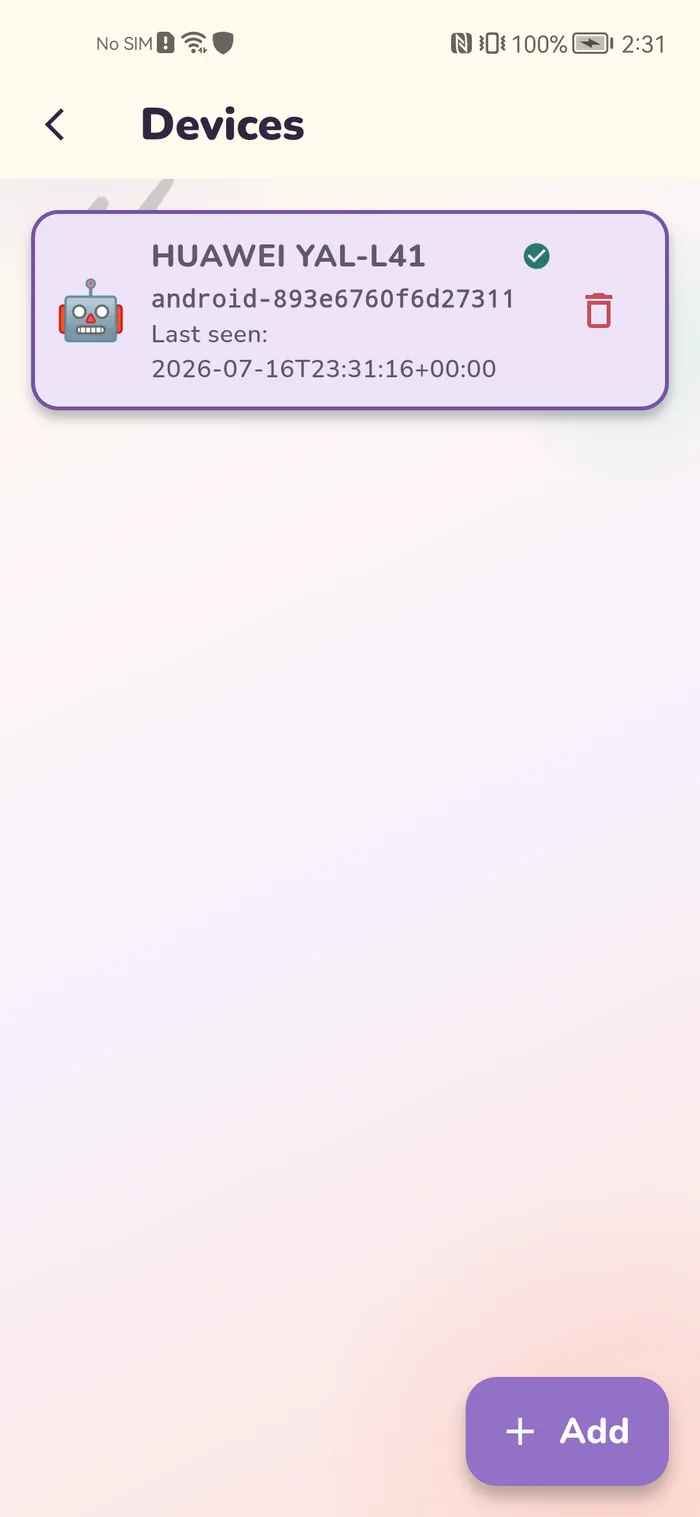
In the parent dashboard the state of every device sits on the devices tab, so silence is visible right away. Trying it on your own phone is free: 14 days of full access on Android and Windows, no card needed.
In short
An uninstalled app disappears from the phone’s app list. One unloaded by the system stays where it was and simply stops sending data. Icon present, reports missing — the launch settings are the place to look.
Major firmware updates can put the switches back to their defaults. Redoing it takes a minute — the same four items in the same menu.
MIUI has similar settings, but we have not verified the exact wording on a real device, so we are not quoting it here. Look for the autostart section and for locking the app in the recents list.
On Samsung it partly helps. On Honor it does not: “Launch settings” live separately from the general power saving mode and keep their own state.
Set limits in 3 minutes
Limits, schedule and anti-bypass protection on Windows and Android. 14 days of full access, no card needed.
Try GardionOr install the parent app now.
Read next
- Family Link not working: five reasons the limits stop applyingThe limit is set, yet the phone never locks and reports stay empty. Five reasons Family Link stops working: the system kills the app, the phone is offline, permissions were revoked, limits never covered everything, and the child turned 13.
- How to Turn Off Parental Controls in 2026: Three Places to LookParental controls now live in three places: the supervision app, the phone’s own settings, and the app store or carrier. Here is where each one switches off.
- When Kids Get Around Parental Controls: 5 Gaps and How to Close ThemVPNs, the device clock, Safe Mode, another browser, uninstalling. Why parental controls stop working and how to close each gap, with no bypass recipes.
- Remove second space and cloned apps on AndroidHow to find and remove a second space, cloned apps or Android 15 private space on a child's phone, with Settings paths for Xiaomi, Samsung, Huawei and Pixel.