 Gardion
How to limit TikTok on your child's phone: app limits, daily limits, and blocking mods
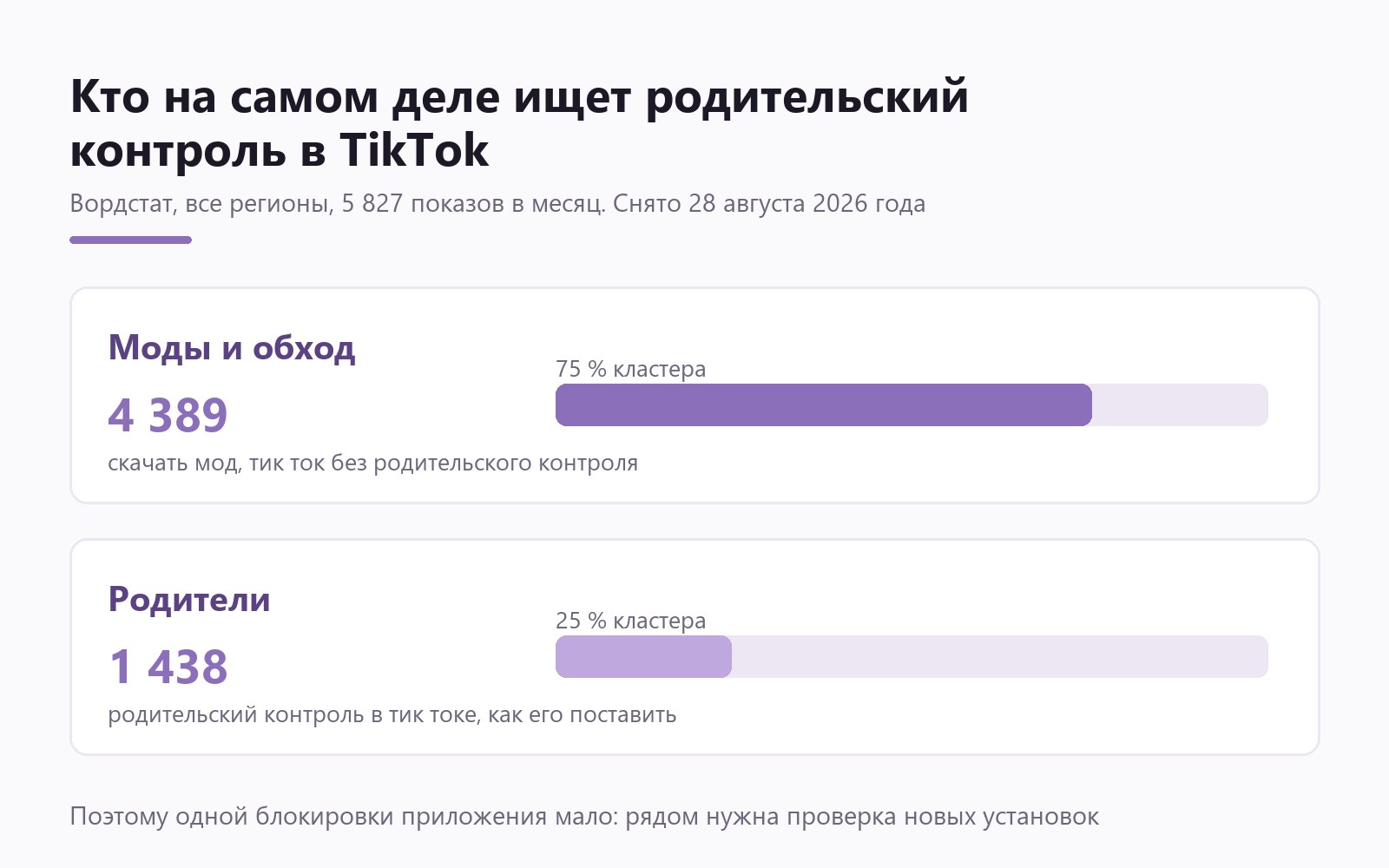
We looked at what people actually search for around parental controls on TikTok, and the numbers tell the story. Out of 5,827 monthly searches in Russian, only 1,438 come from parents. The other 4,389 are variations of "download the mod" and "TikTok without parental controls". Someone on the other side of your setting is already looking for a way around it, so here is how to make the limit last longer than one evening.
What the search data shows
Measured on 28 August 2026, all regions, one month. The parent side looks ordinary: 787 searches for parental controls in TikTok, 415 for how to set them up, 209 for installing TikTok with controls in place.
The other side collects three times more: 1,983 searches for a modded build with parental controls, 1,753 for downloading it, 427 for TikTok without controls at all.
The practical takeaway is simple. Blocking one app is undone by installing a different build of the same app, and that takes a couple of minutes. A block needs a second setting next to it, one that does not care which build is running.
A daily limit on the app itself
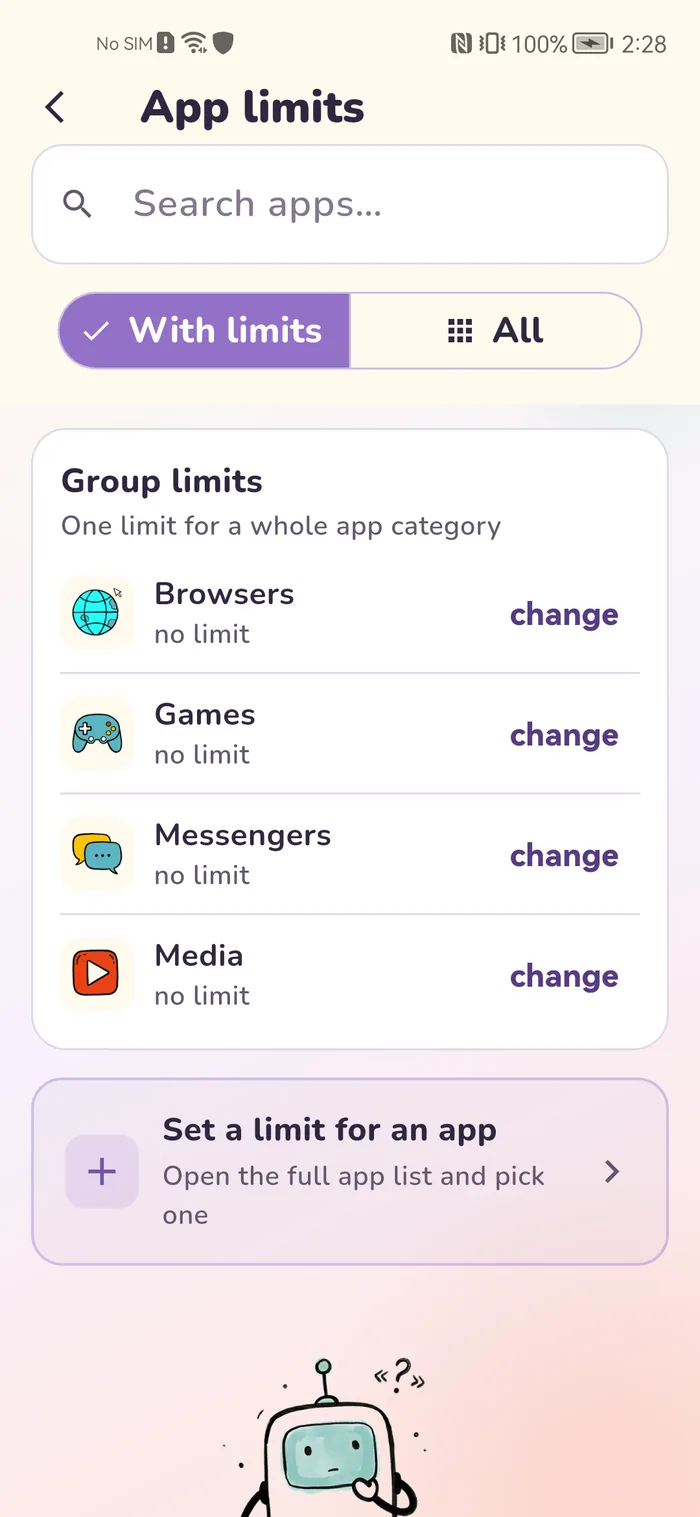
Most parents want the same thing: keep the app, lose the three-hour sessions. The parent app has per-app limits: open the list of apps on your child's device, find TikTok, and set a daily limit in minutes.
The limit counts across the whole day, no matter how many times the app was opened and closed. Once the time runs out, the app stops launching until tomorrow.
A limit sits better than a ban. The rule is easy to state, hard to argue with, and teenagers start pacing themselves. A full ban tends to trigger the opposite reaction, and that is usually when the search for mods begins.
Cap the whole day so time does not leak
You limit TikTok, your child opens another feed, and total screen time stays exactly where it was. This is the normal ending of the story, and a second ban does not fix it.
Set a daily limit for the whole phone instead. In Gardion it is one budget for every app, so an hour means an hour in total, wherever it gets spent. There is no separate social media group, so each of the other feeds gets its own limit, the same way TikTok does.
Categories are editable. The app catalog lets you rename a program and move it to the right group when automatic sorting gets it wrong.
How a shared limit and blocking deal with mods
This is the second setting the first one depends on. A mod is a separate program, so the limit on TikTok does not cover it. The daily limit for the whole phone counts minutes in every app, so the mod spends the same hour as everything else.
You can see the build itself too. If a new program has no category, the home screen of the parent app shows a New programs without a category card with the minutes used today. Put the mod into the right group or block it outright: it stays on the phone but will not open.
There is a useful side effect. The same block works on apps installed from an ad and games opened once and never removed.
Schedules and study time
A limit answers "how much", a schedule answers "when". During lessons, homework, and bedtime the list of available apps narrows, and the feed is not on it.
Premium also has a study mode that leaves only educational apps available for a set number of minutes. It works well as a one-off action while homework is being done.
The feed also opens in a browser
The app is blocked and the website opens anyway, which is where most parents decide the whole thing is broken. Alongside the app limit, turn on category-based web filtering and close the social category, web versions included.
The filter works at the device network level rather than inside one browser, so installing a second browser changes nothing. Our article on limiting internet access for kids covers all four approaches in detail.
Tell your child
A hidden limit gets discovered on day one: the app stopped opening, and the reason takes five minutes to find. After that the conversation is no longer about TikTok — it is about why you did it silently.
What works is plain: name the number, explain where it came from, and agree that it can be revisited. Then the limit stays a rule instead of a reason to search for the next mod.
In short
A device-level limit holds better than a setting inside one app. Anything switched on inside a service can be switched off in the same place, or bypassed by reinstalling. A daily limit for the phone and app blocking work regardless of what happens inside the app.
No. A modified build is a separate program with a different package name, so the previous limit does not cover it. The daily limit for the whole phone does: the mod spends the same minutes as every other app. You can also find the build in the app list and block it.
Set a daily limit in minutes on the app. Time counts across the day, and once it runs out the app stops opening until tomorrow. For teenagers a full ban usually works worse, because that is what starts the search for workaround builds.
Give the other feeds their own limits and set a daily limit for the whole phone on top. Every app shares it, so an hour stays an hour wherever it gets spent.
Turn on category-based web filtering and block the social category. Filtering happens at the device network level, so a second browser does not get around it.
Set limits in 3 minutes
Limits, schedule and anti-bypass protection on Windows and Android. 14 days of full access, no card needed.
Try GardionOr install the parent app now.
Read next
- How to set up a Windows laptop for a child: accounts, limits and websitesHow to set up a new Windows laptop for a child: who does the first setup, a standard account, the Microsoft family group and Gardion limits from your phone.
- Is your child on the computer late at night? How to tell and what to doHow to tell if your child is on the computer late at night and what to do: an agreed time, the router, a Windows lock until morning and clock protection.
- How to check your child's browsing history on a phone or computerWhere to find your child's browsing history in Chrome and Edge, what Family Link and Family Safety show you, and how to get the list of sites on your own phone.