 Gardion
Windows 10 and 11
A Windows warning does not have to be scary
Gardion for Windows is installed from a personal one-time link created in the parent app. Windows may show SmartScreen before the first launch. This guide explains the normal path and the moments when you should stop.
First, check the source
Continue only when all three facts match
- 1You started the installation yourself from Gardion Family.
- 2The link opens on gardion.ru and begins with /winsysmon/.
- 3The downloaded file has not been renamed or forwarded to someone else.
The name of a personal installer may carry its activation data. Do not change it and do not share the link or file.
The first Chrome warning
Chrome may stop the download before Windows starts
This can happen with a new Windows installer that people do not download often yet. If you checked the source above, keep the file through the Chrome menu:
- 1In Chrome downloads, find setup.exe.
- 2Click the three dots next to the file.
- 3Choose “Download suspicious file”. In another Chrome version, this can read “Keep”, then “Keep anyway”.
Do not turn off Chrome protection. If the menu is different, the site is not gardion.ru, or the file name has changed, stop and contact support.
The usual installation path
What to do when Windows shows a warning
- 01
Download from your personal link
In Gardion Family, add the Windows computer and open the link that the app creates. Wait for the download to finish.
- 02
Open the downloaded installer
Open the file from your browser downloads. Windows can show one of two reputation warnings. The exact wording depends on your Windows version.
- 03
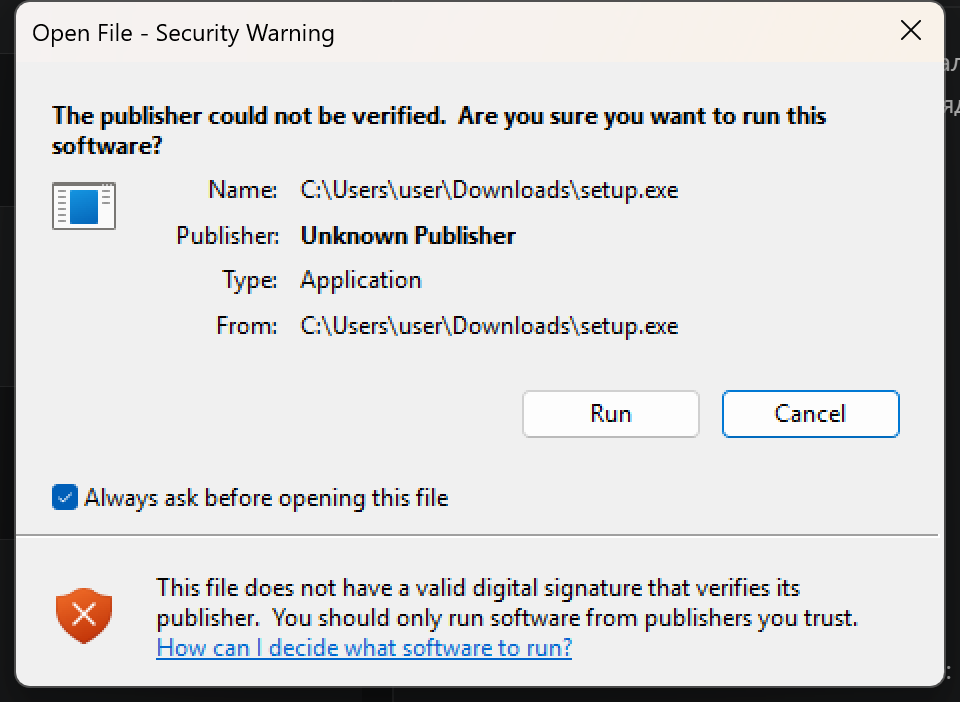
If you see “Open File – Security Warning”, choose “Run”
The test computer shows “The publisher could not be verified”. Choose “Run” only after you have checked the source above.
- 04
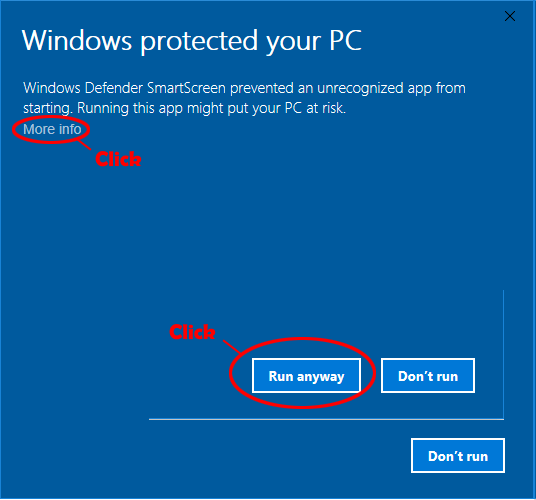
If you see SmartScreen, choose “More info”, then “Run anyway”
Another Windows version can show “Windows protected your PC” instead. The same source check applies before you continue.
Why the window appears
SmartScreen builds trust over time
Microsoft SmartScreen checks the reputation of the file and its publisher. A new installer can receive a warning while that reputation is still being built. The warning is not proof that the file is harmful, and it is not a request to turn off Windows protection. Microsoft Learn.
Stop and ask us
Do not continue in these situations
- You did not start the installation yourself, or received the file in a message.
- The page is not gardion.ru, the address does not begin with /winsysmon/, or the file has another name.
- There is no “Run anyway” button. Your organisation’s policy or Smart App Control may block the installer.
- Microsoft Defender calls the file malware. Do not add an exclusion: send us a screenshot and the original link instead.
Questions that often come up
Should I disable SmartScreen or Microsoft Defender?
No. Gardion does not require you to disable Windows protection, add an exclusion, or change security settings.
Why is there no “Run anyway” button?
The computer may be managed by an organisation, or Smart App Control may be blocking the installation. Stop there and contact support with a screenshot.
Can I send the installer to another computer?
No. The installer link is personal and one-time. Create a separate link for each computer in Gardion Family.
Send us a screenshot of the warning and the original link. We will check the next step with you.
Contact Gardion support