 Gardion
How to remove Kids360 (Alli360) from a child’s phone
Kids360 lives on the child’s phone under the name Alli360. It makes itself a device administrator and adds an accessibility service — so dragging the icon to the bin won’t work. Here is how to remove it fully, in order, with screenshots from a real Samsung.
Why Alli360 won’t uninstall normally
Alli360 takes two things that keep it on the phone: device-administrator rights (the power to lock the screen) and an accessibility service — inside the app it is literally named UserTrackingService. While the device-administrator role is active, the uninstall button does nothing — that role goes first.
On Google Play the Kids360 parent app sits at 3.0 stars; the Alli360 child app is at 4.4.
Remove it in four steps
- 1
Open Alli360 in App info
Settings → Apps → Alli360. “Force stop” is greyed out and tapping “Uninstall” won’t remove it straight away — you have to drop its device-administrator role first.
- 2
Tap “Uninstall”, then “Deactivate and uninstall”
Android shows a “Device administrator” screen: Alli360 is active, and one of its powers is “Lock the screen”. Tap “Deactivate and uninstall” at the bottom.
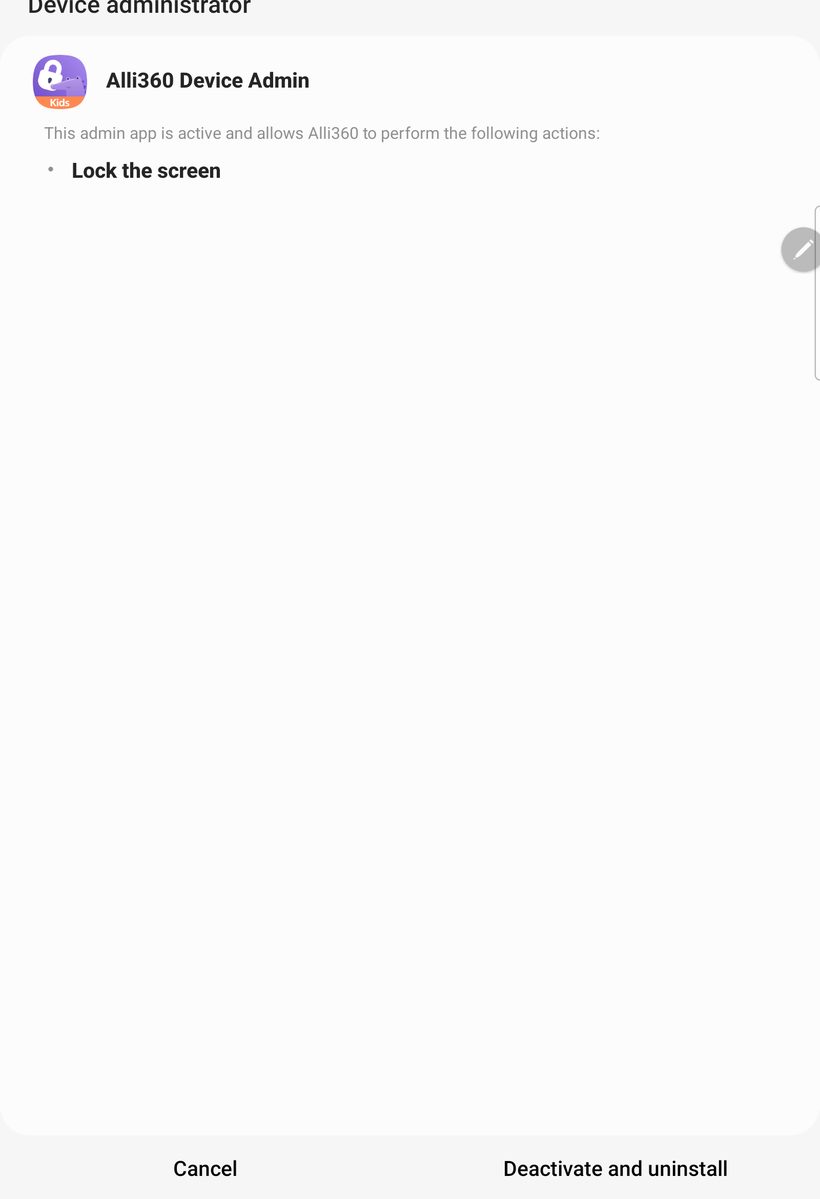
A real screen from a Samsung tablet - 3
Confirm the removal
A normal “Do you want to uninstall this app?” prompt appears. Tap “OK” and Alli360 is gone.
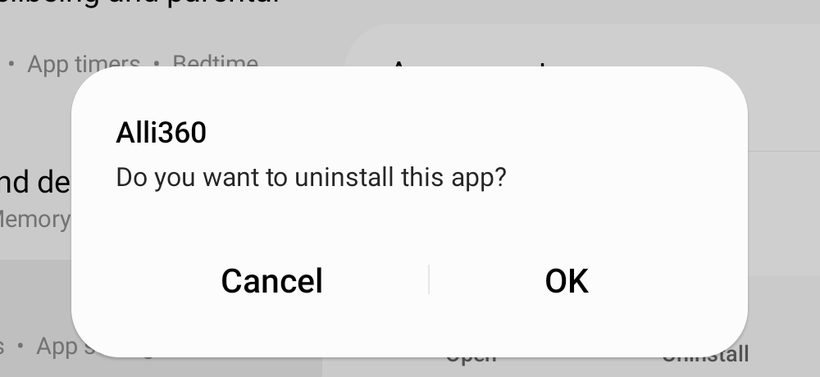
A real screen from a Samsung tablet - 4
Turn off the accessibility service
Settings → Accessibility → find Alli360 and turn the switch off. That service is how the app watches what’s open on the phone; turning it off stops the tracking.


How to check it worked
Alli360 is no longer in the apps list, and the app timers it set are gone.
Questions parents ask
Kids360 is the parent app; Alli360 is what goes on the child’s phone. On the child’s device you remove Alli360.
It’s the device administrator. Remove that role in step 2 and uninstalling works the usual way.
The limits are held by the accessibility service. Turn it off in step 4 and the blocks are lifted.
Why we built Gardion differently
Alli360 comes off in a couple of minutes once you know the Settings route — a teenager manages it too. Gardion is also a device administrator, but if the child opens the uninstall screen or the one that turns protection off, it pulls them away and signals the parent at once.
See how Gardion works